
Overview
Geocoding is the process of converting a physical address into geographic coordinates (latitude and longitude).
In TCMS, geocoding ensures:
-
Drivers are routed to the correct location
-
Jobs appear accurately on the map
-
Distance calculations and ETAs are reliable
-
Route optimisation functions correctly
If an address is not properly geocoded, it can result in incorrect routing, delays, or delivery failures.
How to Identify if an Address Has Been Geocoded
You can quickly identify whether an address has been successfully geocoded by checking the background colour of the address fields.
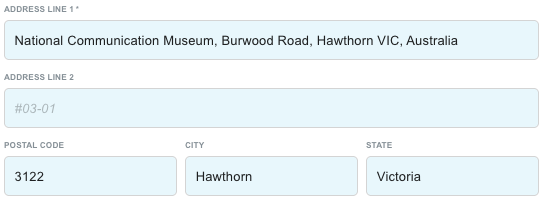
✅ Geocoded Address
-
The address field will display a blue background hue
-
This confirms TCMS has successfully converted the address into map coordinates
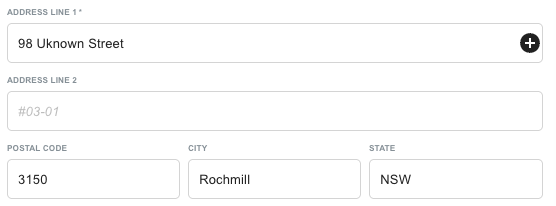
⚪ Not Geocoded
-
The address field background will be white
-
This means the system has not yet successfully geocoded the address
If the field remains white, the address may be incomplete, incorrectly formatted, or missing required information.
How to Ensure Accurate Geocoding
Follow these steps to confirm or correct address geocoding:
1. Verify the Address on the Map
-
Open the order in Explore View
-
Confirm the map pin is positioned correctly
-
Check that the location matches the intended delivery or pickup site
If the pin location is incorrect, action is required.
2. Reselect the address
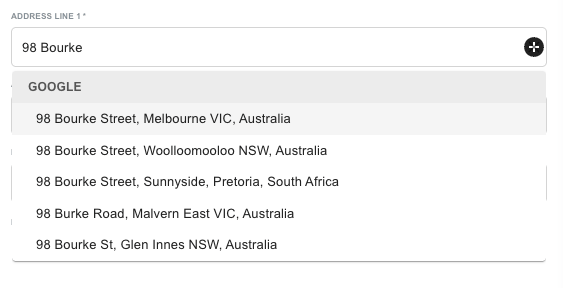
If the address is incomplete or maps incorrectly:
-
Re-type the address in Address Line 1
-
Select the correct address
-
Save the update
Refer to the Editing Orders for Missing Information article for step-by-step instructions.
3. Update the Address in the Address Book
If the issue is likely to occur again (e.g. repeat customer or site):
-
Navigate to Address Book
-
Find the address that has been geocoded incorrectly
-
Update Address Line 1 and related fields
-
Ensure the Contact Name is correctly populated
Important:
For proper geocoding when using the Address Book, the address must match both:
-
Address Line 1
-
Contact Name
This ensures the correct record is selected and geocoded consistently.
Common Reasons an Address Fails to Geocode
-
Missing street number
-
Incorrect suburb or postcode
-
Typographical errors
-
Abbreviated or partial address details
-
Mismatch between Address Line 1 and Contact Name
Ensuring complete and standardised formatting significantly improves geocoding success.
Why Accurate Geocoding Matters
Accurate geocoding directly impacts operational performance.
Route Optimisation
Precise coordinates enable accurate routing and distance calculations.
On-Time Delivery
Drivers are sent to the correct location the first time.
Reporting Accuracy
Distance, ETA, and driver performance metrics rely on geocoded data.
Customer Experience
Reduces delivery errors and failed attempts.
Key Takeaways
-
A blue address field confirms successful geocoding
-
A white address field means the address has not been geocoded
-
Always verify the pin location in Explore View
-
Update the Address Book to prevent recurring issues
-
Accurate address formatting improves routing, ETAs, and delivery success