
Overview
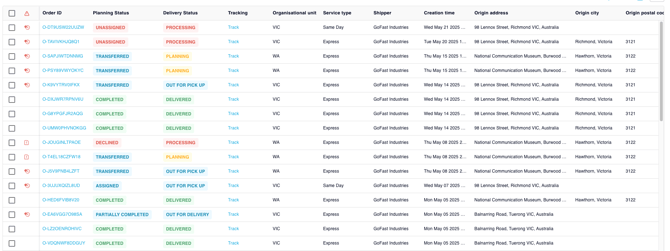
Yojee TCMS provides two complementary status indicators to help teams track orders throughout their lifecycle:
-
Planning Status - reflects the internal preparation and allocation state of the order (dispatch workflow).
-
Delivery Status - reflects the live operational progress of the order during execution.
Together, these statuses give dispatchers and operations teams a complete view of an order’s lifecycle, from creation and planning through to final delivery.
Planning Status
Planning Status shows how an order is being managed internally by dispatch.
It reflects the state of assignment, transfer, and completion within the planning workflow.
Planning Status Values
| Planning Status | Meaning |
|---|---|
| Cancelled | The order has been cancelled and will not be executed. |
| Completed | All tasks within the order have been completed. |
| Unassigned | The order has been created but no driver or partner has been assigned. |
| Assigned | The order has been assigned to a driver. |
| Partially Assigned | Some items or tasks have been assigned to a driver, but not all. |
| Transferred | The order has been transferred to a downstream partner and accepted. |
| Transfer Pending | The order has been transferred but the partner has not yet accepted it. |
| Transfer Planned | The order is planned to be transferred but has not yet been transferred. |
| Declined | The downstream partner declined the transfer request. |
| Partially Completed | Some tasks have been completed, but the order is not fully completed. |
Planning Status is primarily used by dispatchers and planners to manage allocation, workflow, and order routing.
Delivery Status
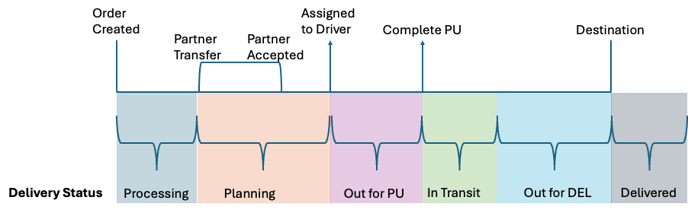
Delivery Status reflects the real-time execution state of an order as it progresses through pickup, transit, and delivery.
Unlike Planning Status, Delivery Status is automatically derived from operational data, including:
-
Tasks
-
Journey legs
-
Item Tracking Numbers (ITNs)
-
Partner acceptance
-
Driver progress
This provides a more accurate representation of what is happening operationally in the field.
Delivery Status Values
The system automatically calculates Delivery Status based on operational conditions.
| Scenario | Delivery Status |
|---|---|
| Journey leg not yet assigned or transferred | Processing |
| Assigned journey leg rejected by driver or declined by partner | Processing |
| Assigned leg with some ITNs reported | Processing |
| Assigned but driver has not accepted | Planning |
| Assigned and accepted, no pickups completed | Out for Pick Up |
| At least one pickup completed, next step not destination | In Transit |
| At least one pickup completed | Out for Delivery |
| All destination drop-offs completed | Delivered |
| Transferred but partner has not accepted | Planning |
| Transferred and accepted by partner | Planning |
| Partner driver assigned but not accepted | Planning |
| Transferred with no pickup completed | Out for Pick Up |
| Transferred and pickups started | In Transit |
| Transferred and heading to destination | Out for Delivery |
| All drop-offs completed | Delivered |
| All ITNs cancelled | Cancelled |
Using Statuses for Filtering
Both Planning Status and Delivery Status can be used as filters in:
-
Transport Orders Page
-
Orders Report
-
Order Items Report
This allows teams to quickly locate orders based on planning stage or delivery progress.
Examples:
-
Filter Planning Status = Unassigned to find orders awaiting allocation.
-
Filter Delivery Status = In Transit to monitor active deliveries.
Why Both Statuses Matter
| Status Type | Purpose |
|---|---|
| Planning Status | Shows how the order is managed internally by dispatch. |
| Delivery Status | Shows the real-world operational progress of the order. |
Using both together provides the full operational picture.
Example:
| Planning Status | Delivery Status | Meaning |
|---|---|---|
| Assigned | Out for Delivery | Driver has the job and is delivering. |
| Transferred | In Transit | Partner carrier has accepted and shipment is moving. |
| Completed | Delivered | All tasks are complete. |
Tips for Dispatch Teams
-
Use Delivery Status filters to prioritise orders that are Out for Delivery or In Transit.
-
Use Planning Status filters to identify orders needing allocation or partner acceptance.
-
Save column presets after enabling Delivery Status for consistent visibility across your team.