---
title: Transport Orders – Alert Column
description: Learn what each alert icon in the Transport Orders alert column means in TCMS — including delayed orders, missing information, post-planning changes, and short-shipped items — and how to respond.
---
[Skip to content](https://help.yojee.com/knowledge/transport-orders-alert-column#main-content)
English
Show submenu for translations

- Knowledge Base
Open main navigation
Close main navigation
- Knowledge Base
- English
Show submenu for translations
- [Go to yojee.com](https://www.yojee.com/)
[Go to yojee.com](https://www.yojee.com/)
Hello. How can we help you?
- There are no suggestions because the search field is empty.
1. [Knowledge Base](https://help.yojee.com/knowledge?hsLang=en)
2. [Dispatchers](https://help.yojee.com/knowledge/dispatchers?hsLang=en)
3. [Managing Orders](https://help.yojee.com/knowledge/dispatchers?hsLang=en#managing-orders)
# Transport Orders – Alert Column
## Understanding the alert icons on the Transport Orders page and what action to take
### Overview
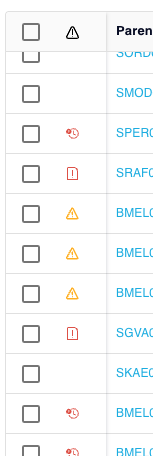
The **Alert column** on the Transport Orders page gives dispatchers and managers an at-a-glance view of orders that need attention. Each icon represents a specific condition on the order — from simple data gaps through to post-planning changes that may affect operations.
When multiple alert conditions apply to the same order, only the **highest priority icon** is shown. Hover over any icon to see a tooltip explaining the condition.
---
### Alert Icons Reference
### ⚠ Post-Planning Change Warning
**Priority: 1 (Highest)**
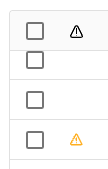
**What it means:** The order's details have been changed after planning has already begun. Planning is considered to have started once at least one Item Tracking Number (ITN) on the order reaches **Assigned** or **Transfer-Unassigned** status.
**Tooltip:** *"Details on this order have changed since planning has begun."*
**What to do:** Review the order to understand what changed (e.g. address, quantities, timing). Check with the driver or planner to confirm the change does not affect active tasks. Re-plan if necessary.
---
### ❗ Missing Information
**Priority: 2**
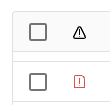
**What it means:** The order is missing one or more required fields needed for processing or dispatch. This could include a missing delivery address, contact, or other mandatory data.
**Tooltip:** *"Order has missing information."*
**What to do:** Open the order and review which fields are incomplete. Complete the missing information before dispatching or planning the order.
---
### 🕐 Delayed
**Priority: 3**
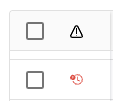
**What it means:** The order is running behind schedule. This is triggered when the planned completion time has passed and the order has not yet been completed.
**Tooltip:** *"Order is delayed."*
**What to do:** Contact the assigned driver to check on progress. Consider whether replanning or customer communication is required. Check the Driver Activity report for real-time task completion status.
---
### 📦 Short Shipped
**Priority: 4 (Lowest)**

**What it means:** The order is complete, but at least one item was delivered with a quantity less than planned. For example, if 10 units were planned but only 8 were confirmed at drop-off, this alert is shown.
**Tooltip:** *"This order has one or more items that were short shipped."*
**What to do:** Review the order's item delivery quantities. Follow up with the driver or customer to confirm the discrepancy and raise any necessary claims or adjustments. You can also use the **Short Shipped** filter under Planning Status to find all affected orders.
---
### Priority Hierarchy
When an order has more than one active alert condition, only the **highest priority icon** is displayed in the Alert column. The full hierarchy is:
| Priority | Alert Type | When it applies |
| --- | --- | --- |
| **1** | Post-Planning Change Warning | Order edited after at least one ITN reaches Assigned or Transfer-Unassigned status |
| **2** | Missing Information | Required order fields are incomplete |
| **3** | Delayed | Planned completion time has passed without completion |
| **4** | Short Shipped | Completed order with Delivered Qty \< Planned Qty on one or more items |
> **Example:** If an order is both delayed and has missing information, only the **Missing Information** icon (Priority 2) is shown. To see the full picture, open the order directly.
---
### No Alert Icon
If the Alert column is empty for an order, no active alert conditions apply. The order is on track with all required information complete and no post-planning changes.
---
### Frequently Asked Questions
**Why is only one icon shown when my order has multiple issues?** TCMS shows only the highest priority alert to avoid cluttering the column. Open the order to review all conditions that may apply.
**The warning icon appeared after I edited an order — is that expected?** Yes. If you update an order after planning has begun (i.e. a driver has been assigned), the post-planning change warning is triggered automatically. This is by design so dispatchers know to review the impact of the change.
**Can I filter the Transport Orders page by alert type?** Not directly by alert icon. However, you can use the **Short Shipped** filter under Planning Status to isolate short-shipped orders. For delayed orders, use the date range and planning status filters to narrow results.
**How do I clear an alert?** Alerts clear automatically once the underlying condition is resolved — for example, once missing information is added, or once a delayed order is completed.
- [Quick Start Guides](https://help.yojee.com/knowledge/quick-start-guides?hsLang=en)
- [Power Up with Yojee - Training Sessions](https://help.yojee.com/knowledge/power-up-with-yojee-training-sessions?hsLang=en)
- [Dispatchers](https://help.yojee.com/knowledge/dispatchers?hsLang=en#main-content)
- [Creating Orders](https://help.yojee.com/knowledge/dispatchers?hsLang=en#creating-orders)
- [Managing Orders](https://help.yojee.com/knowledge/dispatchers?hsLang=en#managing-orders)
- [Dispatching Orders](https://help.yojee.com/knowledge/dispatchers?hsLang=en#dispatching-orders)
- [Tracking Orders](https://help.yojee.com/knowledge/dispatchers?hsLang=en#tracking-orders)
- [Partners](https://help.yojee.com/knowledge/dispatchers?hsLang=en#partners)
- [Network](https://help.yojee.com/knowledge/dispatchers?hsLang=en#network)
- [Drivers](https://help.yojee.com/knowledge/drivers?hsLang=en)
- [Senders](https://help.yojee.com/knowledge/senders?hsLang=en)
- [Partners](https://help.yojee.com/knowledge/partners?hsLang=en)
- [Manage](https://help.yojee.com/knowledge/manage?hsLang=en#main-content)
- [Account](https://help.yojee.com/knowledge/manage?hsLang=en#account)
- [Users](https://help.yojee.com/knowledge/manage?hsLang=en#users)
- [Fleet](https://help.yojee.com/knowledge/manage?hsLang=en#fleet)
- [Drivers](https://help.yojee.com/knowledge/manage?hsLang=en#drivers)
- [Addresses](https://help.yojee.com/knowledge/manage?hsLang=en#addresses)
- [Customers](https://help.yojee.com/knowledge/manage?hsLang=en#customers)
- [Orders](https://help.yojee.com/knowledge/manage?hsLang=en#orders)
- [Planning](https://help.yojee.com/knowledge/manage?hsLang=en#planning)
- [Documentation](https://help.yojee.com/knowledge/manage?hsLang=en#documentation)
- [Finance](https://help.yojee.com/knowledge/manage?hsLang=en#finance)
- [Partners](https://help.yojee.com/knowledge/manage?hsLang=en#partners)
- [Analytics](https://help.yojee.com/knowledge/analytics?hsLang=en#main-content)
- [Dashboards](https://help.yojee.com/knowledge/analytics?hsLang=en#dashboards)
- [Reports](https://help.yojee.com/knowledge/analytics?hsLang=en#reports)
- [API Documentation](https://help.yojee.com/knowledge/api-documentation?hsLang=en)
- [FAQ and Glossary](https://help.yojee.com/knowledge/faq-and-glossary?hsLang=en#main-content)
- [Drivers & Planning](https://help.yojee.com/knowledge/faq-and-glossary?hsLang=en#drivers-planning)
- [Glossary](https://help.yojee.com/knowledge/faq-and-glossary?hsLang=en#glossary)
- [Reports](https://help.yojee.com/knowledge/faq-and-glossary?hsLang=en#reports)
- [Other](https://help.yojee.com/knowledge/faq-and-glossary?hsLang=en#other)
- [Release Notes](https://help.yojee.com/knowledge/release-notes?hsLang=en#main-content)
- [Release Notes 2026](https://help.yojee.com/knowledge/release-notes?hsLang=en#release-notes-2026)
- [Release Notes 2025](https://help.yojee.com/knowledge/release-notes?hsLang=en#release-notes-2025)
- [Release Notes 2024](https://help.yojee.com/knowledge/release-notes?hsLang=en#release-notes-2024)
- [Release Notes 2023](https://help.yojee.com/knowledge/release-notes?hsLang=en#release-notes-2023)
- [Release Notes 2022](https://help.yojee.com/knowledge/release-notes?hsLang=en#release-notes-2022)
- [Release Notes 2021](https://help.yojee.com/knowledge/release-notes?hsLang=en#release-notes-2021)
- [Release Notes 2020](https://help.yojee.com/knowledge/release-notes?hsLang=en#release-notes-2020)
- [New Starter Training](https://help.yojee.com/knowledge/new-starter-training?hsLang=en#main-content)
- [Level 1](https://help.yojee.com/knowledge/new-starter-training?hsLang=en#level-1)
[](https://www.yojee.com)
TCMS Knowledge Base
[mailto:support@yojee.com](mailto:support@yojee.com)
Copyright © 2026 Yojee Pte Ltd