---
title: Team Notifications
description: See every TCMS Team Notification available today, what triggers each one, and how to choose who gets emailed, from cancellations to short shipments and missed SLAs.
---
[Skip to content](https://help.yojee.com/knowledge/team-notifications#main-content)
English
Show submenu for translations

- Knowledge Base
Open main navigation
Close main navigation
- Knowledge Base
- English
Show submenu for translations
- [Go to yojee.com](https://www.yojee.com/)
[Go to yojee.com](https://www.yojee.com/)
Hello. How can we help you?
- There are no suggestions because the search field is empty.
1. [Knowledge Base](https://help.yojee.com/knowledge?hsLang=en)
2. [Manage](https://help.yojee.com/knowledge/manage?hsLang=en)
3. [Users](https://help.yojee.com/knowledge/manage?hsLang=en#users)
# Team Notifications
## This article covers every Team Notification currently available in TCMS, what triggers each one, and how to choose who receives it.
### Where to find it
Select your name in the top right, then choose **Manage**. Go to **Team \> Team Notifications**.
### What you can configure
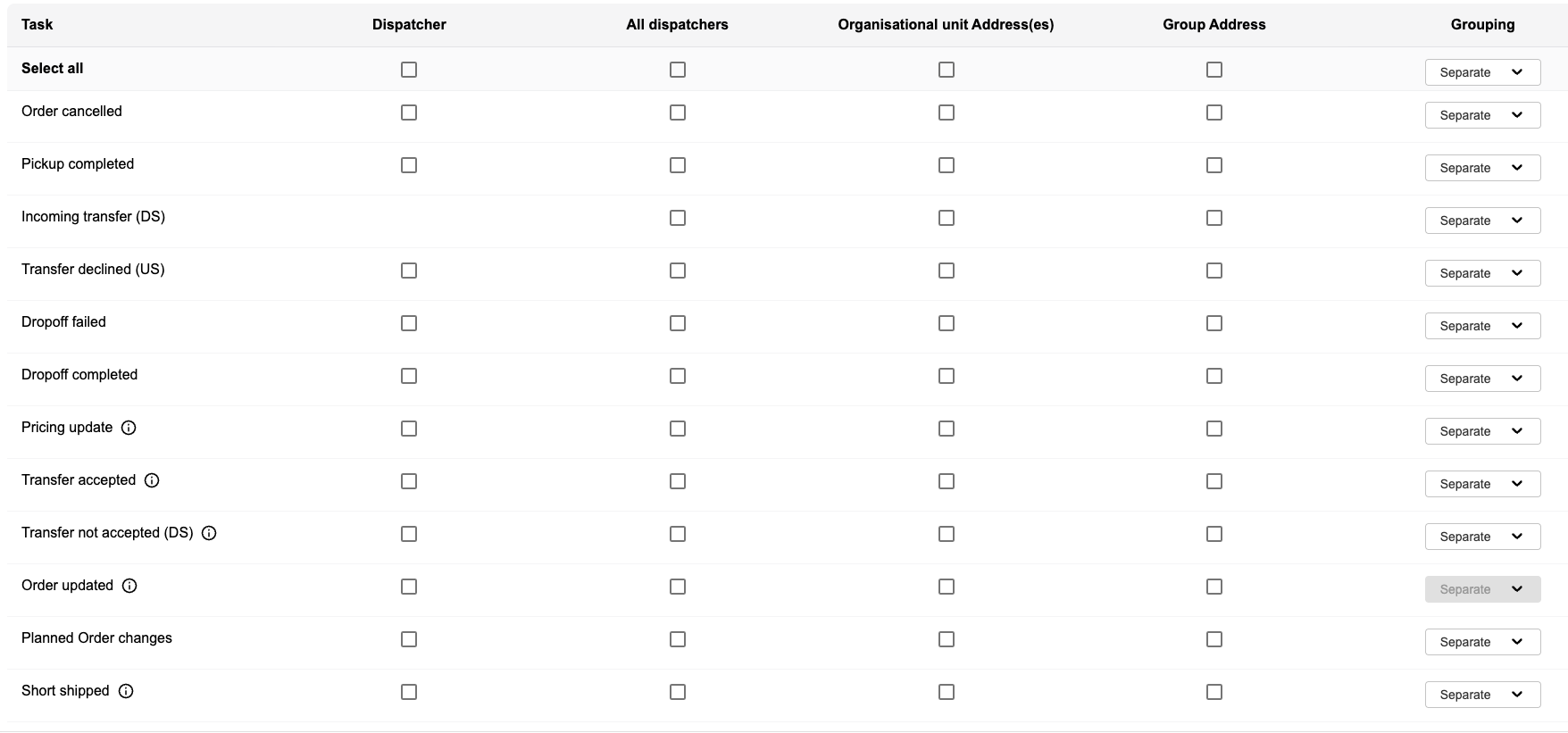
For each notification, tick who should receive it:
| Column | Who gets the email |
| --- | --- |
| **Dispatcher** | The dispatcher who created or actioned the order |
| **All dispatchers** | Every dispatcher with access to the order |
| **Organisational unit Address(es)** | The email address(es) set on the order's organisational unit |
| **Group Address** | A custom address, or several comma-separated addresses, you set up for this purpose |
**Grouping**, in the last column, controls whether each triggering event sends its own email (**Separate**) or multiple events are combined into one digest-style email (**Grouped**). Some rows default to Grouped and some to Separate. You can change this per notification.
Notification types
| Notification | What triggers it |
| --- | --- |
| **Order cancelled** | An order is cancelled. |
| **Pickup completed** | The pickup task for the order is completed. |
| **Incoming transfer (DS)** | An order is transferred to you as the downstream partner. |
| **Transfer declined (US)** | A downstream partner declines an order you transferred to them. |
| **Dropoff failed** | The dropoff task for the order is reported as failed or unable to be completed. |
| **Dropoff completed** | The dropoff task for the order is completed. |
| **Pricing update** | Pricing on the order is updated, including pricing returned from a downstream partner. |
| **Transfer accepted** | A downstream partner accepts a transferred order. Includes any carrier reference they supply. |
| **Transfer not accepted (DS)** | A transferred order is not accepted by the partner within the [Order Acceptance SLA](https://help.yojee.com/knowledge/how-to-set-up-an-order-acceptance-sla-for-a-partner?hsLang=en) set for that partnership. |
| **Order updated** | Container-related fields on the order are updated. |
| **Planned Order changes** | An order is edited after planning has begun (that is, after it's been assigned or transferred and is awaiting transfer acceptance). The email confirms a change happened and links to TCMS. It does not list what changed. Check the order's audit log for the detail. |
| **Short shipped** | An order is completed and one or more items were delivered in a lower quantity than expected. The email lists the affected item(s), expected versus delivered quantity, and any driver notes. |
> 
### Good to know
- **New partner? Nothing is on by default.** Every row starts unticked for a new company. Turn on the ones your team wants.
- **"Transfer not accepted (DS)" only fires if an Order Acceptance SLA is set.** With no SLA configured on a partnership, this row has nothing to notify on for that partner, even if ticked. See "Setting up an Order Acceptance SLA."
- **"Planned Order changes" and "Order updated" can both fire on the same edit.** They cover different things: Order updated is about container fields; Planned Order changes is about any edit made once the order has moved into planning. It's normal to see both if that overlap applies.
- New notification types are added from time to time. If a row you'd expect isn't here, contact [support@yojee.com](mailto:support@yojee.com) and we'll confirm whether it exists yet.
- [Quick Start Guides](https://help.yojee.com/knowledge/quick-start-guides?hsLang=en)
- [Power Up with Yojee - Training Sessions](https://help.yojee.com/knowledge/power-up-with-yojee-training-sessions?hsLang=en)
- [Dispatchers](https://help.yojee.com/knowledge/dispatchers?hsLang=en#main-content)
- [Creating Orders](https://help.yojee.com/knowledge/dispatchers?hsLang=en#creating-orders)
- [Managing Orders](https://help.yojee.com/knowledge/dispatchers?hsLang=en#managing-orders)
- [Dispatching Orders](https://help.yojee.com/knowledge/dispatchers?hsLang=en#dispatching-orders)
- [Tracking Orders](https://help.yojee.com/knowledge/dispatchers?hsLang=en#tracking-orders)
- [Partners](https://help.yojee.com/knowledge/dispatchers?hsLang=en#partners)
- [Network](https://help.yojee.com/knowledge/dispatchers?hsLang=en#network)
- [Drivers](https://help.yojee.com/knowledge/drivers?hsLang=en)
- [Senders](https://help.yojee.com/knowledge/senders?hsLang=en)
- [Partners](https://help.yojee.com/knowledge/partners?hsLang=en)
- [Manage](https://help.yojee.com/knowledge/manage?hsLang=en#main-content)
- [Account](https://help.yojee.com/knowledge/manage?hsLang=en#account)
- [Users](https://help.yojee.com/knowledge/manage?hsLang=en#users)
- [Fleet](https://help.yojee.com/knowledge/manage?hsLang=en#fleet)
- [Drivers](https://help.yojee.com/knowledge/manage?hsLang=en#drivers)
- [Addresses](https://help.yojee.com/knowledge/manage?hsLang=en#addresses)
- [Customers](https://help.yojee.com/knowledge/manage?hsLang=en#customers)
- [Orders](https://help.yojee.com/knowledge/manage?hsLang=en#orders)
- [Planning](https://help.yojee.com/knowledge/manage?hsLang=en#planning)
- [Documentation](https://help.yojee.com/knowledge/manage?hsLang=en#documentation)
- [Finance](https://help.yojee.com/knowledge/manage?hsLang=en#finance)
- [Partners](https://help.yojee.com/knowledge/manage?hsLang=en#partners)
- [Analytics](https://help.yojee.com/knowledge/analytics?hsLang=en#main-content)
- [Dashboards](https://help.yojee.com/knowledge/analytics?hsLang=en#dashboards)
- [Reports](https://help.yojee.com/knowledge/analytics?hsLang=en#reports)
- [API Documentation](https://help.yojee.com/knowledge/api-documentation?hsLang=en)
- [FAQ and Glossary](https://help.yojee.com/knowledge/faq-and-glossary?hsLang=en#main-content)
- [Drivers & Planning](https://help.yojee.com/knowledge/faq-and-glossary?hsLang=en#drivers-planning)
- [Glossary](https://help.yojee.com/knowledge/faq-and-glossary?hsLang=en#glossary)
- [Reports](https://help.yojee.com/knowledge/faq-and-glossary?hsLang=en#reports)
- [Other](https://help.yojee.com/knowledge/faq-and-glossary?hsLang=en#other)
- [Release Notes](https://help.yojee.com/knowledge/release-notes?hsLang=en#main-content)
- [Release Notes 2026](https://help.yojee.com/knowledge/release-notes?hsLang=en#release-notes-2026)
- [Release Notes 2025](https://help.yojee.com/knowledge/release-notes?hsLang=en#release-notes-2025)
- [Release Notes 2024](https://help.yojee.com/knowledge/release-notes?hsLang=en#release-notes-2024)
- [Release Notes 2023](https://help.yojee.com/knowledge/release-notes?hsLang=en#release-notes-2023)
- [Release Notes 2022](https://help.yojee.com/knowledge/release-notes?hsLang=en#release-notes-2022)
- [Release Notes 2021](https://help.yojee.com/knowledge/release-notes?hsLang=en#release-notes-2021)
- [Release Notes 2020](https://help.yojee.com/knowledge/release-notes?hsLang=en#release-notes-2020)
- [New Starter Training](https://help.yojee.com/knowledge/new-starter-training?hsLang=en#main-content)
- [Level 1](https://help.yojee.com/knowledge/new-starter-training?hsLang=en#level-1)
[](https://www.yojee.com)
TCMS Knowledge Base
[mailto:support@yojee.com](mailto:support@yojee.com)
Copyright © 2026 Yojee Pte Ltd