---
title: Manual Plan
description: Create and assign a job sequence for your drivers
---
[Skip to content](https://help.yojee.com/knowledge/manual-plan#main-content)
English
Show submenu for translations

- Knowledge Base
Open main navigation
Close main navigation
- Knowledge Base
- English
Show submenu for translations
- [Go to yojee.com](https://www.yojee.com/)
[Go to yojee.com](https://www.yojee.com/)
Hello. How can we help you?
- There are no suggestions because the search field is empty.
1. [Knowledge Base](https://help.yojee.com/knowledge?hsLang=en)
2. [Dispatchers](https://help.yojee.com/knowledge/dispatchers?hsLang=en)
3. [Dispatching Orders](https://help.yojee.com/knowledge/dispatchers?hsLang=en#dispatching-orders)
# Manual Plan
## Create and assign a job sequence for your drivers
The ability to manually create a sequence may be required if you are not relying on the optimiser to optimise your routes for you. This could come from the need to deliver your goods in a specific sequence based on priority and/or location or size of the goods you are moving.
#### Manual Planning steps:
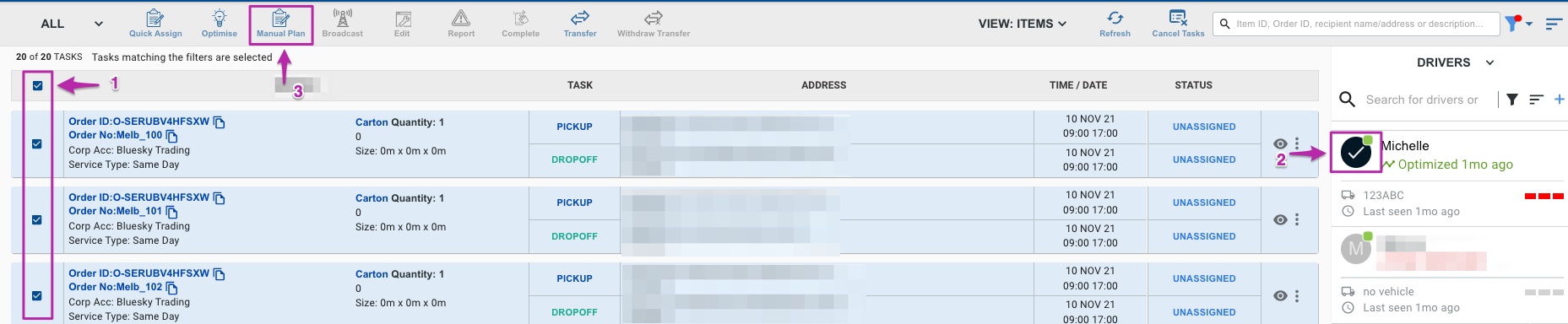
1. Select the **unassigned** jobs you want to plan for.
2. Select your driver
3. Select the Manual Plan button in the menu above
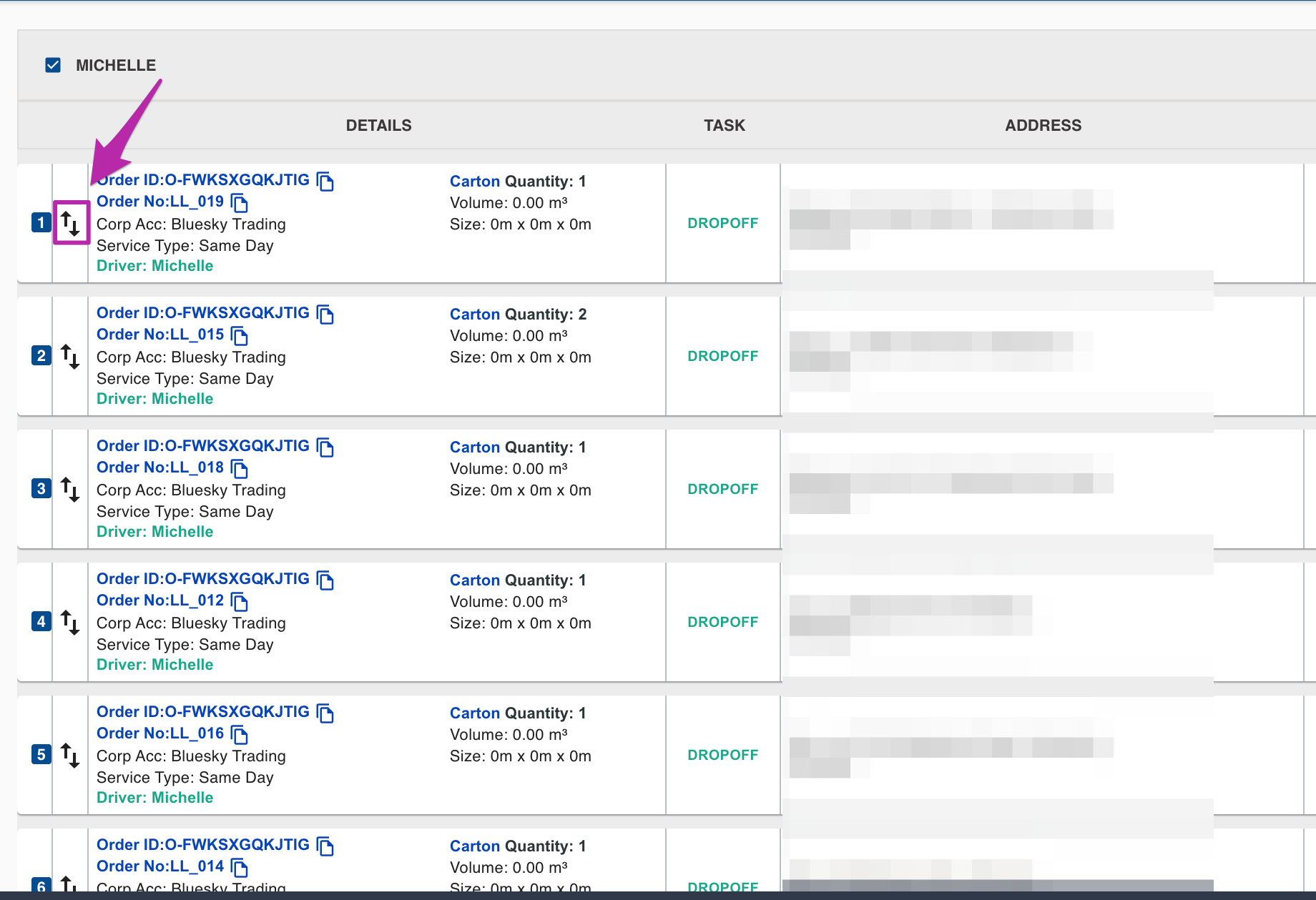
4. You now have the ability to drag your stops in the order you prefer in either List or Explore View. Simply click and hold the arrows as shown here to drag your stops into the desired sequence.
Ensure to select ***Assign*** once you have completed sequencing, if you are not proceeding to the next step
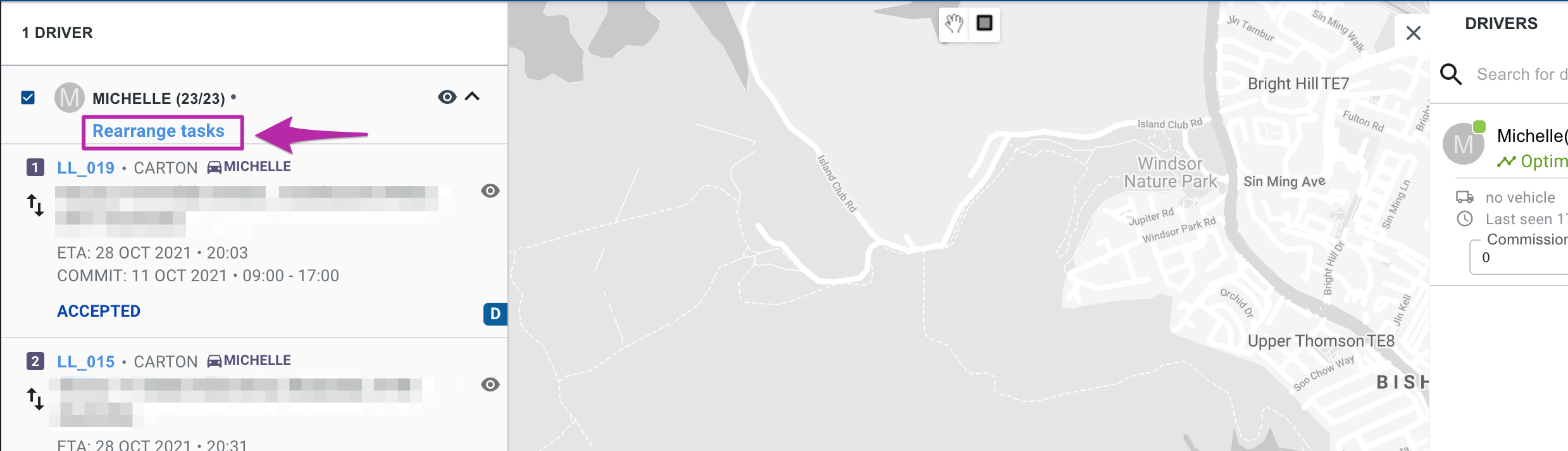
5. OR you can now click on the **Re-Arrange ** button. This will open a tiled view of all your stops, and will include any outstanding jobs currently assigned to that same driver.
**LIST:**

**EXPLORE**:
### Re-arrange
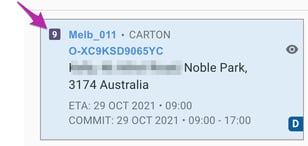
After clicking on the re-arrange button in the previous steps, all stops will be marked with a P for pickup or D for drop off with the Item Type, Order ID, Item ID, ETA, Address and Commit Date.
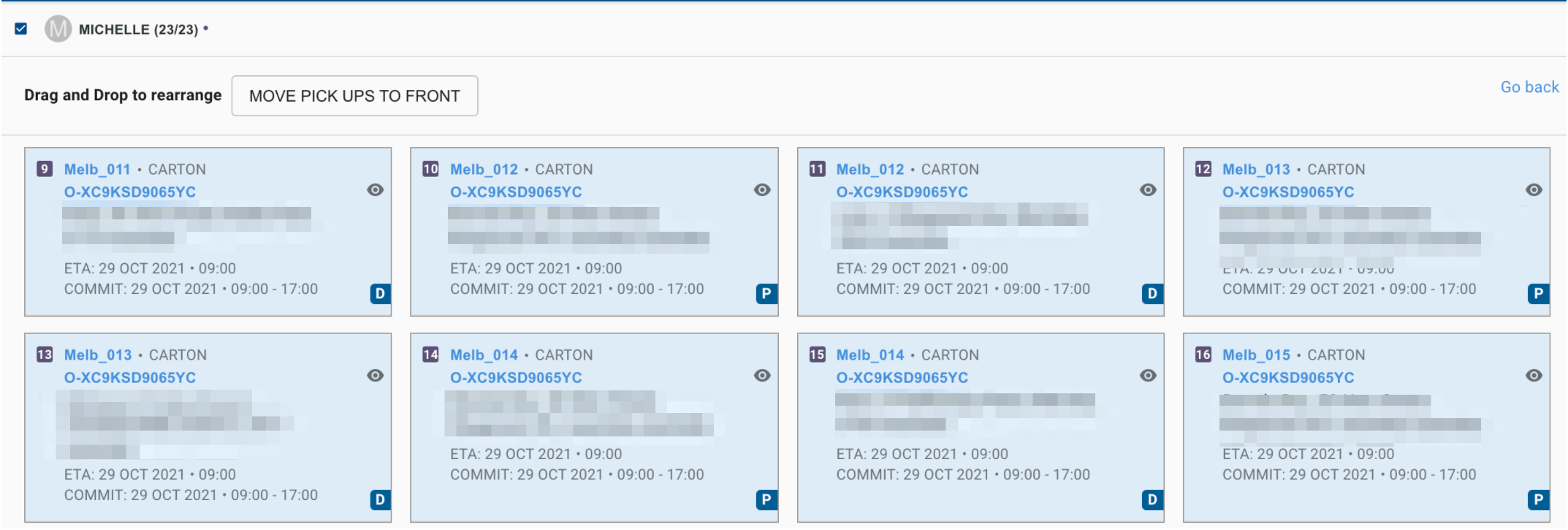
The stop numbers are indicated on the top left of the cards:
There are a couple of options to help you re-arrange your tasks.
1. Click and hold the card/stop and drag to the position that is required. A blue line will indicate that you can drop to that position.
2. You may need to only sequence either your pick up ***or*** drop off tasks. To do this, click on the "**Group By Pick Up & Drop Off**" button and all your pickups & drops will be grouped together will move to the front of your run, allowing you to focus on the stops you need to.

To undo click on this button;

3. Click the sequence you want. For eg, you may have a scheduled run you need to follow and you need to number your jobs from 1-20. By clicking on each card this allows you to sequence as you click.
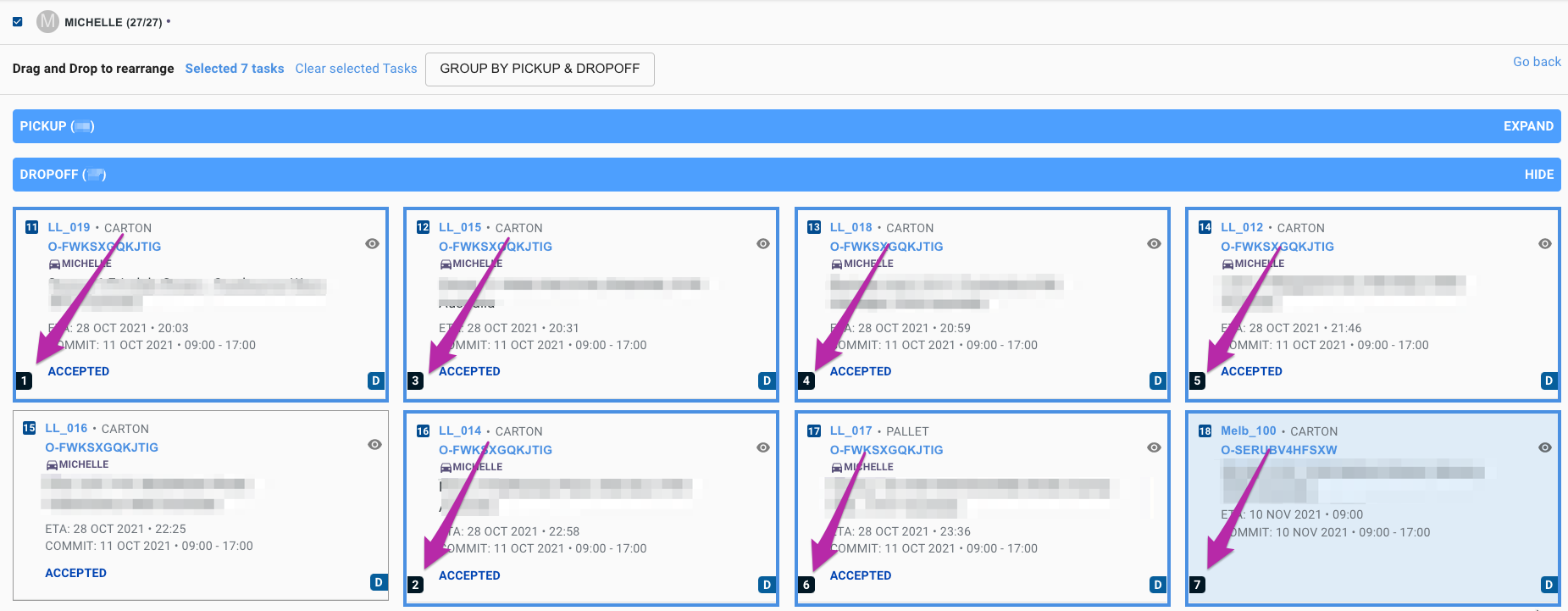
1. Once you have finished clicking the cards/stops to be sequenced, click and hold the cards and move them to position to re-arrange the stops automatically to the sequence you have just set.
2. If you make a mistake, just click on the same card again to de-select it or you can choose to clear all tasks and start again

### Recalculate ETA
If you need to recalculate the ETA you can do this by clicking the **"Recalculate ETA"** button.
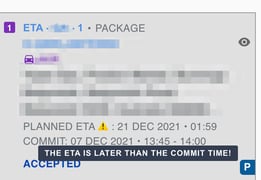
- We will also inform you when the ETA is **later** than the commit time. You’ll see a warning sign ⚠️ next to the planned ETA and if you hover over the icon it will display “The ETA is later than the commit time!”
### Finalising and Assigning Your Plan
Now that you have your sequence, click on "**Go Back**" and then **Assign** to you driver.

If you cancel your planning or move away from the page before assigning a warning will pop up:

TIP 👏
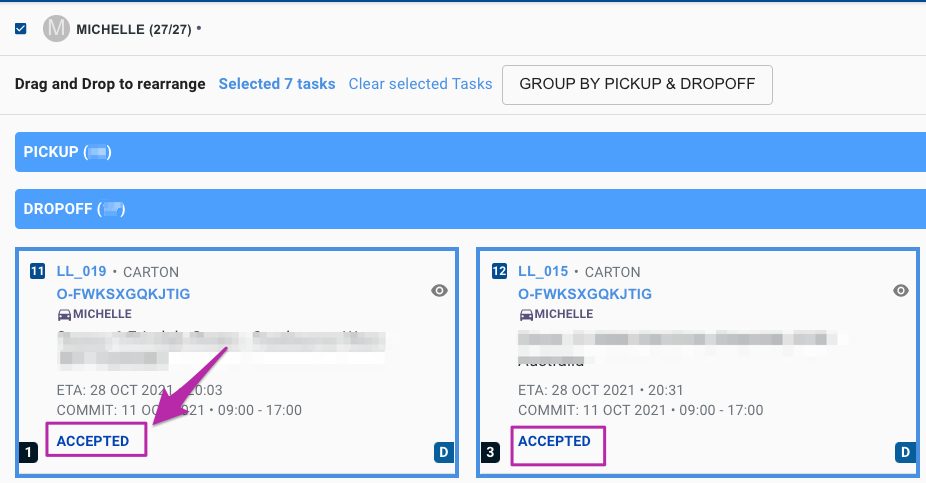
Already have job assigned to the driver and you just need to add a few jobs and sequence those into your run? No problem!
Simply click on the unassigned tasks and follow the process above! 🙌
The pre-assigned jobs will display as accepted (or assigned if auto accept for your drivers is not enabled) on the cards
- [Quick Start Guides](https://help.yojee.com/knowledge/quick-start-guides?hsLang=en)
- [Power Up with Yojee - Training Sessions](https://help.yojee.com/knowledge/power-up-with-yojee-training-sessions?hsLang=en)
- [Dispatchers](https://help.yojee.com/knowledge/dispatchers?hsLang=en#main-content)
- [Creating Orders](https://help.yojee.com/knowledge/dispatchers?hsLang=en#creating-orders)
- [Managing Orders](https://help.yojee.com/knowledge/dispatchers?hsLang=en#managing-orders)
- [Dispatching Orders](https://help.yojee.com/knowledge/dispatchers?hsLang=en#dispatching-orders)
- [Tracking Orders](https://help.yojee.com/knowledge/dispatchers?hsLang=en#tracking-orders)
- [Partners](https://help.yojee.com/knowledge/dispatchers?hsLang=en#partners)
- [Network](https://help.yojee.com/knowledge/dispatchers?hsLang=en#network)
- [Drivers](https://help.yojee.com/knowledge/drivers?hsLang=en)
- [Senders](https://help.yojee.com/knowledge/senders?hsLang=en)
- [Partners](https://help.yojee.com/knowledge/partners?hsLang=en)
- [Manage](https://help.yojee.com/knowledge/manage?hsLang=en#main-content)
- [Account](https://help.yojee.com/knowledge/manage?hsLang=en#account)
- [Users](https://help.yojee.com/knowledge/manage?hsLang=en#users)
- [Fleet](https://help.yojee.com/knowledge/manage?hsLang=en#fleet)
- [Drivers](https://help.yojee.com/knowledge/manage?hsLang=en#drivers)
- [Addresses](https://help.yojee.com/knowledge/manage?hsLang=en#addresses)
- [Customers](https://help.yojee.com/knowledge/manage?hsLang=en#customers)
- [Orders](https://help.yojee.com/knowledge/manage?hsLang=en#orders)
- [Planning](https://help.yojee.com/knowledge/manage?hsLang=en#planning)
- [Documentation](https://help.yojee.com/knowledge/manage?hsLang=en#documentation)
- [Finance](https://help.yojee.com/knowledge/manage?hsLang=en#finance)
- [Partners](https://help.yojee.com/knowledge/manage?hsLang=en#partners)
- [Analytics](https://help.yojee.com/knowledge/analytics?hsLang=en#main-content)
- [Dashboards](https://help.yojee.com/knowledge/analytics?hsLang=en#dashboards)
- [Reports](https://help.yojee.com/knowledge/analytics?hsLang=en#reports)
- [API Documentation](https://help.yojee.com/knowledge/api-documentation?hsLang=en)
- [FAQ and Glossary](https://help.yojee.com/knowledge/faq-and-glossary?hsLang=en#main-content)
- [Drivers & Planning](https://help.yojee.com/knowledge/faq-and-glossary?hsLang=en#drivers-planning)
- [Glossary](https://help.yojee.com/knowledge/faq-and-glossary?hsLang=en#glossary)
- [Reports](https://help.yojee.com/knowledge/faq-and-glossary?hsLang=en#reports)
- [Other](https://help.yojee.com/knowledge/faq-and-glossary?hsLang=en#other)
- [Release Notes](https://help.yojee.com/knowledge/release-notes?hsLang=en#main-content)
- [Release Notes 2026](https://help.yojee.com/knowledge/release-notes?hsLang=en#release-notes-2026)
- [Release Notes 2025](https://help.yojee.com/knowledge/release-notes?hsLang=en#release-notes-2025)
- [Release Notes 2024](https://help.yojee.com/knowledge/release-notes?hsLang=en#release-notes-2024)
- [Release Notes 2023](https://help.yojee.com/knowledge/release-notes?hsLang=en#release-notes-2023)
- [Release Notes 2022](https://help.yojee.com/knowledge/release-notes?hsLang=en#release-notes-2022)
- [Release Notes 2021](https://help.yojee.com/knowledge/release-notes?hsLang=en#release-notes-2021)
- [Release Notes 2020](https://help.yojee.com/knowledge/release-notes?hsLang=en#release-notes-2020)
- [New Starter Training](https://help.yojee.com/knowledge/new-starter-training?hsLang=en#main-content)
- [Level 1](https://help.yojee.com/knowledge/new-starter-training?hsLang=en#level-1)
[](https://www.yojee.com)
TCMS Knowledge Base
[mailto:support@yojee.com](mailto:support@yojee.com)
Copyright © 2026 Yojee Pte Ltd