---
title: "Driver App: Geofence Enter / Exit Timestamps"
description: Learn how TCMS captures precise geofence entry and exit times for each driver task, how these differ from Arrival Time, where to find the fields in the Order Items report, and what dwell-time analytics they enable.
---
[Skip to content](https://help.yojee.com/knowledge/driver-app-geofence-timestamps#main-content)
English
Show submenu for translations

- Knowledge Base
Open main navigation
Close main navigation
- Knowledge Base
- English
Show submenu for translations
- [Go to yojee.com](https://www.yojee.com/)
[Go to yojee.com](https://www.yojee.com/)
Hello. How can we help you?
- There are no suggestions because the search field is empty.
1. [Knowledge Base](https://help.yojee.com/knowledge?hsLang=en)
2. [Analytics](https://help.yojee.com/knowledge/analytics?hsLang=en)
3. [Reports](https://help.yojee.com/knowledge/analytics?hsLang=en#reports)
# Driver App: Geofence Enter / Exit Timestamps
## How TCMS records when drivers enter and leave a task's geofence, and where to find this data
### Overview
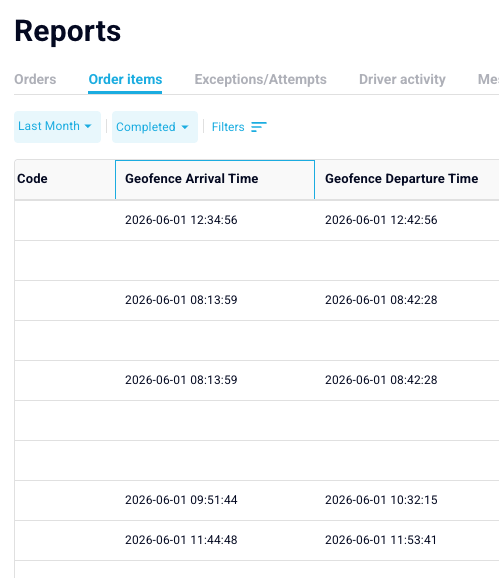
The TCMS Driver App now records the precise time a driver enters and exits the geofence zone around each task location. These two timestamps — **Geofence Arrival Time** and **Geofence Departure Time** — are stored separately from the driver's manually tapped Arrival Time, giving operations teams a more accurate picture of how long drivers actually spend at each site.
The fields are available in the **Order Items report** and the **Driver Activity report**, and form the foundation for dwell time, time-on-site, and ETA analytics — with further reports building on this data in the months ahead.
---
### What Is a Geofence?
A geofence is a virtual boundary drawn around a task location (pickup or delivery address). When a driver's device crosses this boundary — either entering or exiting — the Driver App registers a geofence event and records the time.
---
### The Two New Fields
### Geofence Arrival Time
**What it captures:** The time the driver's device last entered the task's geofence zone before the task was completed.
**Why "last" entry?** Drivers sometimes pass close to a location before their actual arrival — for example, while completing a nearby task or taking a route past the site. Using the most recent geofence entry before completion filters out these false triggers and captures the driver's genuine arrival at the location.
**Example:**
| Event | Time |
| --- | --- |
| Driver passes nearby (geofence enters) | 09:00 |
| Driver returns and arrives properly (geofence enters again) | 10:30 |
| Driver completes task | 10:45 |
| ✅ **Geofence Arrival Time stored** | **10:30** |
---
### Geofence Departure Time
**What it captures:** The time the driver's device first exited the task's geofence zone after the task was completed.
**Why "first" exit after completion?** Once a task is done, the first time the driver leaves the geofence represents when they actually departed the site. Any subsequent re-entries (e.g. returning to collect something) are not relevant to the completed task.
**Example:**
| Event | Time |
| --- | --- |
| Driver completes task | 10:45 |
| Driver leaves geofence (first exit after completion) | 10:47 |
| Driver re-enters and exits again later | 11:15 |
| ✅ **Geofence Departure Time stored** | **10:47** |
---
### How These Differ from Arrival Time
It is important to understand how Geofence Arrival Time relates to — but is distinct from — the task's **Arrival Time** field.
| Field | Set by | When |
| --- | --- | --- |
| **Arrival Time** | Driver tapping "Arrived" in the app during task completion | At the moment the driver manually triggers arrival |
| **Geofence Arrival Time** | Automatic geofence detection | When the driver's device enters the geofence zone (may be before the task is started) |
| **Geofence Departure Time** | Automatic geofence detection | When the driver's device exits the geofence zone after completion |
Geofence Arrival Time will typically be **earlier** than Arrival Time, since it captures proximity to the location before any manual interaction. The difference between the two can indicate queue wait time or pre-task preparation time.
---
### Where to Find the Fields
### Order Items Report
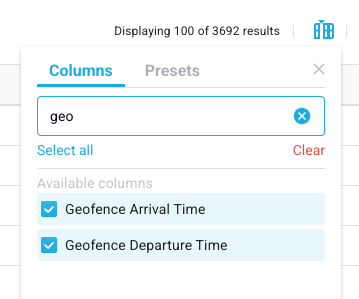
The geofence fields are available in the **Order Items report** but must be added via the column picker — they are not shown by default.
#### Adding the Geofence Columns
1. Navigate to **Reports** and select the **Order Items** tab.
2. Click the **column picker icon** (grid icon, top-right of the report) next to the export button.
3. In the **Columns** panel, type `geofence` into the search field.
4. Both columns will appear under **Available columns**:
- **Geofence Arrival Time**
- **Geofence Departure Time**
5. Tick both checkboxes. The columns will appear at the far right of the report table.
> **Tip:** Once selected, click **Save selection as preset** at the bottom of the Columns panel to lock in your layout for future visits.
#### How Geofence Times Relate to Other Timing Fields
The report includes several task-level time columns. Here is how the geofence fields fit in:
| Column | What it captures |
| --- | --- |
| **ETA** | Estimated arrival time at the task location |
| **Arrival Time** | Time the driver manually tapped "Arrived" in the app |
| **Completion Time** | Time the task was marked complete |
| **Departure Time** | Time recorded when the driver departed |
| **On Site Duration** | Calculated time between Arrival and Completion |
| **Geofence Arrival Time** | Automatic — when the driver's device entered the geofence zone |
| **Geofence Departure Time** | Automatic — when the driver's device exited the geofence zone after completion |
#### Exporting the Data
Both geofence fields are included in the CSV and Excel export:
1. Apply your filters and ensure the geofence columns are ticked in the column picker.
2. Click the **export icon** (top-right corner).
3. In the exported file, **Geofence Arrival Time** and **Geofence Departure Time** appear.
---
### Driver Activity Report
The same fields are also available in the **Driver Activity report**:
- Navigate to **Reports → Driver Activity**
- Use the column picker (same steps as above) to search for and add **Geofence Arrival Time** and **Geofence Departure Time**
- Use these columns alongside Arrival Time and Completion Time for a full per-task timeline
📸 **\[Screenshot placeholder: Driver Activity report with geofence columns added via the column picker\]**
---
### Calculating Dwell Time
With both timestamps available, you can calculate how long a driver spent at each location:
```
Dwell Time = Geofence Departure Time − Geofence Arrival Time
```
This is more accurate than using Arrival Time alone, since geofence-based times are captured automatically and do not depend on the driver completing manual steps in the app.
**Use cases for dwell time data:**
- Identifying locations with consistently long wait times
- Measuring warehouse or depot efficiency
- Validating driver activity for invoicing or payroll
- Informing ETA predictions for subsequent tasks
---
### When the Fields Are Blank
Geofence Arrival Time and Geofence Departure Time will be empty in the following situations:
| Situation | Effect |
| --- | --- |
| Driver's device GPS was unavailable or inaccurate at the task location | No geofence event is captured; field is blank |
| Driver was already inside the geofence when the task was assigned | Entry event may not fire; Arrival Time may still be populated manually |
| Task completed without the driver entering the geofence radius (e.g. remote completion by dispatcher) | No geofence event; both fields blank |
> **Note:** Geofence timestamps are enabled on a per-account (slug) basis. If these columns appear blank across all orders, the feature may not yet be active for your account.
---
### Frequently Asked Questions
**Does Geofence Arrival Time replace Arrival Time?** No. They are separate fields that capture different things. Arrival Time is set by the driver tapping "Arrived" during task completion. Geofence Arrival Time is set automatically when the driver's device enters the geofence zone, independent of any driver action.
**What is the geofence radius?** The geofence radius is configured per task or address in TCMS. If you need to adjust the radius for a particular location, contact your Yojee Customer Success Manager.
**Can I use these fields in external dashboards?** Yes. Both fields are available in the CSV/Excel export from the Order Items and Driver Activity reports, and can be used in any BI tool or dashboard connected to your report data.
**What if the driver passes the same location multiple times before completing the task?** TCMS stores only the most relevant timestamp — the last geofence entry before task completion — so multiple passes do not create duplicate or misleading data.
**Are these fields available for all task types?** Yes — the timestamps apply to both pickup and delivery tasks wherever a geofence is configured for the task location.
- [Quick Start Guides](https://help.yojee.com/knowledge/quick-start-guides?hsLang=en)
- [Power Up with Yojee - Training Sessions](https://help.yojee.com/knowledge/power-up-with-yojee-training-sessions?hsLang=en)
- [Dispatchers](https://help.yojee.com/knowledge/dispatchers?hsLang=en#main-content)
- [Creating Orders](https://help.yojee.com/knowledge/dispatchers?hsLang=en#creating-orders)
- [Managing Orders](https://help.yojee.com/knowledge/dispatchers?hsLang=en#managing-orders)
- [Dispatching Orders](https://help.yojee.com/knowledge/dispatchers?hsLang=en#dispatching-orders)
- [Tracking Orders](https://help.yojee.com/knowledge/dispatchers?hsLang=en#tracking-orders)
- [Partners](https://help.yojee.com/knowledge/dispatchers?hsLang=en#partners)
- [Network](https://help.yojee.com/knowledge/dispatchers?hsLang=en#network)
- [Drivers](https://help.yojee.com/knowledge/drivers?hsLang=en)
- [Senders](https://help.yojee.com/knowledge/senders?hsLang=en)
- [Partners](https://help.yojee.com/knowledge/partners?hsLang=en)
- [Manage](https://help.yojee.com/knowledge/manage?hsLang=en#main-content)
- [Account](https://help.yojee.com/knowledge/manage?hsLang=en#account)
- [Users](https://help.yojee.com/knowledge/manage?hsLang=en#users)
- [Fleet](https://help.yojee.com/knowledge/manage?hsLang=en#fleet)
- [Drivers](https://help.yojee.com/knowledge/manage?hsLang=en#drivers)
- [Addresses](https://help.yojee.com/knowledge/manage?hsLang=en#addresses)
- [Customers](https://help.yojee.com/knowledge/manage?hsLang=en#customers)
- [Orders](https://help.yojee.com/knowledge/manage?hsLang=en#orders)
- [Planning](https://help.yojee.com/knowledge/manage?hsLang=en#planning)
- [Documentation](https://help.yojee.com/knowledge/manage?hsLang=en#documentation)
- [Finance](https://help.yojee.com/knowledge/manage?hsLang=en#finance)
- [Partners](https://help.yojee.com/knowledge/manage?hsLang=en#partners)
- [Analytics](https://help.yojee.com/knowledge/analytics?hsLang=en#main-content)
- [Dashboards](https://help.yojee.com/knowledge/analytics?hsLang=en#dashboards)
- [Reports](https://help.yojee.com/knowledge/analytics?hsLang=en#reports)
- [API Documentation](https://help.yojee.com/knowledge/api-documentation?hsLang=en)
- [FAQ and Glossary](https://help.yojee.com/knowledge/faq-and-glossary?hsLang=en#main-content)
- [Drivers & Planning](https://help.yojee.com/knowledge/faq-and-glossary?hsLang=en#drivers-planning)
- [Glossary](https://help.yojee.com/knowledge/faq-and-glossary?hsLang=en#glossary)
- [Reports](https://help.yojee.com/knowledge/faq-and-glossary?hsLang=en#reports)
- [Other](https://help.yojee.com/knowledge/faq-and-glossary?hsLang=en#other)
- [Release Notes](https://help.yojee.com/knowledge/release-notes?hsLang=en#main-content)
- [Release Notes 2026](https://help.yojee.com/knowledge/release-notes?hsLang=en#release-notes-2026)
- [Release Notes 2025](https://help.yojee.com/knowledge/release-notes?hsLang=en#release-notes-2025)
- [Release Notes 2024](https://help.yojee.com/knowledge/release-notes?hsLang=en#release-notes-2024)
- [Release Notes 2023](https://help.yojee.com/knowledge/release-notes?hsLang=en#release-notes-2023)
- [Release Notes 2022](https://help.yojee.com/knowledge/release-notes?hsLang=en#release-notes-2022)
- [Release Notes 2021](https://help.yojee.com/knowledge/release-notes?hsLang=en#release-notes-2021)
- [Release Notes 2020](https://help.yojee.com/knowledge/release-notes?hsLang=en#release-notes-2020)
- [New Starter Training](https://help.yojee.com/knowledge/new-starter-training?hsLang=en#main-content)
- [Level 1](https://help.yojee.com/knowledge/new-starter-training?hsLang=en#level-1)
[](https://www.yojee.com)
TCMS Knowledge Base
[mailto:support@yojee.com](mailto:support@yojee.com)
Copyright © 2026 Yojee Pte Ltd