---
title: Sender and Partner Specific Driver Workflow
description: Tailor the delivery workflow based on your specific Sender or Partner requirements.
---
[Skip to content](https://help.yojee.com/tcms/partner-and-sender-specific-driver-workflow#main-content)
English
Show submenu for translations

- Knowledge Base
Open main navigation
Close main navigation
- Knowledge Base
- English
Show submenu for translations
- [Go to yojee.com](https://www.yojee.com/)
[Go to yojee.com](https://www.yojee.com/)
Hello. How can we help you?
- There are no suggestions because the search field is empty.
1. [TCMS](https://help.yojee.com/tcms?hsLang=en)
2. [Manage](https://help.yojee.com/tcms/manage?hsLang=en)
3. [Drivers](https://help.yojee.com/tcms/manage?hsLang=en#drivers)
# Sender and Partner Specific Driver Workflow
## Tailor the delivery workflow based on your specific Sender or Partner requirements.
To provide the necessary flexibility when working with multiple customers or partners, we give our customers the ability to customise the settings of the driver app based on their specific needs.
This means that if you have one customer who requires both signatures and photos for each delivery, another customer who only requires signatures or a partner who delivers high-priority items that require photos of completed tasks, you can easily specify these requirements within Yojee.
For more information on Driver Workflows, please see [here](https://help.yojee.com/knowledge/configuring-driver-app-actions?hsLang=en).
### Sender-Specific Driver Workflow
To specify the driver workflow, specific to a sender:
1. Navigate to **Manage \> Customers \> Senders \> Corporate**
2. Find the company you want to specify the workflow and click **edit** 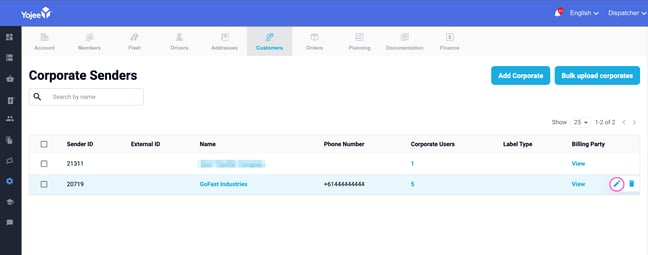
3. Under *Driver workflow settings*, unselect **Default Driver workflow** to make the driver workflow setting appear **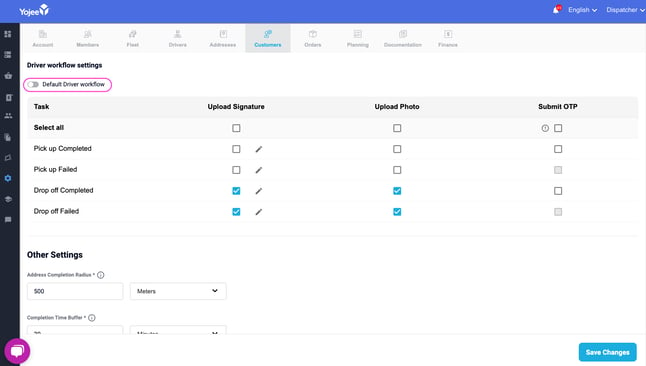**
4. Select the sender specific driver workflow, then **Save Changes**
By setting the sender-based specific driver workflow actions for your Corporate Sender, you have now ensured that when sending future tasks from this corporate sender to your drivers, they will be prompted to follow the specified workflow. This customisation provides a seamless and efficient process for your drivers to adhere to the specific requirements of each sender, ensuring a smooth delivery experience for all parties involved.
### Delivery Partner-Specific Driver Workflow
To specify the driver workflow, specific to a downstream delivery partner:
1. Navigate to **Partners**, and select the delivery partner you want to specify the workflow
2. Under *Driver workflow settings*, unselect **Follow default Driver workflow settings** to show the driver workflow settings **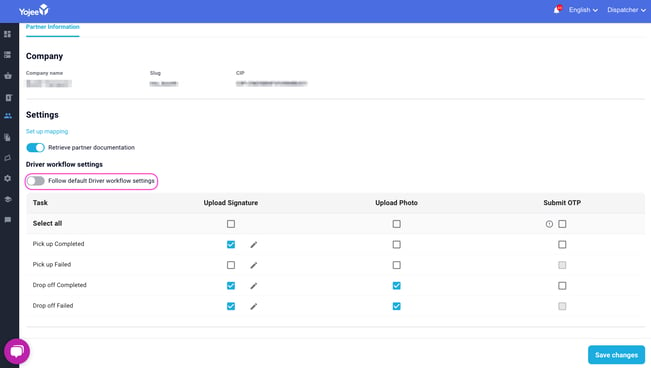**
3. Select the partner-specific driver workflow, then **Save Changes**
By configuring the specific driver workflow actions for your Delivery Partner, you have taken the necessary steps to ensure that when assigning future tasks to this delivery partner, their drivers will receive prompts to adhere to the designated workflow.
**Note**
Downstream partners must be using the Yojee Driver App for the workflow to apply
- [Quick Start Guides](https://help.yojee.com/tcms/quick-start-guides?hsLang=en)
- [Power Up with Yojee - Training Sessions](https://help.yojee.com/tcms/power-up-with-yojee-training-sessions?hsLang=en)
- [Dispatchers](https://help.yojee.com/tcms/dispatchers?hsLang=en#main-content)
- [Creating Orders](https://help.yojee.com/tcms/dispatchers?hsLang=en#creating-orders)
- [Managing Orders](https://help.yojee.com/tcms/dispatchers?hsLang=en#managing-orders)
- [Dispatching Orders](https://help.yojee.com/tcms/dispatchers?hsLang=en#dispatching-orders)
- [Tracking Orders](https://help.yojee.com/tcms/dispatchers?hsLang=en#tracking-orders)
- [Partners](https://help.yojee.com/tcms/dispatchers?hsLang=en#partners)
- [Network](https://help.yojee.com/tcms/dispatchers?hsLang=en#network)
- [Drivers](https://help.yojee.com/tcms/drivers?hsLang=en)
- [Senders](https://help.yojee.com/tcms/senders?hsLang=en)
- [Partners](https://help.yojee.com/tcms/partners?hsLang=en)
- [Manage](https://help.yojee.com/tcms/manage?hsLang=en#main-content)
- [Account](https://help.yojee.com/tcms/manage?hsLang=en#account)
- [Users](https://help.yojee.com/tcms/manage?hsLang=en#users)
- [Fleet](https://help.yojee.com/tcms/manage?hsLang=en#fleet)
- [Drivers](https://help.yojee.com/tcms/manage?hsLang=en#drivers)
- [Addresses](https://help.yojee.com/tcms/manage?hsLang=en#addresses)
- [Customers](https://help.yojee.com/tcms/manage?hsLang=en#customers)
- [Orders](https://help.yojee.com/tcms/manage?hsLang=en#orders)
- [Planning](https://help.yojee.com/tcms/manage?hsLang=en#planning)
- [Documentation](https://help.yojee.com/tcms/manage?hsLang=en#documentation)
- [Finance](https://help.yojee.com/tcms/manage?hsLang=en#finance)
- [Partners](https://help.yojee.com/tcms/manage?hsLang=en#partners)
- [Analytics](https://help.yojee.com/tcms/analytics?hsLang=en#main-content)
- [Dashboards](https://help.yojee.com/tcms/analytics?hsLang=en#dashboards)
- [Reports](https://help.yojee.com/tcms/analytics?hsLang=en#reports)
- [API Documentation](https://help.yojee.com/tcms/api-documentation?hsLang=en)
- [FAQ and Glossary](https://help.yojee.com/tcms/faq-and-glossary?hsLang=en#main-content)
- [Drivers & Planning](https://help.yojee.com/tcms/faq-and-glossary?hsLang=en#drivers-planning)
- [Glossary](https://help.yojee.com/tcms/faq-and-glossary?hsLang=en#glossary)
- [Reports](https://help.yojee.com/tcms/faq-and-glossary?hsLang=en#reports)
- [Other](https://help.yojee.com/tcms/faq-and-glossary?hsLang=en#other)
- [Release Notes](https://help.yojee.com/tcms/release-notes?hsLang=en#main-content)
- [Release Notes 2026](https://help.yojee.com/tcms/release-notes?hsLang=en#release-notes-2026)
- [Release Notes 2025](https://help.yojee.com/tcms/release-notes?hsLang=en#release-notes-2025)
- [Release Notes 2024](https://help.yojee.com/tcms/release-notes?hsLang=en#release-notes-2024)
- [Release Notes 2023](https://help.yojee.com/tcms/release-notes?hsLang=en#release-notes-2023)
- [Release Notes 2022](https://help.yojee.com/tcms/release-notes?hsLang=en#release-notes-2022)
- [Release Notes 2021](https://help.yojee.com/tcms/release-notes?hsLang=en#release-notes-2021)
- [Release Notes 2020](https://help.yojee.com/tcms/release-notes?hsLang=en#release-notes-2020)
- [New Starter Training](https://help.yojee.com/tcms/new-starter-training?hsLang=en#main-content)
- [Level 1](https://help.yojee.com/tcms/new-starter-training?hsLang=en#level-1)
[](https://www.yojee.com)
TCMS Knowledge Base
[mailto:support@yojee.com](mailto:support@yojee.com)
Copyright © 2026 Yojee Pte Ltd