---
title: Order Tracking
description: How to track orders on the Order Tracking page
---
[Skip to content](https://help.yojee.com/tcms/order-tracking#main-content)
English
Show submenu for translations

- Knowledge Base
Open main navigation
Close main navigation
- Knowledge Base
- English
Show submenu for translations
- [Go to yojee.com](https://www.yojee.com/)
[Go to yojee.com](https://www.yojee.com/)
Hello. How can we help you?
- There are no suggestions because the search field is empty.
1. [TCMS](https://help.yojee.com/tcms?hsLang=en)
2. [Senders](https://help.yojee.com/tcms/senders?hsLang=en)
# Order Tracking
## How to track orders on the Order Tracking page
The primary goal of the "Order Tracking" Report is to offer detailed insights to both Senders and Customers regarding their orders. This report can only be accessed through the customer's booking portal, providing valuable information about order statuses and progress.
### How to find Order Tracking
Once logged into the customer booking portal, in the top right select the drop-down, and select **Order Tracking**.

Alternatively can be found at the following URL - https://\[slug\].book.yojee.com/order-tracking
### Filtering
The order tracking report can be filtered in the following ways:
#### Creation Date
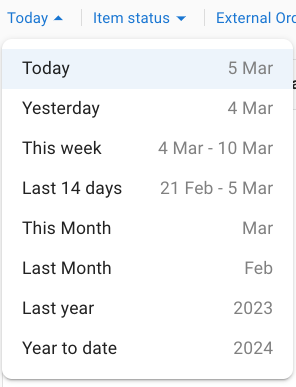
To filter orders by creation date, simply select the "Creation Date" dropdown menu. From there, you can choose the specific date range or time frame you want to filter the orders by.
#### Item Status
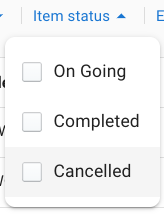
Select the order statuses you wish to view in the report:
- **On Going**: Order tasks are currently in progress (not completed or cancelled).
- **Completed**: Order tasks have been successfully completed.
- **Cancelled**: Orders that have been cancelled.
#### Reference Number
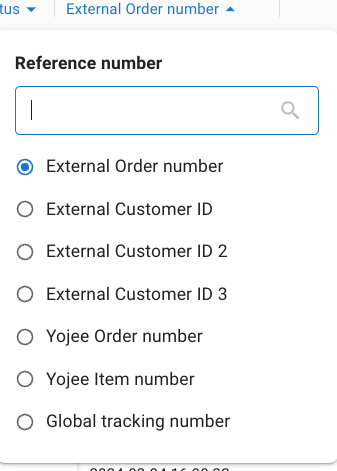
Choose the reference field and input a reference number to narrow down the search for specific orders.
---
### Rearrange, Manage and Save Columns
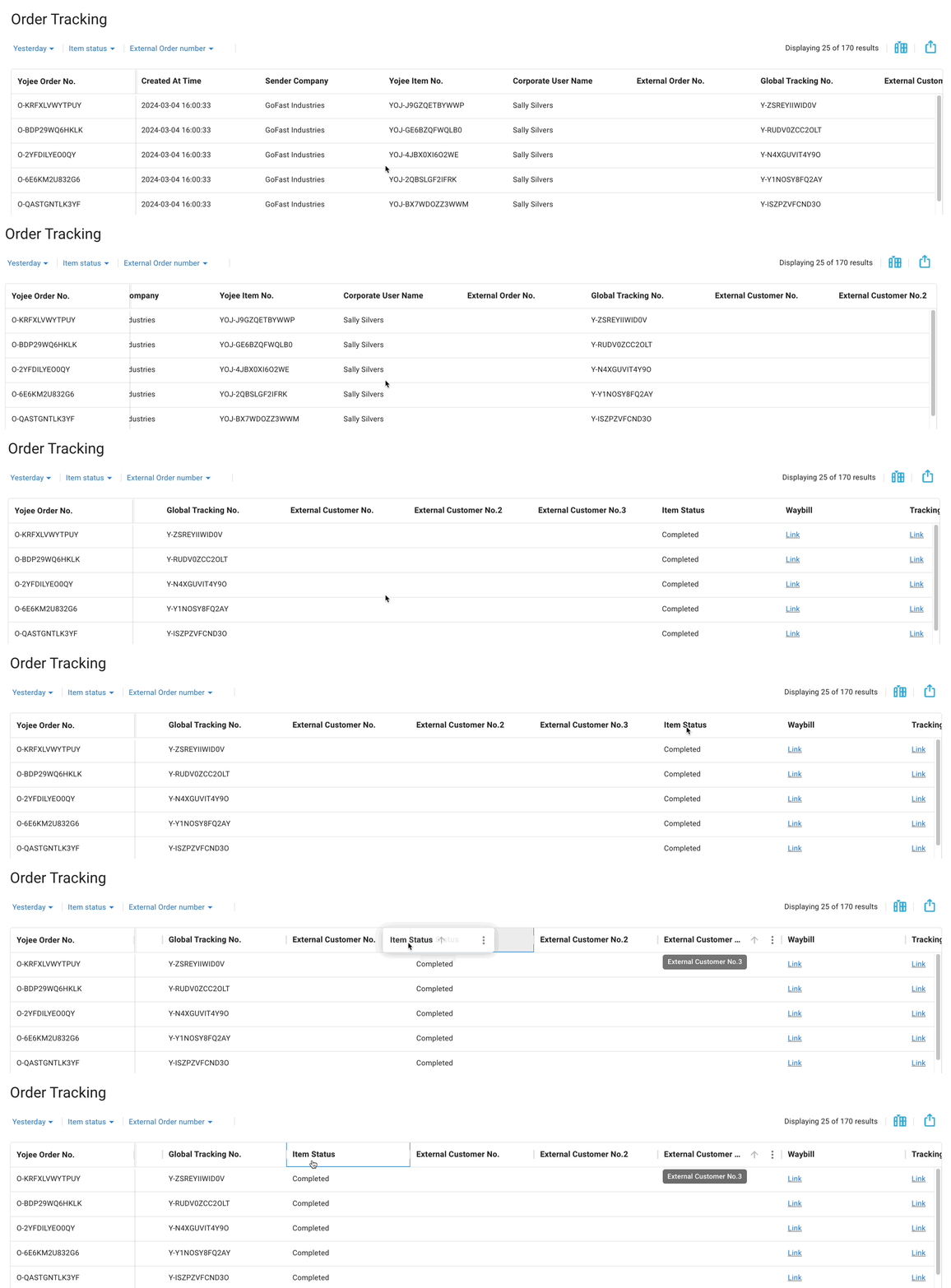
Columns can be rearranged by clicking and dragging the column to the desired position.
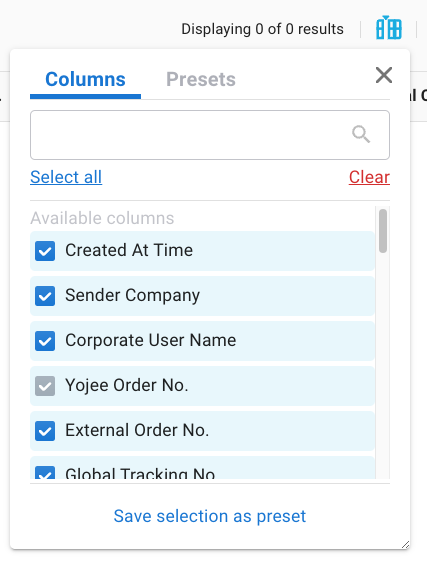
To manage the displayed columns, select the  icon, this will present a list of all columns available. Here you can search and select specific or all columns to view.
To save a specific view for future reference, select **Save selection as preset**.
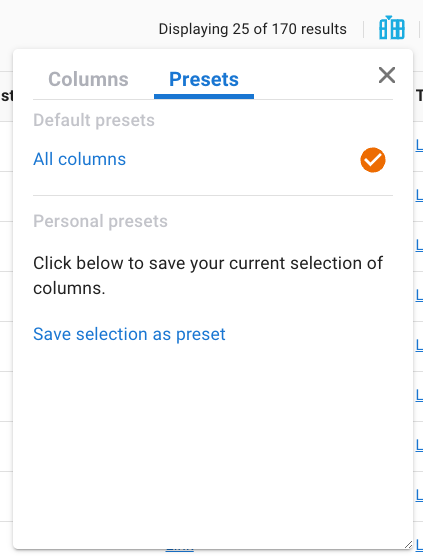
The **Preset** tab shows quick views including any saved Personal presets.
---
### Export
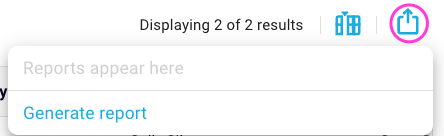
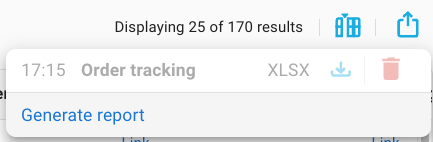
Displayed reports can quickly and easily be exported by selecting the export button in the top right then selecting **Generate report**.
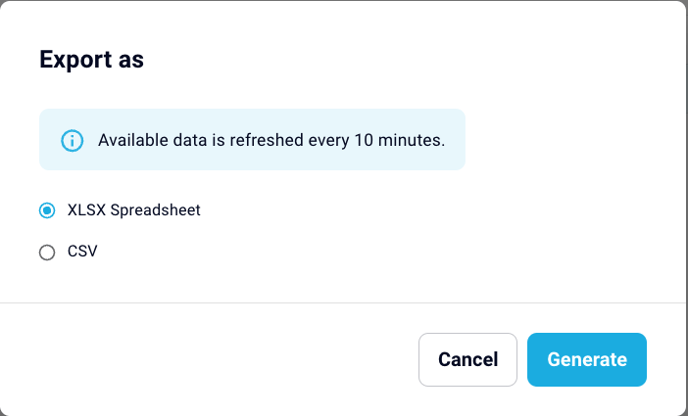
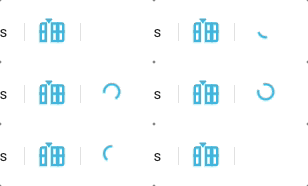
After selecting the format (XLSX or CSV), click on **Generate** to initiate the report generation process. You will know that the report is being generated when you see a spinning icon (as below).
Once the report is complete, it will automatically be downloaded for your convenience. Additionally, you will have the ability to review, delete, and download any previously created reports by simply selecting the export button again.
The Order Tracking page is continuously being developed, and new features may be introduced or modified at any time.
We highly value your feedback in shaping the future of Yojee. We encourage you to explore this new feature and share your thoughts with us at [support@yojee.com](mailto:support@yojee.com).
- [Quick Start Guides](https://help.yojee.com/tcms/quick-start-guides?hsLang=en)
- [Power Up with Yojee - Training Sessions](https://help.yojee.com/tcms/power-up-with-yojee-training-sessions?hsLang=en)
- [Dispatchers](https://help.yojee.com/tcms/dispatchers?hsLang=en#main-content)
- [Creating Orders](https://help.yojee.com/tcms/dispatchers?hsLang=en#creating-orders)
- [Managing Orders](https://help.yojee.com/tcms/dispatchers?hsLang=en#managing-orders)
- [Dispatching Orders](https://help.yojee.com/tcms/dispatchers?hsLang=en#dispatching-orders)
- [Tracking Orders](https://help.yojee.com/tcms/dispatchers?hsLang=en#tracking-orders)
- [Partners](https://help.yojee.com/tcms/dispatchers?hsLang=en#partners)
- [Network](https://help.yojee.com/tcms/dispatchers?hsLang=en#network)
- [Drivers](https://help.yojee.com/tcms/drivers?hsLang=en)
- [Senders](https://help.yojee.com/tcms/senders?hsLang=en)
- [Partners](https://help.yojee.com/tcms/partners?hsLang=en)
- [Manage](https://help.yojee.com/tcms/manage?hsLang=en#main-content)
- [Account](https://help.yojee.com/tcms/manage?hsLang=en#account)
- [Users](https://help.yojee.com/tcms/manage?hsLang=en#users)
- [Fleet](https://help.yojee.com/tcms/manage?hsLang=en#fleet)
- [Drivers](https://help.yojee.com/tcms/manage?hsLang=en#drivers)
- [Addresses](https://help.yojee.com/tcms/manage?hsLang=en#addresses)
- [Customers](https://help.yojee.com/tcms/manage?hsLang=en#customers)
- [Orders](https://help.yojee.com/tcms/manage?hsLang=en#orders)
- [Planning](https://help.yojee.com/tcms/manage?hsLang=en#planning)
- [Documentation](https://help.yojee.com/tcms/manage?hsLang=en#documentation)
- [Finance](https://help.yojee.com/tcms/manage?hsLang=en#finance)
- [Partners](https://help.yojee.com/tcms/manage?hsLang=en#partners)
- [Analytics](https://help.yojee.com/tcms/analytics?hsLang=en#main-content)
- [Dashboards](https://help.yojee.com/tcms/analytics?hsLang=en#dashboards)
- [Reports](https://help.yojee.com/tcms/analytics?hsLang=en#reports)
- [API Documentation](https://help.yojee.com/tcms/api-documentation?hsLang=en)
- [FAQ and Glossary](https://help.yojee.com/tcms/faq-and-glossary?hsLang=en#main-content)
- [Drivers & Planning](https://help.yojee.com/tcms/faq-and-glossary?hsLang=en#drivers-planning)
- [Glossary](https://help.yojee.com/tcms/faq-and-glossary?hsLang=en#glossary)
- [Reports](https://help.yojee.com/tcms/faq-and-glossary?hsLang=en#reports)
- [Other](https://help.yojee.com/tcms/faq-and-glossary?hsLang=en#other)
- [Release Notes](https://help.yojee.com/tcms/release-notes?hsLang=en#main-content)
- [Release Notes 2026](https://help.yojee.com/tcms/release-notes?hsLang=en#release-notes-2026)
- [Release Notes 2025](https://help.yojee.com/tcms/release-notes?hsLang=en#release-notes-2025)
- [Release Notes 2024](https://help.yojee.com/tcms/release-notes?hsLang=en#release-notes-2024)
- [Release Notes 2023](https://help.yojee.com/tcms/release-notes?hsLang=en#release-notes-2023)
- [Release Notes 2022](https://help.yojee.com/tcms/release-notes?hsLang=en#release-notes-2022)
- [Release Notes 2021](https://help.yojee.com/tcms/release-notes?hsLang=en#release-notes-2021)
- [Release Notes 2020](https://help.yojee.com/tcms/release-notes?hsLang=en#release-notes-2020)
- [New Starter Training](https://help.yojee.com/tcms/new-starter-training?hsLang=en#main-content)
- [Level 1](https://help.yojee.com/tcms/new-starter-training?hsLang=en#level-1)
[](https://www.yojee.com)
TCMS Knowledge Base
[mailto:support@yojee.com](mailto:support@yojee.com)
Copyright © 2026 Yojee Pte Ltd