---
title: How to Set the Billing Party for Pro-Forma Invoices in Yojee
description: Set up and manage Billing Parties in Yojee for Pro-Forma Invoices. Learn how to add a Billing Party, set defaults, and adjust during charge application.
---
[Skip to content](https://help.yojee.com/tcms/how-do-i-set-the-billing-party-for-my-pro-forma-invoice#main-content)
English
Show submenu for translations

- Knowledge Base
Open main navigation
Close main navigation
- Knowledge Base
- English
Show submenu for translations
- [Go to yojee.com](https://www.yojee.com/)
[Go to yojee.com](https://www.yojee.com/)
Hello. How can we help you?
- There are no suggestions because the search field is empty.
1. [TCMS](https://help.yojee.com/tcms?hsLang=en)
2. [Manage](https://help.yojee.com/tcms/manage?hsLang=en)
3. [Customers](https://help.yojee.com/tcms/manage?hsLang=en#customers)
# How to Set the Billing Party for Pro-Forma Invoices in Yojee
## Learn how to configure and select the Billing Party for Pro-Forma Invoices, either at the sender level or during charge application.
### **Overview**
The **Billing Party** in Yojee allows you to manage who is responsible for invoice payments. This can differ from the **Sender** and can be set at either the **Sender level** or when applying charges to a booking.
This guide explains how to add a Billing Party, set it as default, and select it during charge application.
---
### **1. Adding a Billing Party**
#### **Steps to Add a Billing Party**
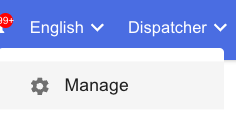
1. Navigate to **Manage** via the profile menu in the top right
2. Select **Customers \> Senders**
3. Click **View** under the **Billing Party** heading.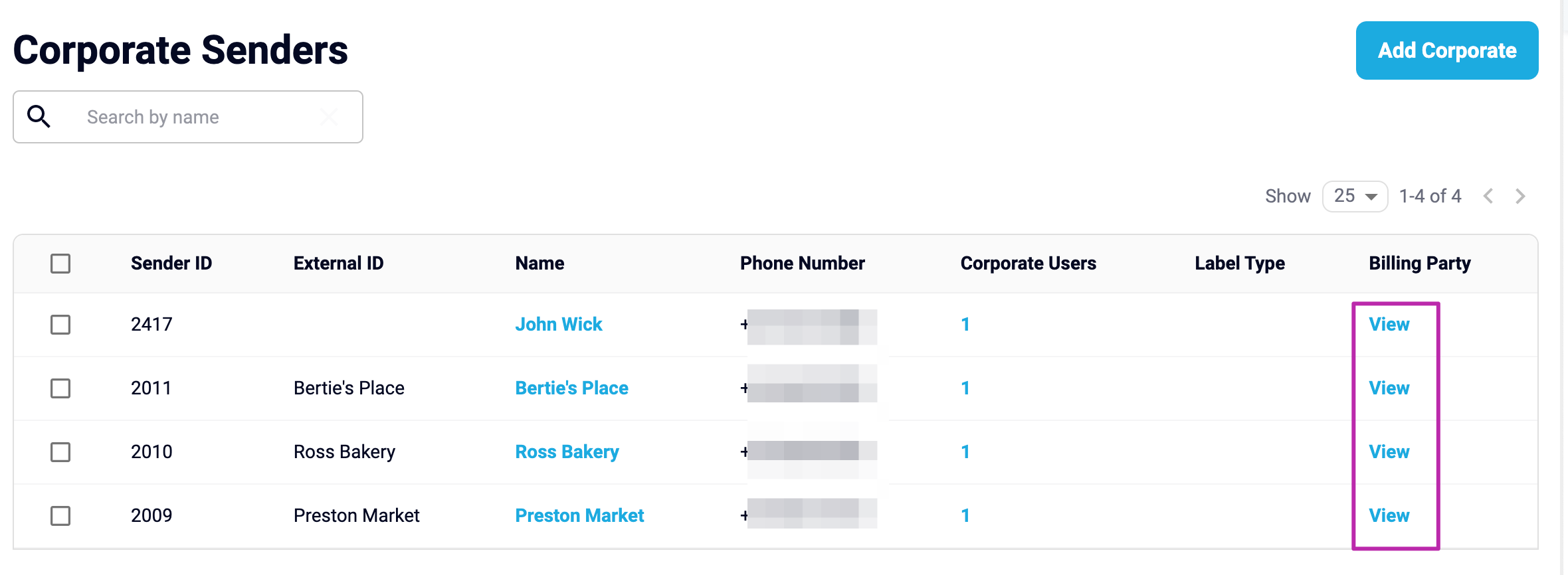
4. Select **Add Billing Party**.
1. 
5. Fill in the mandatory fields:
- Billing Party Name
- Contact Details
- Address
6. Choose to:
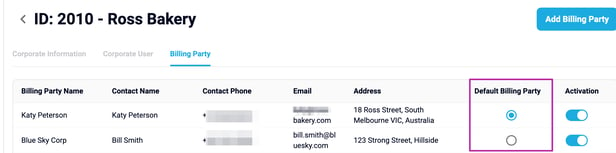
- **Set as Default Billing Party**: Automatically apply this Billing Party to new bookings.
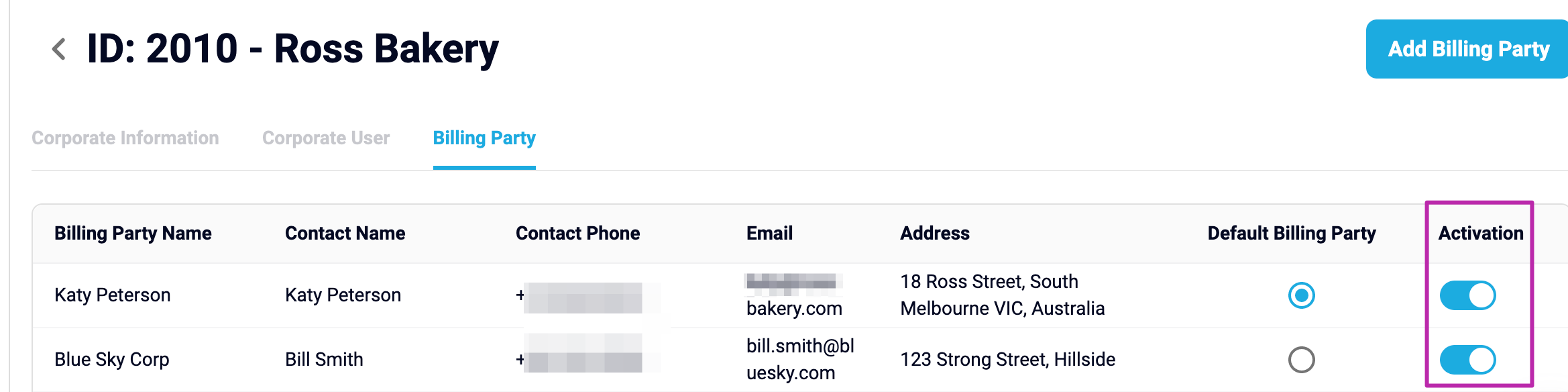
- **Activate/Deactivate**: Use the activation toggle to enable or disable the Billing Party.
---
### **2. Selecting the Billing Party for Booking Charges**
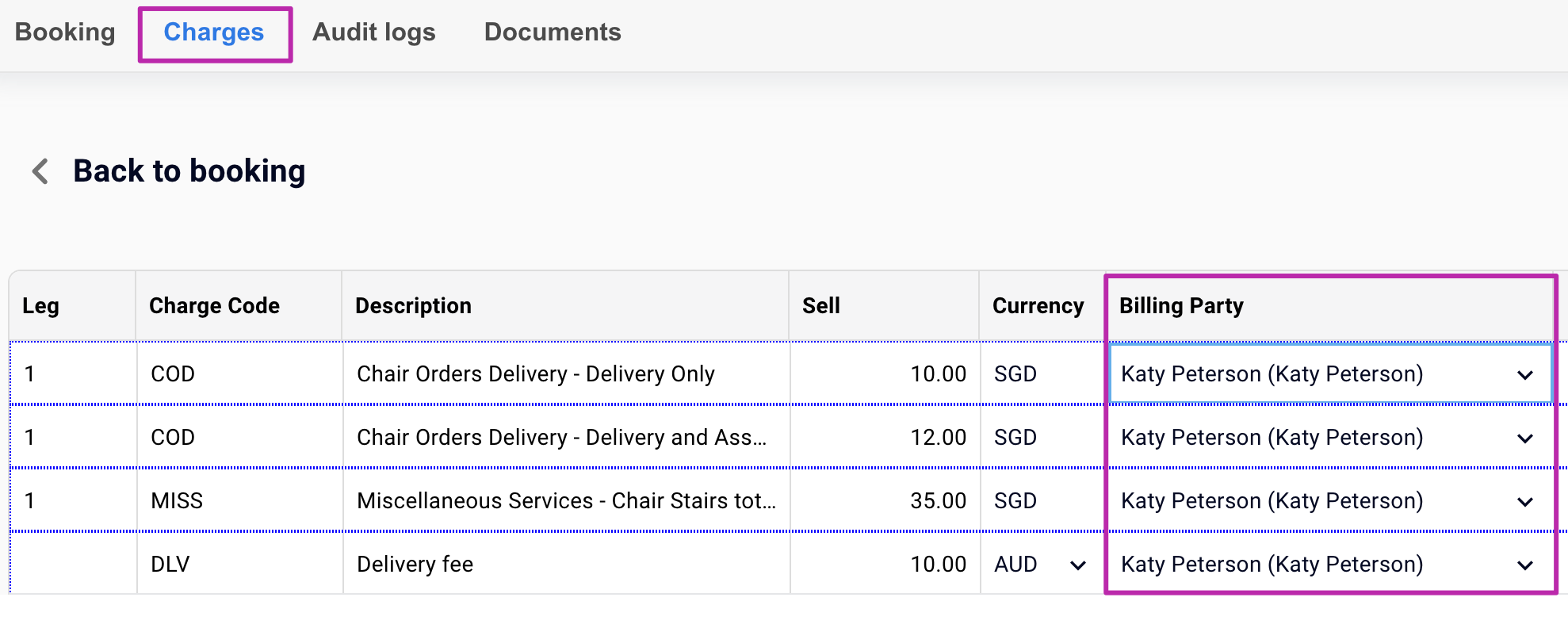
When applying charges to a booking via the **Charges** tab:
1. Ensure the charges are **calculated first**.
2. The **default Billing Party** will be pre-selected.
3. To adjust, select a different Billing Party from the dropdown menu.
This flexibility allows you to assign the appropriate party for each booking.
---
### **Key Tips**
- **Default Settings**: Setting a default Billing Party streamlines the invoicing process.
- **Flexibility**: You can always change the Billing Party during charge application.
- **Control**: Use the activation toggle to enable or disable a Billing Party as needed.
---
### **Key Takeaways**
- Billing Parties can differ from Senders, providing flexibility in payment management.
- Add and manage Billing Parties through the Corporate Sender screen.
- Adjust Billing Parties at the time of booking charge application for accuracy.
- [Quick Start Guides](https://help.yojee.com/tcms/quick-start-guides?hsLang=en)
- [Power Up with Yojee - Training Sessions](https://help.yojee.com/tcms/power-up-with-yojee-training-sessions?hsLang=en)
- [Dispatchers](https://help.yojee.com/tcms/dispatchers?hsLang=en#main-content)
- [Creating Orders](https://help.yojee.com/tcms/dispatchers?hsLang=en#creating-orders)
- [Managing Orders](https://help.yojee.com/tcms/dispatchers?hsLang=en#managing-orders)
- [Dispatching Orders](https://help.yojee.com/tcms/dispatchers?hsLang=en#dispatching-orders)
- [Tracking Orders](https://help.yojee.com/tcms/dispatchers?hsLang=en#tracking-orders)
- [Partners](https://help.yojee.com/tcms/dispatchers?hsLang=en#partners)
- [Network](https://help.yojee.com/tcms/dispatchers?hsLang=en#network)
- [Drivers](https://help.yojee.com/tcms/drivers?hsLang=en)
- [Senders](https://help.yojee.com/tcms/senders?hsLang=en)
- [Partners](https://help.yojee.com/tcms/partners?hsLang=en)
- [Manage](https://help.yojee.com/tcms/manage?hsLang=en#main-content)
- [Account](https://help.yojee.com/tcms/manage?hsLang=en#account)
- [Users](https://help.yojee.com/tcms/manage?hsLang=en#users)
- [Fleet](https://help.yojee.com/tcms/manage?hsLang=en#fleet)
- [Drivers](https://help.yojee.com/tcms/manage?hsLang=en#drivers)
- [Addresses](https://help.yojee.com/tcms/manage?hsLang=en#addresses)
- [Customers](https://help.yojee.com/tcms/manage?hsLang=en#customers)
- [Orders](https://help.yojee.com/tcms/manage?hsLang=en#orders)
- [Planning](https://help.yojee.com/tcms/manage?hsLang=en#planning)
- [Documentation](https://help.yojee.com/tcms/manage?hsLang=en#documentation)
- [Finance](https://help.yojee.com/tcms/manage?hsLang=en#finance)
- [Partners](https://help.yojee.com/tcms/manage?hsLang=en#partners)
- [Analytics](https://help.yojee.com/tcms/analytics?hsLang=en#main-content)
- [Dashboards](https://help.yojee.com/tcms/analytics?hsLang=en#dashboards)
- [Reports](https://help.yojee.com/tcms/analytics?hsLang=en#reports)
- [API Documentation](https://help.yojee.com/tcms/api-documentation?hsLang=en)
- [FAQ and Glossary](https://help.yojee.com/tcms/faq-and-glossary?hsLang=en#main-content)
- [Drivers & Planning](https://help.yojee.com/tcms/faq-and-glossary?hsLang=en#drivers-planning)
- [Glossary](https://help.yojee.com/tcms/faq-and-glossary?hsLang=en#glossary)
- [Reports](https://help.yojee.com/tcms/faq-and-glossary?hsLang=en#reports)
- [Other](https://help.yojee.com/tcms/faq-and-glossary?hsLang=en#other)
- [Release Notes](https://help.yojee.com/tcms/release-notes?hsLang=en#main-content)
- [Release Notes 2026](https://help.yojee.com/tcms/release-notes?hsLang=en#release-notes-2026)
- [Release Notes 2025](https://help.yojee.com/tcms/release-notes?hsLang=en#release-notes-2025)
- [Release Notes 2024](https://help.yojee.com/tcms/release-notes?hsLang=en#release-notes-2024)
- [Release Notes 2023](https://help.yojee.com/tcms/release-notes?hsLang=en#release-notes-2023)
- [Release Notes 2022](https://help.yojee.com/tcms/release-notes?hsLang=en#release-notes-2022)
- [Release Notes 2021](https://help.yojee.com/tcms/release-notes?hsLang=en#release-notes-2021)
- [Release Notes 2020](https://help.yojee.com/tcms/release-notes?hsLang=en#release-notes-2020)
- [New Starter Training](https://help.yojee.com/tcms/new-starter-training?hsLang=en#main-content)
- [Level 1](https://help.yojee.com/tcms/new-starter-training?hsLang=en#level-1)
[](https://www.yojee.com)
TCMS Knowledge Base
[mailto:support@yojee.com](mailto:support@yojee.com)
Copyright © 2026 Yojee Pte Ltd