---
title: How do I add users to Corporate Senders?
description: Senders can use the booking screen (i.e. [company slug].book.yojee.com) to create bookings in the platform for the dispatcher to process.
---
[Skip to content](https://help.yojee.com/tcms/how-do-i-add-users-to-corporate-senders#main-content)
English
Show submenu for translations

- Knowledge Base
Open main navigation
Close main navigation
- Knowledge Base
- English
Show submenu for translations
- [Go to yojee.com](https://www.yojee.com/)
[Go to yojee.com](https://www.yojee.com/)
Hello. How can we help you?
- There are no suggestions because the search field is empty.
1. [TCMS](https://help.yojee.com/tcms?hsLang=en)
2. [Manage](https://help.yojee.com/tcms/manage?hsLang=en)
3. [Customers](https://help.yojee.com/tcms/manage?hsLang=en#customers)
# How do I add users to Corporate Senders?
## Senders can use the booking screen (i.e. \[company slug\].book.yojee.com) to create bookings in the platform for the dispatcher to process.
To create a user to a corporate sender:
1. Navigate to **Manage \> Customer \> Senders \> Corporate**
2. Click on the **Name** of the company you wish to add the user (If you have not added a corporate sender, follow instructions [here](https://help.yojee.com/knowledge/how-do-i-add-new-senders?hsLang=en)) 
3. Navigate to the **Corporate User** tab and select **Add Corporate User** 
4. From here, you can either Create New (creating individual accounts) or Batch Upload (creating multiple accounts at once)
1. **Create Individually 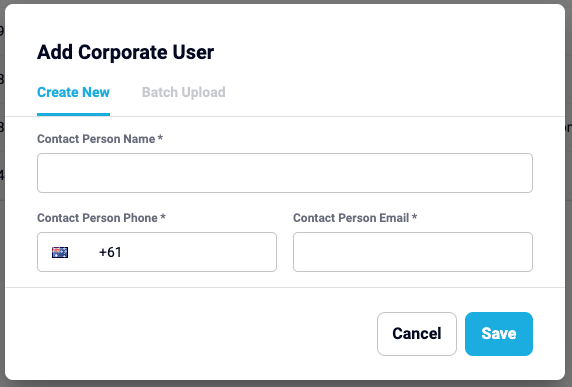**
1. Enter the individuals name, phone and email as requested
2. Press **Save**
2. **Batch Upload 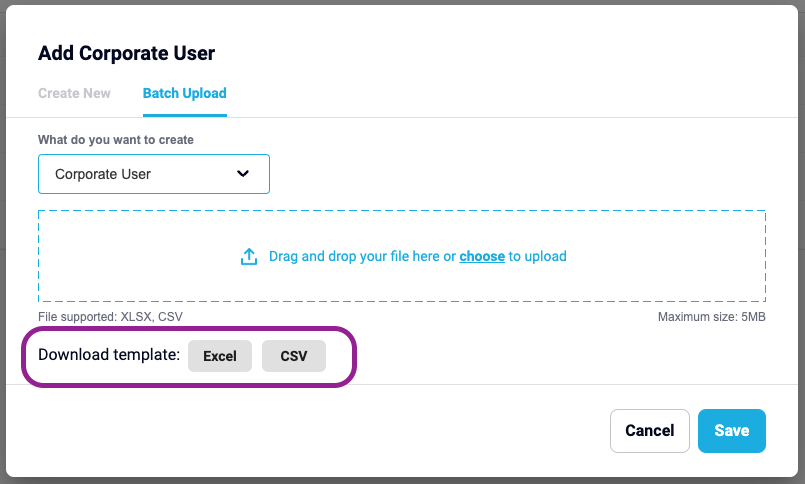**
1. Download, populate and save the template
2. Upload the saved template
3. Press **Save**
5. Once saved, the users will receive an email notifying them of their login details
If the user does not receive their login details, ask the user to:
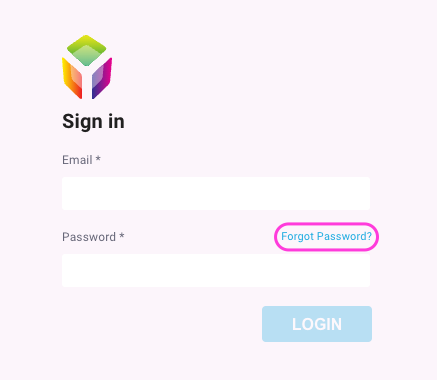
1. Navigate to the bookings page **\[slug}.book.yojee.com**
2. Select **Password Reset**
3. Enter the registered email and select **CONFIRM** to receive a password reset link
**Did you know?**
- **Some mandatory fields may not require all information**. If you do not know the address or registration no's, this can be filled in with a full stop '.' or a dash '-' if required.
- **The sender email and phone number must be unique**. If the phone number or email entered here have been used for a driver or user profile, the phone number and email address associated must match in all areas of the platform.
- **The email entered here will used for the sender notifications**
- **Creating a sender account will allow access to the customer booking portal.** If enabled, once an account is created, the sender will automatically receive a link via email with their username and password to access the page.
Need more information? Please contact us at [support@yojee.com](mailto:support@yojee.com)
- [Quick Start Guides](https://help.yojee.com/tcms/quick-start-guides?hsLang=en)
- [Power Up with Yojee - Training Sessions](https://help.yojee.com/tcms/power-up-with-yojee-training-sessions?hsLang=en)
- [Dispatchers](https://help.yojee.com/tcms/dispatchers?hsLang=en#main-content)
- [Creating Orders](https://help.yojee.com/tcms/dispatchers?hsLang=en#creating-orders)
- [Managing Orders](https://help.yojee.com/tcms/dispatchers?hsLang=en#managing-orders)
- [Dispatching Orders](https://help.yojee.com/tcms/dispatchers?hsLang=en#dispatching-orders)
- [Tracking Orders](https://help.yojee.com/tcms/dispatchers?hsLang=en#tracking-orders)
- [Partners](https://help.yojee.com/tcms/dispatchers?hsLang=en#partners)
- [Network](https://help.yojee.com/tcms/dispatchers?hsLang=en#network)
- [Drivers](https://help.yojee.com/tcms/drivers?hsLang=en)
- [Senders](https://help.yojee.com/tcms/senders?hsLang=en)
- [Partners](https://help.yojee.com/tcms/partners?hsLang=en)
- [Manage](https://help.yojee.com/tcms/manage?hsLang=en#main-content)
- [Account](https://help.yojee.com/tcms/manage?hsLang=en#account)
- [Users](https://help.yojee.com/tcms/manage?hsLang=en#users)
- [Fleet](https://help.yojee.com/tcms/manage?hsLang=en#fleet)
- [Drivers](https://help.yojee.com/tcms/manage?hsLang=en#drivers)
- [Addresses](https://help.yojee.com/tcms/manage?hsLang=en#addresses)
- [Customers](https://help.yojee.com/tcms/manage?hsLang=en#customers)
- [Orders](https://help.yojee.com/tcms/manage?hsLang=en#orders)
- [Planning](https://help.yojee.com/tcms/manage?hsLang=en#planning)
- [Documentation](https://help.yojee.com/tcms/manage?hsLang=en#documentation)
- [Finance](https://help.yojee.com/tcms/manage?hsLang=en#finance)
- [Partners](https://help.yojee.com/tcms/manage?hsLang=en#partners)
- [Analytics](https://help.yojee.com/tcms/analytics?hsLang=en#main-content)
- [Dashboards](https://help.yojee.com/tcms/analytics?hsLang=en#dashboards)
- [Reports](https://help.yojee.com/tcms/analytics?hsLang=en#reports)
- [API Documentation](https://help.yojee.com/tcms/api-documentation?hsLang=en)
- [FAQ and Glossary](https://help.yojee.com/tcms/faq-and-glossary?hsLang=en#main-content)
- [Drivers & Planning](https://help.yojee.com/tcms/faq-and-glossary?hsLang=en#drivers-planning)
- [Glossary](https://help.yojee.com/tcms/faq-and-glossary?hsLang=en#glossary)
- [Reports](https://help.yojee.com/tcms/faq-and-glossary?hsLang=en#reports)
- [Other](https://help.yojee.com/tcms/faq-and-glossary?hsLang=en#other)
- [Release Notes](https://help.yojee.com/tcms/release-notes?hsLang=en#main-content)
- [Release Notes 2026](https://help.yojee.com/tcms/release-notes?hsLang=en#release-notes-2026)
- [Release Notes 2025](https://help.yojee.com/tcms/release-notes?hsLang=en#release-notes-2025)
- [Release Notes 2024](https://help.yojee.com/tcms/release-notes?hsLang=en#release-notes-2024)
- [Release Notes 2023](https://help.yojee.com/tcms/release-notes?hsLang=en#release-notes-2023)
- [Release Notes 2022](https://help.yojee.com/tcms/release-notes?hsLang=en#release-notes-2022)
- [Release Notes 2021](https://help.yojee.com/tcms/release-notes?hsLang=en#release-notes-2021)
- [Release Notes 2020](https://help.yojee.com/tcms/release-notes?hsLang=en#release-notes-2020)
- [New Starter Training](https://help.yojee.com/tcms/new-starter-training?hsLang=en#main-content)
- [Level 1](https://help.yojee.com/tcms/new-starter-training?hsLang=en#level-1)
[](https://www.yojee.com)
TCMS Knowledge Base
[mailto:support@yojee.com](mailto:support@yojee.com)
Copyright © 2026 Yojee Pte Ltd