---
title: "Fixing Symbol Errors in Export Files: A Guide to Displaying Local Language in Excel"
description: Having trouble with symbols in your exported data? This step-by-step guide shows how to correctly import CSV files in Excel using UTF-8 encoding for proper language display.
---
[Skip to content](https://help.yojee.com/tcms/exporting-a-file-in-a-different-language#main-content)
English
Show submenu for translations

- Knowledge Base
Open main navigation
Close main navigation
- Knowledge Base
- English
Show submenu for translations
- [Go to yojee.com](https://www.yojee.com/)
[Go to yojee.com](https://www.yojee.com/)
Hello. How can we help you?
- There are no suggestions because the search field is empty.
1. [TCMS](https://help.yojee.com/tcms?hsLang=en)
2. [FAQ and Glossary](https://help.yojee.com/tcms/faq-and-glossary?hsLang=en)
3. [Reports](https://help.yojee.com/tcms/faq-and-glossary?hsLang=en#reports)
# Fixing Symbol Errors in Export Files: A Guide to Displaying Local Language in Excel
## Learn how to convert export files with symbols into readable text by correctly importing CSV files in Excel.
### **Overview**
When exporting data in a different language, Excel may display symbols instead of text. This occurs due to encoding mismatches. Follow this guide to convert the file and display the local language correctly.
---
### **Step-by-Step Guide to Fixing Export Files**
#### **1. Open Excel**
- Launch Excel on your computer.
#### **2. Import the CSV File**
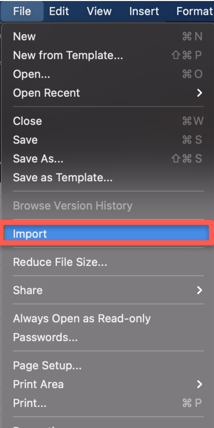
1. Go to the **File** menu.
2. Select **Import**.
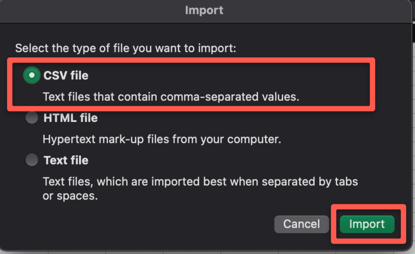
3. Choose **CSV** and click **Import**.
#### **3. Select the File**
- Navigate to the exported file and select it for import.
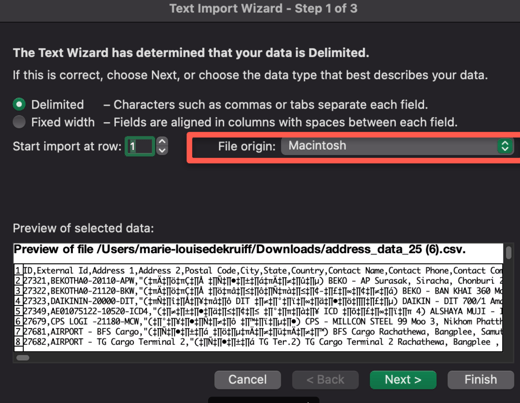
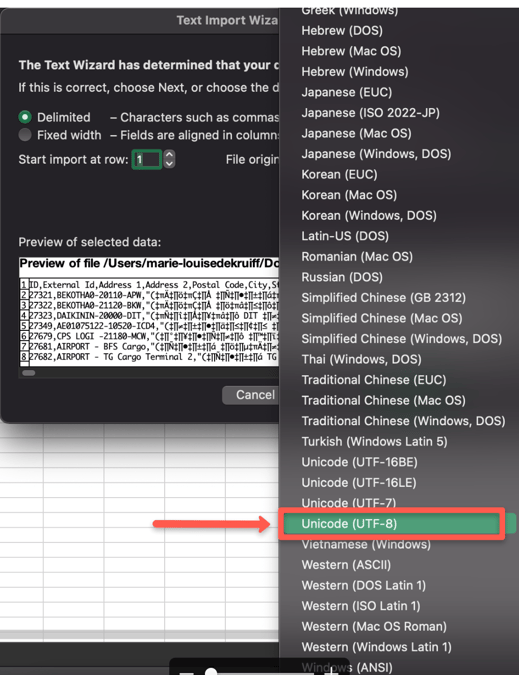
#### **4. Change the File Origin to UTF-8**
- In the import settings, change the **File Origin** to **UTF-8** to ensure proper encoding for local language support.
#### **5. Set the Delimiter**
1. Change the delimiter to **comma**.
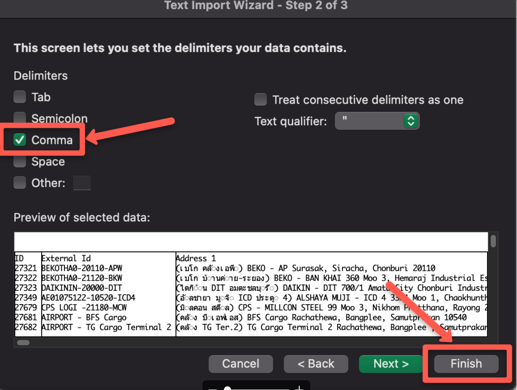
2. Click **Next** to proceed.
#### **6. Complete the Import**
- Click **Finish** to finalise the import.
#### **7. Save the File**
- In the final pop-up, click **OK** to save the file, or choose a different location before clicking **OK**.
---
### **Outcome**
👏 Success! Your file is now displayed correctly in the local language without symbols.
---
### **Key Takeaways**
- Use **UTF-8 encoding** to ensure proper text rendering for different languages.
- Adjust the delimiter to **comma** for correct data formatting in CSV files.
- Excel’s import feature allows for precise control over encoding and delimiter settings.
- [Quick Start Guides](https://help.yojee.com/tcms/quick-start-guides?hsLang=en)
- [Power Up with Yojee - Training Sessions](https://help.yojee.com/tcms/power-up-with-yojee-training-sessions?hsLang=en)
- [Dispatchers](https://help.yojee.com/tcms/dispatchers?hsLang=en#main-content)
- [Creating Orders](https://help.yojee.com/tcms/dispatchers?hsLang=en#creating-orders)
- [Managing Orders](https://help.yojee.com/tcms/dispatchers?hsLang=en#managing-orders)
- [Dispatching Orders](https://help.yojee.com/tcms/dispatchers?hsLang=en#dispatching-orders)
- [Tracking Orders](https://help.yojee.com/tcms/dispatchers?hsLang=en#tracking-orders)
- [Partners](https://help.yojee.com/tcms/dispatchers?hsLang=en#partners)
- [Network](https://help.yojee.com/tcms/dispatchers?hsLang=en#network)
- [Drivers](https://help.yojee.com/tcms/drivers?hsLang=en)
- [Senders](https://help.yojee.com/tcms/senders?hsLang=en)
- [Partners](https://help.yojee.com/tcms/partners?hsLang=en)
- [Manage](https://help.yojee.com/tcms/manage?hsLang=en#main-content)
- [Account](https://help.yojee.com/tcms/manage?hsLang=en#account)
- [Users](https://help.yojee.com/tcms/manage?hsLang=en#users)
- [Fleet](https://help.yojee.com/tcms/manage?hsLang=en#fleet)
- [Drivers](https://help.yojee.com/tcms/manage?hsLang=en#drivers)
- [Addresses](https://help.yojee.com/tcms/manage?hsLang=en#addresses)
- [Customers](https://help.yojee.com/tcms/manage?hsLang=en#customers)
- [Orders](https://help.yojee.com/tcms/manage?hsLang=en#orders)
- [Planning](https://help.yojee.com/tcms/manage?hsLang=en#planning)
- [Documentation](https://help.yojee.com/tcms/manage?hsLang=en#documentation)
- [Finance](https://help.yojee.com/tcms/manage?hsLang=en#finance)
- [Partners](https://help.yojee.com/tcms/manage?hsLang=en#partners)
- [Analytics](https://help.yojee.com/tcms/analytics?hsLang=en#main-content)
- [Dashboards](https://help.yojee.com/tcms/analytics?hsLang=en#dashboards)
- [Reports](https://help.yojee.com/tcms/analytics?hsLang=en#reports)
- [API Documentation](https://help.yojee.com/tcms/api-documentation?hsLang=en)
- [FAQ and Glossary](https://help.yojee.com/tcms/faq-and-glossary?hsLang=en#main-content)
- [Drivers & Planning](https://help.yojee.com/tcms/faq-and-glossary?hsLang=en#drivers-planning)
- [Glossary](https://help.yojee.com/tcms/faq-and-glossary?hsLang=en#glossary)
- [Reports](https://help.yojee.com/tcms/faq-and-glossary?hsLang=en#reports)
- [Other](https://help.yojee.com/tcms/faq-and-glossary?hsLang=en#other)
- [Release Notes](https://help.yojee.com/tcms/release-notes?hsLang=en#main-content)
- [Release Notes 2026](https://help.yojee.com/tcms/release-notes?hsLang=en#release-notes-2026)
- [Release Notes 2025](https://help.yojee.com/tcms/release-notes?hsLang=en#release-notes-2025)
- [Release Notes 2024](https://help.yojee.com/tcms/release-notes?hsLang=en#release-notes-2024)
- [Release Notes 2023](https://help.yojee.com/tcms/release-notes?hsLang=en#release-notes-2023)
- [Release Notes 2022](https://help.yojee.com/tcms/release-notes?hsLang=en#release-notes-2022)
- [Release Notes 2021](https://help.yojee.com/tcms/release-notes?hsLang=en#release-notes-2021)
- [Release Notes 2020](https://help.yojee.com/tcms/release-notes?hsLang=en#release-notes-2020)
- [New Starter Training](https://help.yojee.com/tcms/new-starter-training?hsLang=en#main-content)
- [Level 1](https://help.yojee.com/tcms/new-starter-training?hsLang=en#level-1)
[](https://www.yojee.com)
TCMS Knowledge Base
[mailto:support@yojee.com](mailto:support@yojee.com)
Copyright © 2026 Yojee Pte Ltd