---
title: Creating and Managing Zones in Yojee TCMS
description: Learn how to create and manage zones in Yojee TCMS to filter tasks, automate dispatch, and define geographic responsibilities.
---
[Skip to content](https://help.yojee.com/tcms/drawing-zones#main-content)
English
Show submenu for translations

- Knowledge Base
Open main navigation
Close main navigation
- Knowledge Base
- English
Show submenu for translations
- [Go to yojee.com](https://www.yojee.com/)
[Go to yojee.com](https://www.yojee.com/)
Hello. How can we help you?
- There are no suggestions because the search field is empty.
1. [TCMS](https://help.yojee.com/tcms?hsLang=en)
2. [Dispatchers](https://help.yojee.com/tcms/dispatchers?hsLang=en)
3. [Network](https://help.yojee.com/tcms/dispatchers?hsLang=en#network)
# Creating and Managing Zones in Yojee TCMS
## Use zones to automate dispatch, define task responsibility, and streamline task filtering based on geographic areas.
### **What Are Zones?**
**Zones** in Yojee TCMS are custom-drawn geographic areas on the map. They help you organise and automate your operations by enabling:
- **Filtering tasks** in the Items screen by location
- **Automated dispatch** of tasks within a specific region
- **Defining operational responsibility** for tasks inside a drawn boundary
Zones are especially useful for managing driver territories, depot catchments, and location-specific rules.
---
### **How to Create a Zone**
#### **Step 1: Navigate to the Zones Interface 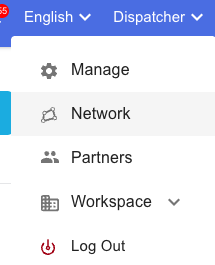**
1. Click your **profile name** in the top-right corner.
2. From the dropdown, select **Network**.
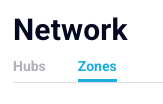
3. Click the **Zones** tab at the top of the screen.
#### **Step 2: Add a New Zone**
1. Click **Add Zone** in the top right
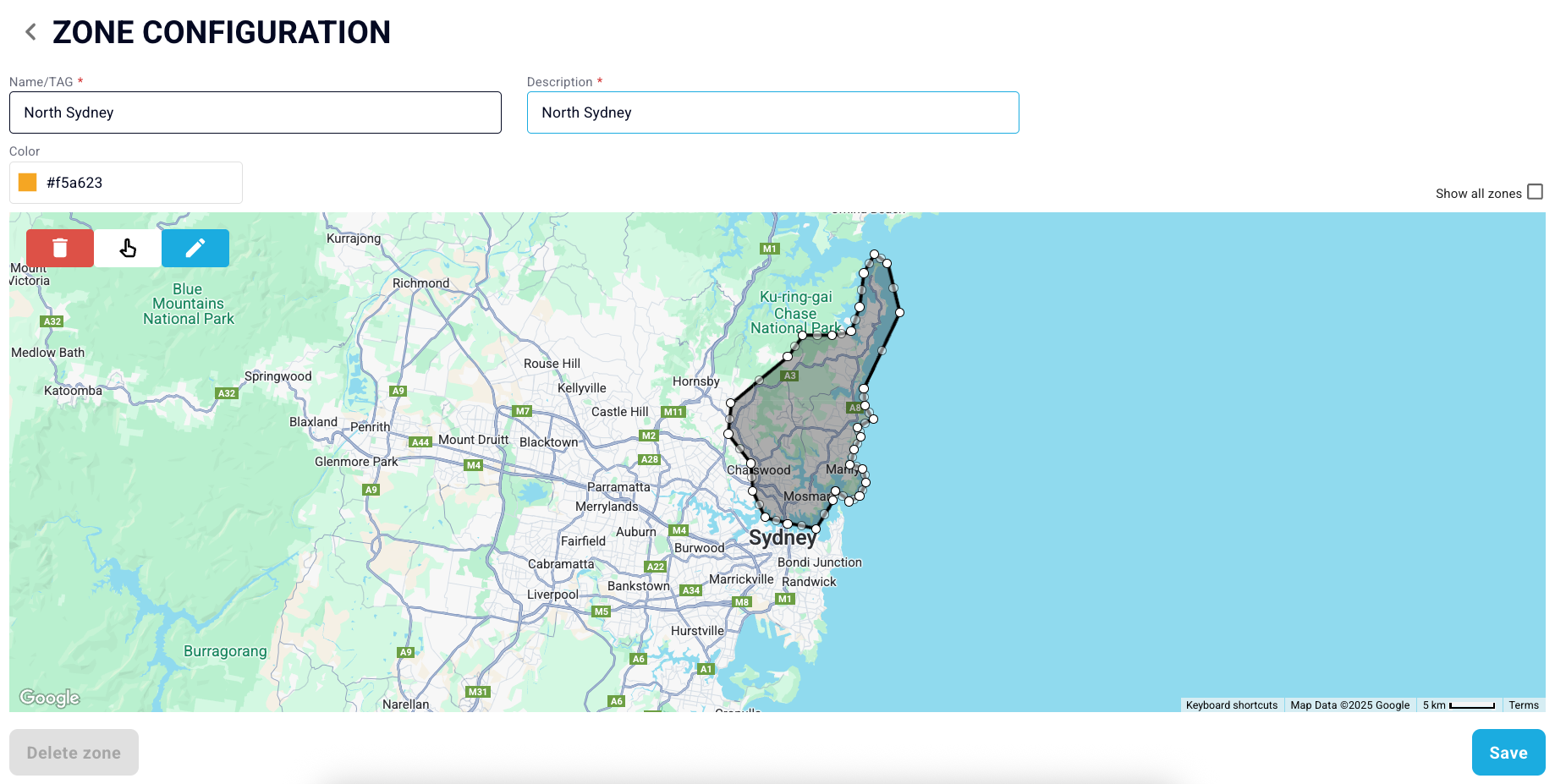
2. Enter a **Zone Name** and an optional **Description** to help identify its purpose.
#### **Step 3: Draw the Zone on the Map**
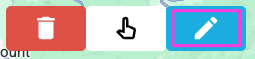
1. Begin drawing by clicking points on the map by selecting the pencil icon—each click adds a corner to your zone.
2. Don’t worry about precision—you can refine or add more points later.
3. To complete the zone, close the shape and click **Save**.
---
### **Editing and Refining a Zone**
- If you’re unable to add more points, save the current version first.
- Then, click on the saved zone to reopen it and continue editing.
- Additional points and adjustments can now be made.
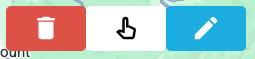
- The finger icon will allow you to move/add points and the trash icon will delete the zone completely
---
### **Tips for Using Zones Effectively**
- Use **clear, descriptive names** for each zone to avoid confusion.
- Combine zones with **Dispatch Rules** to automate task assignments.
- Use zones to **segment operational areas**, like warehouse regions or driver regions.
- [Quick Start Guides](https://help.yojee.com/tcms/quick-start-guides?hsLang=en)
- [Power Up with Yojee - Training Sessions](https://help.yojee.com/tcms/power-up-with-yojee-training-sessions?hsLang=en)
- [Dispatchers](https://help.yojee.com/tcms/dispatchers?hsLang=en#main-content)
- [Creating Orders](https://help.yojee.com/tcms/dispatchers?hsLang=en#creating-orders)
- [Managing Orders](https://help.yojee.com/tcms/dispatchers?hsLang=en#managing-orders)
- [Dispatching Orders](https://help.yojee.com/tcms/dispatchers?hsLang=en#dispatching-orders)
- [Tracking Orders](https://help.yojee.com/tcms/dispatchers?hsLang=en#tracking-orders)
- [Partners](https://help.yojee.com/tcms/dispatchers?hsLang=en#partners)
- [Network](https://help.yojee.com/tcms/dispatchers?hsLang=en#network)
- [Drivers](https://help.yojee.com/tcms/drivers?hsLang=en)
- [Senders](https://help.yojee.com/tcms/senders?hsLang=en)
- [Partners](https://help.yojee.com/tcms/partners?hsLang=en)
- [Manage](https://help.yojee.com/tcms/manage?hsLang=en#main-content)
- [Account](https://help.yojee.com/tcms/manage?hsLang=en#account)
- [Users](https://help.yojee.com/tcms/manage?hsLang=en#users)
- [Fleet](https://help.yojee.com/tcms/manage?hsLang=en#fleet)
- [Drivers](https://help.yojee.com/tcms/manage?hsLang=en#drivers)
- [Addresses](https://help.yojee.com/tcms/manage?hsLang=en#addresses)
- [Customers](https://help.yojee.com/tcms/manage?hsLang=en#customers)
- [Orders](https://help.yojee.com/tcms/manage?hsLang=en#orders)
- [Planning](https://help.yojee.com/tcms/manage?hsLang=en#planning)
- [Documentation](https://help.yojee.com/tcms/manage?hsLang=en#documentation)
- [Finance](https://help.yojee.com/tcms/manage?hsLang=en#finance)
- [Partners](https://help.yojee.com/tcms/manage?hsLang=en#partners)
- [Analytics](https://help.yojee.com/tcms/analytics?hsLang=en#main-content)
- [Dashboards](https://help.yojee.com/tcms/analytics?hsLang=en#dashboards)
- [Reports](https://help.yojee.com/tcms/analytics?hsLang=en#reports)
- [API Documentation](https://help.yojee.com/tcms/api-documentation?hsLang=en)
- [FAQ and Glossary](https://help.yojee.com/tcms/faq-and-glossary?hsLang=en#main-content)
- [Drivers & Planning](https://help.yojee.com/tcms/faq-and-glossary?hsLang=en#drivers-planning)
- [Glossary](https://help.yojee.com/tcms/faq-and-glossary?hsLang=en#glossary)
- [Reports](https://help.yojee.com/tcms/faq-and-glossary?hsLang=en#reports)
- [Other](https://help.yojee.com/tcms/faq-and-glossary?hsLang=en#other)
- [Release Notes](https://help.yojee.com/tcms/release-notes?hsLang=en#main-content)
- [Release Notes 2026](https://help.yojee.com/tcms/release-notes?hsLang=en#release-notes-2026)
- [Release Notes 2025](https://help.yojee.com/tcms/release-notes?hsLang=en#release-notes-2025)
- [Release Notes 2024](https://help.yojee.com/tcms/release-notes?hsLang=en#release-notes-2024)
- [Release Notes 2023](https://help.yojee.com/tcms/release-notes?hsLang=en#release-notes-2023)
- [Release Notes 2022](https://help.yojee.com/tcms/release-notes?hsLang=en#release-notes-2022)
- [Release Notes 2021](https://help.yojee.com/tcms/release-notes?hsLang=en#release-notes-2021)
- [Release Notes 2020](https://help.yojee.com/tcms/release-notes?hsLang=en#release-notes-2020)
- [New Starter Training](https://help.yojee.com/tcms/new-starter-training?hsLang=en#main-content)
- [Level 1](https://help.yojee.com/tcms/new-starter-training?hsLang=en#level-1)
[](https://www.yojee.com)
TCMS Knowledge Base
[mailto:support@yojee.com](mailto:support@yojee.com)
Copyright © 2026 Yojee Pte Ltd