---
title: Copy Commit Time Across a Leg
description: Learn how the Copy commit time setting in TCMS fills a blank pickup or delivery commit window from the other end of the same leg when an order is created, how to switch it on per service type, and what to watch for in on-time reporting.
---
[Skip to content](https://help.yojee.com/tcms/copy-commit-time-across-leg#main-content)
English
Show submenu for translations

- Knowledge Base
Open main navigation
Close main navigation
- Knowledge Base
- English
Show submenu for translations
- [Go to yojee.com](https://www.yojee.com/)
[Go to yojee.com](https://www.yojee.com/)
Hello. How can we help you?
- There are no suggestions because the search field is empty.
1. [TCMS](https://help.yojee.com/tcms?hsLang=en)
2. [Manage](https://help.yojee.com/tcms/manage?hsLang=en)
3. [Orders](https://help.yojee.com/tcms/manage?hsLang=en#orders)
# Copy Commit Time Across a Leg
## Fill a blank pickup or delivery commit time automatically from the other end of the same leg
### Overview
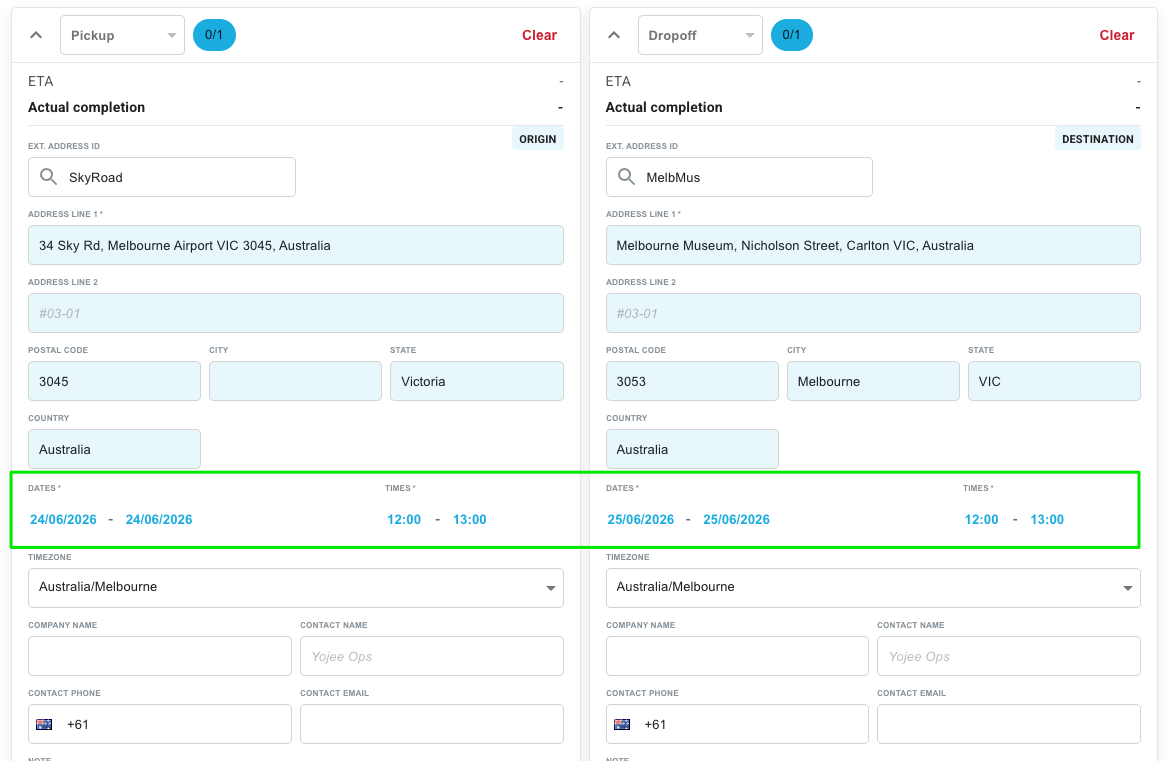
This guide shows you how to switch on **Copy commit time**, a Service Type setting that fills a blank commit time from the other end of the same leg when an order is created.
A **commit time** is the window (a from time and a to time) that an order commits to for a pickup or a delivery step. Orders that arrive from an integration often carry a commit time at one end only, which leaves the other end blank with nothing to plan against.
With the setting on, TCMS copies the window that is present to the end that is empty, once, at the moment the order is created.
---
### When to use it
Switch this on for a service type where orders regularly arrive with one end of a leg blank. The common cases are:
- Pre-booked import shipments, where the delivery date is known but the pickup date is not yet confirmed.
- Any integration or API feed that populates one commit time and leaves the other empty.
- Orders where operations currently delete the populated commit time to force a calculation, then re-enter it by hand.
It is not needed for service types where both ends always arrive populated.
---
### Before you start
- You need permission to edit **Service Types**. No new permission is required. Anyone who can already edit a service type can tick the box.
- The setting is **off by default** for every service type. Nothing changes until you switch it on.
- It works independently of [**Calculate commit times**](https://help.yojee.com/knowledge/calculating-commit-times-for-tasks-based-on-service-type?hsLang=en). You can use either, both, or neither.
---
### How to switch it on
### 1. Open the service type
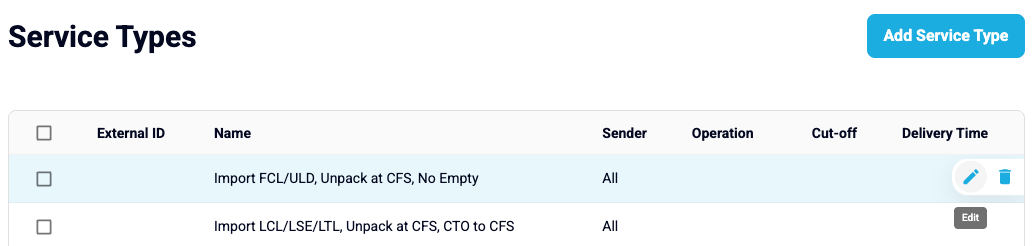
Go to **Manage**, **Orders**, then **Service Types**, and create/edit the service type you want to change.
### 2. Find the Timing section
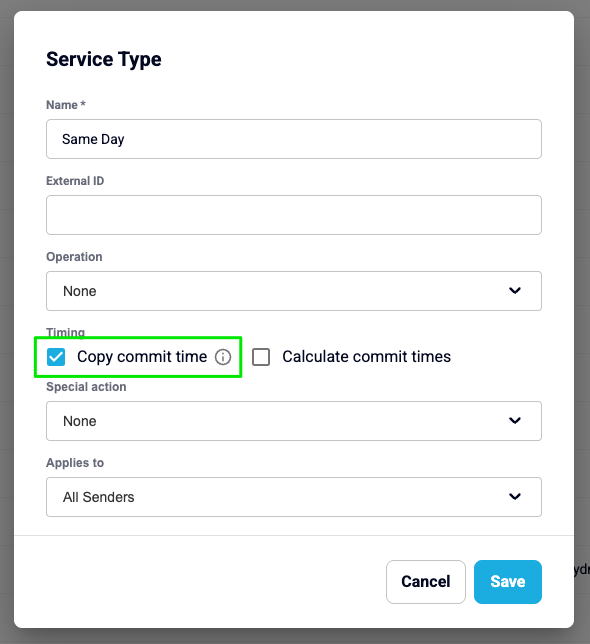
In the **Timing** section of the service type dialog. **Copy commit time** sits directly above **Calculate commit times**.
### 3. Tick Copy commit time
Tick the box.
### 4. Save
Save the service type. The setting applies to orders created from this point on. It does not change orders that already exist.
---
### What gets filled
TCMS resolves each leg on its own, and works out the delivery end first, then the pickup end.
| Step | Order of preference |
| --- | --- |
| **Delivery (dropoff)** | Supplied value, then calculated value (if Calculate commit times is on), then copied from the pickup on the same leg, then left blank |
| **Pickup** | Supplied value, then copied from the delivery on the same leg, then calculated value (if Calculate commit times is on), then left blank |
Two points worth knowing:
- **A value you supplied is never overwritten.** The copy only ever writes into a step that is empty.
- **With Calculate commit times on, a blank delivery is always calculated**, so the delivery end never needs a copy. In that configuration, only the pickup end is filled by copying. This is expected behaviour, not a fault.
---
### Worked examples
Service type with a 23:59 cut-off, next day delivery, all seven days treated as business days. Order created 20 August.
| Calculate commit times | Copy commit time | Pickup in | Delivery in | Pickup result | Delivery result |
| --- | --- | --- | --- | --- | --- |
| On | **On** | blank | 21 Aug | **21 Aug, copied** | unchanged |
| On | **On** | blank | blank | 21 Aug, copied from the calculated delivery | 21 Aug, calculated |
| On | **On** | 22 Aug | blank | unchanged | 21 Aug, calculated |
| **Off** | **On** | blank | 21 Aug | **21 Aug, copied** | unchanged |
| **Off** | **On** | 22 Aug | blank | unchanged | **22 Aug, copied** |
| **Off** | **On** | blank | blank | blank | blank, nothing to copy from |
| On | Off | blank | 21 Aug | blank, as before | unchanged |
---
### Multi-leg orders
Each leg resolves from its own pair of steps. A leg with a supplied delivery time fills its own pickup, and a leg with nothing on either end falls back to the calculation if you have it on.
A copied value is never used as the source for a second copy, so a window cannot cascade down the chain.
**One limitation to be aware of.** The delivery calculation is not leg aware. On an order where several legs have a blank delivery, every one of them is calculated to the same date, which can compress a multi-leg chain into a single day. Check multi-leg orders before relying on those dates for planning.
---
### Things to know before you switch it on
#### Copied windows cover a whole day
A copied window is an exact duplicate of the window at the other end of the leg. Where that source window covers a full day (00:00 to 23:59), the copy does too.
That makes pickup on-time performance very hard to miss against, so any on-time reporting built on copied windows will look better than reality. Take this into account before using those figures in a service review.
#### The fill happens once, at creation
The rule runs when the order is created, and never again. If someone later clears a commit time, it stays cleared. TCMS does not re-fill it.
#### A repeat booking carrying a blank can clear a filled time
If an integration re-sends an existing booking and that repeat payload still carries an empty commit time, the empty value clears what was filled at creation.
This is accepted current behaviour rather than a fault, and it is uncommon: measured over 15 days, about 1.3% of bookings from the affected integration were sent more than once. If you see it happening often enough to matter, raise it with your Customer Success Manager.
#### A step with only one of the two times is left alone
If a step arrives with a from time but no to time (or the reverse), TCMS leaves it untouched and flags it under **Missing Information** on the Transport Orders page. Filling one half could invert the window against itself, so it is deliberately skipped.
---
### Turning it off
Untick the box and save. New orders stop being filled from that point on.
Orders that were already filled keep their windows. Switching the setting off does not empty them.
---
### Frequently asked questions
**Do I need Calculate commit times switched on for this to work?** No. The two settings are independent. Copy commit time works with Calculate commit times on or off.
**Does it apply to orders created through the API or a bulk upload?** Yes. It applies to every way an order is created: the dispatcher screen, the public API, integrations, and batch upload.
**Will it change the orders I already have?** No. There is no backfill. Only orders created after you save the setting are affected.
**Can I tell which times were copied and which were supplied?** Not on the step itself. The order's activity log records that the rule filled something on that order, which is the place to check.
**Why is my delivery time never copied from the pickup?** Because Calculate commit times is on. A blank delivery is always calculated before the copy is reached. Switch the calculation off for that service type if you want the delivery end copied instead.
**Can I set this per order template instead of per service type?** No. The setting lives on the Service Type, alongside the other commit time settings.
- [Quick Start Guides](https://help.yojee.com/tcms/quick-start-guides?hsLang=en)
- [Power Up with Yojee - Training Sessions](https://help.yojee.com/tcms/power-up-with-yojee-training-sessions?hsLang=en)
- [Dispatchers](https://help.yojee.com/tcms/dispatchers?hsLang=en#main-content)
- [Creating Orders](https://help.yojee.com/tcms/dispatchers?hsLang=en#creating-orders)
- [Managing Orders](https://help.yojee.com/tcms/dispatchers?hsLang=en#managing-orders)
- [Dispatching Orders](https://help.yojee.com/tcms/dispatchers?hsLang=en#dispatching-orders)
- [Tracking Orders](https://help.yojee.com/tcms/dispatchers?hsLang=en#tracking-orders)
- [Partners](https://help.yojee.com/tcms/dispatchers?hsLang=en#partners)
- [Network](https://help.yojee.com/tcms/dispatchers?hsLang=en#network)
- [Drivers](https://help.yojee.com/tcms/drivers?hsLang=en)
- [Senders](https://help.yojee.com/tcms/senders?hsLang=en)
- [Partners](https://help.yojee.com/tcms/partners?hsLang=en)
- [Manage](https://help.yojee.com/tcms/manage?hsLang=en#main-content)
- [Account](https://help.yojee.com/tcms/manage?hsLang=en#account)
- [Users](https://help.yojee.com/tcms/manage?hsLang=en#users)
- [Fleet](https://help.yojee.com/tcms/manage?hsLang=en#fleet)
- [Drivers](https://help.yojee.com/tcms/manage?hsLang=en#drivers)
- [Addresses](https://help.yojee.com/tcms/manage?hsLang=en#addresses)
- [Customers](https://help.yojee.com/tcms/manage?hsLang=en#customers)
- [Orders](https://help.yojee.com/tcms/manage?hsLang=en#orders)
- [Planning](https://help.yojee.com/tcms/manage?hsLang=en#planning)
- [Documentation](https://help.yojee.com/tcms/manage?hsLang=en#documentation)
- [Finance](https://help.yojee.com/tcms/manage?hsLang=en#finance)
- [Partners](https://help.yojee.com/tcms/manage?hsLang=en#partners)
- [Analytics](https://help.yojee.com/tcms/analytics?hsLang=en#main-content)
- [Dashboards](https://help.yojee.com/tcms/analytics?hsLang=en#dashboards)
- [Reports](https://help.yojee.com/tcms/analytics?hsLang=en#reports)
- [API Documentation](https://help.yojee.com/tcms/api-documentation?hsLang=en)
- [FAQ and Glossary](https://help.yojee.com/tcms/faq-and-glossary?hsLang=en#main-content)
- [Drivers & Planning](https://help.yojee.com/tcms/faq-and-glossary?hsLang=en#drivers-planning)
- [Glossary](https://help.yojee.com/tcms/faq-and-glossary?hsLang=en#glossary)
- [Reports](https://help.yojee.com/tcms/faq-and-glossary?hsLang=en#reports)
- [Other](https://help.yojee.com/tcms/faq-and-glossary?hsLang=en#other)
- [Release Notes](https://help.yojee.com/tcms/release-notes?hsLang=en#main-content)
- [Release Notes 2026](https://help.yojee.com/tcms/release-notes?hsLang=en#release-notes-2026)
- [Release Notes 2025](https://help.yojee.com/tcms/release-notes?hsLang=en#release-notes-2025)
- [Release Notes 2024](https://help.yojee.com/tcms/release-notes?hsLang=en#release-notes-2024)
- [Release Notes 2023](https://help.yojee.com/tcms/release-notes?hsLang=en#release-notes-2023)
- [Release Notes 2022](https://help.yojee.com/tcms/release-notes?hsLang=en#release-notes-2022)
- [Release Notes 2021](https://help.yojee.com/tcms/release-notes?hsLang=en#release-notes-2021)
- [Release Notes 2020](https://help.yojee.com/tcms/release-notes?hsLang=en#release-notes-2020)
- [New Starter Training](https://help.yojee.com/tcms/new-starter-training?hsLang=en#main-content)
- [Level 1](https://help.yojee.com/tcms/new-starter-training?hsLang=en#level-1)
[](https://www.yojee.com)
TCMS Knowledge Base
[mailto:support@yojee.com](mailto:support@yojee.com)
Copyright © 2026 Yojee Pte Ltd