---
title: Driver Workflow - Configuring the Driver App
description: Driver Workflow enables you to control the functionality of the Yojee driver app, encompassing the management of signature and photo requirements, default settings, and reporting options.
---
[Skip to content](https://help.yojee.com/tcms/configuring-driver-app-actions#main-content)
English
Show submenu for translations

- Knowledge Base
Open main navigation
Close main navigation
- Knowledge Base
- English
Show submenu for translations
- [Go to yojee.com](https://www.yojee.com/)
[Go to yojee.com](https://www.yojee.com/)
Hello. How can we help you?
- There are no suggestions because the search field is empty.
1. [TCMS](https://help.yojee.com/tcms?hsLang=en)
2. [Manage](https://help.yojee.com/tcms/manage?hsLang=en)
3. [Drivers](https://help.yojee.com/tcms/manage?hsLang=en#drivers)
# Driver Workflow - Configuring the Driver App
## Driver Workflow enables you to control the functionality of the Yojee driver app, encompassing the management of signature and photo requirements, default settings, and reporting options.
In this section, see how to:
- Set Driver[Task Actions](https://help.yojee.com/tcms/configuring-driver-app-actions#TaskActions) for each pickup or delivery
- [Configuration](https://help.yojee.com/tcms/configuring-driver-app-actions#Configuration) the driver app defaults
- Enable [Gate Pass](https://help.yojee.com/tcms/configuring-driver-app-actions#GatePass)
- Manage[Report Reasons](https://help.yojee.com/tcms/configuring-driver-app-actions#ReportReasons)
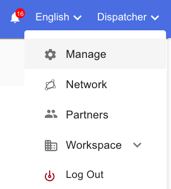
To access Driver workflow, go to **Manage** via the profile menu in the top right
****
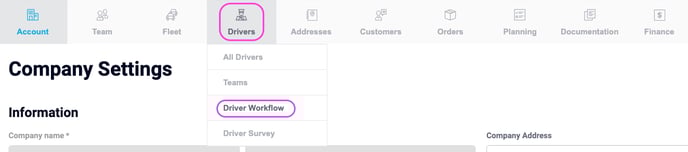
Then select **Drivers \> Driver Workflow**
### Task Actions
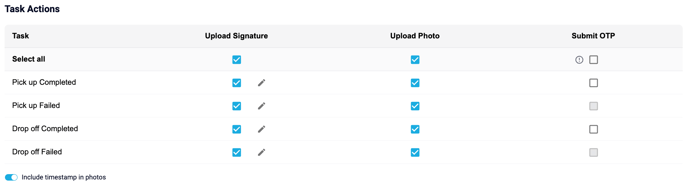Task actions enable you to specify when a driver should collect a signature or take a photo. You can assign these actions to either the pickup or drop-off tasks, allowing them to be performed upon task completion or when an issue is reported.
#### Upload Signature
Allows the driver to **obtain the signature** at the pickup or drop-off point at completion or upon failure. This setting is optional only and cannot be set as mandatory.
**🙌Did you know you can edit the signature message?**
Click on the pencil as shown below and customise the message shown to your drivers.
Enter your message in the box shown, and **SAVE**
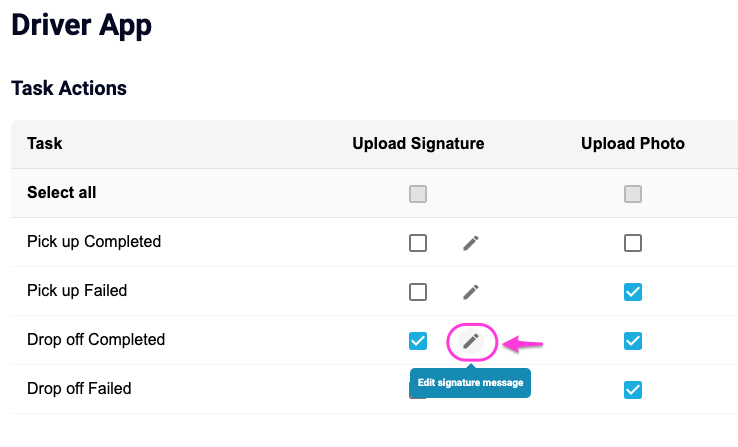
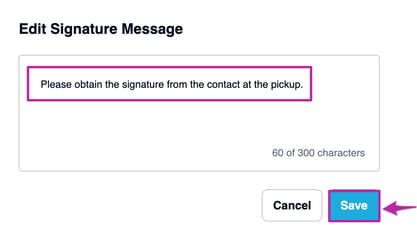
When a new job is assigned to the driver, the message will appear upon capturing the signature.
Please note when signing the customer will also see this message.
#### Upload Photo
Allows the driver to **capture an image of the goods** at the pickup or drop-off point at completion or upon failure.
#### Submit OTP
Allows the driver to **request a one-time pin** from thepickup or drop-off contact upon completion.
#### **Include timestamp in photos**
This will add a timestamp watermark to the bottom of any photo taken within the Driver App when enabled and applied to all driver devices. When disabled the watermark is not longer visible. See [here](https://help.yojee.com/knowledge/driver-photo-timestamps?hsLang=en) for more information.
**Note**
When uploading photos from the mobile device gallery, timestamps will not be included. This distinction ensures that there is a visible difference between images uploaded from the gallery and those taken at the point of delivery when the 'Include timestamp in photos' feature is enabled.
### Configuration
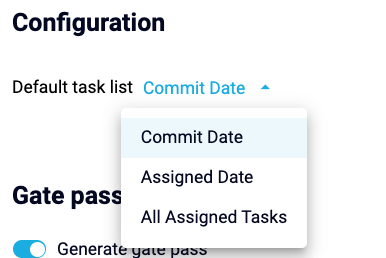
Configuration allows you to set the default task list view for the drivers in the Yojee Driver app.
Select from either:
- **Commit Date** - Tasks are shown on the calendar day of they are commited to complete
- **Assigned Date** - Tasks are displayed on calendar date they are assigned
- **All Assigned Task** - All tasks assigned to driver are displayed regardless of date
**Note**
A driver can change their preferred view via the Driver App settings. See [here](https://help.yojee.com/knowledge/driver-task-list-view?hsLang=en) for instructions.
### Gate Pass
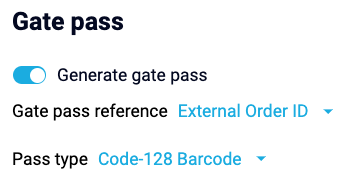
Enabling the gate pass will enable an additional action in the driver app to generate a barcode for to be shown at an entry gate should additional verification be required.
See [Enable Driver App Gate](https://help.yojee.com/knowledge/enable-gate-pass?hsLang=en) Pass for more information setting this up.
### Report Reasons
Report reasons are a set of saved options for your driver to select when a task is failed. For eg, the driver may arrive and it is the incorrect address, closed, or refused due to damage, the dispatcher can configure these within Yojee.
To access the Report Reasons, go to Manage \> Drivers \> Driver App \> Report Reasons
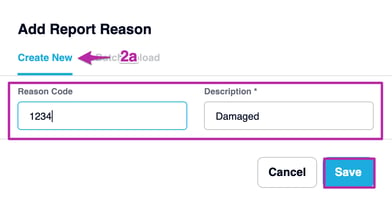
1\. Click on **Add Report** **Reasons** to add a new reason to select from
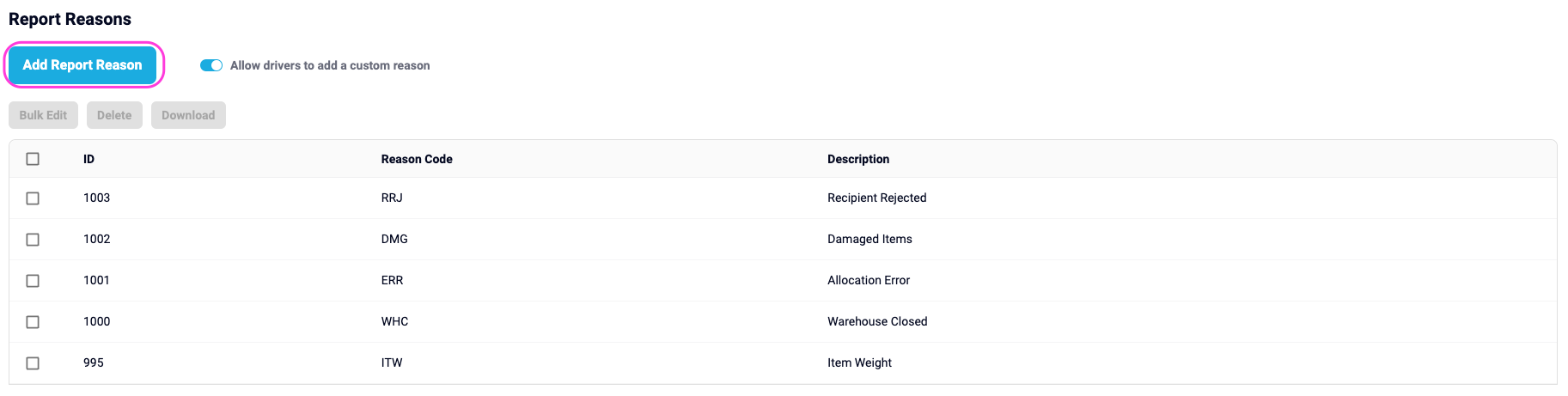
2a) Enter your reason code (if applicable) and description of your reason eg: Damaged and then select Save.
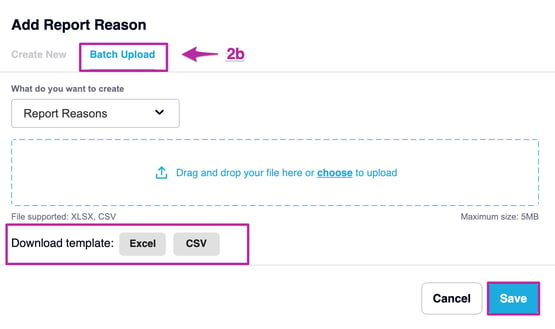
2b) If you have a large set of reasons to create, click on the **Batch Upload** tab to upload.
To obtain a template simply select the **Excel** or **CSV** option and download. Once the template is configured and saved, upload it to this screen and select **Save**.
Once saved, the reasons for the driver to select from will be shown on the driver app
---
#### Bulk Actions
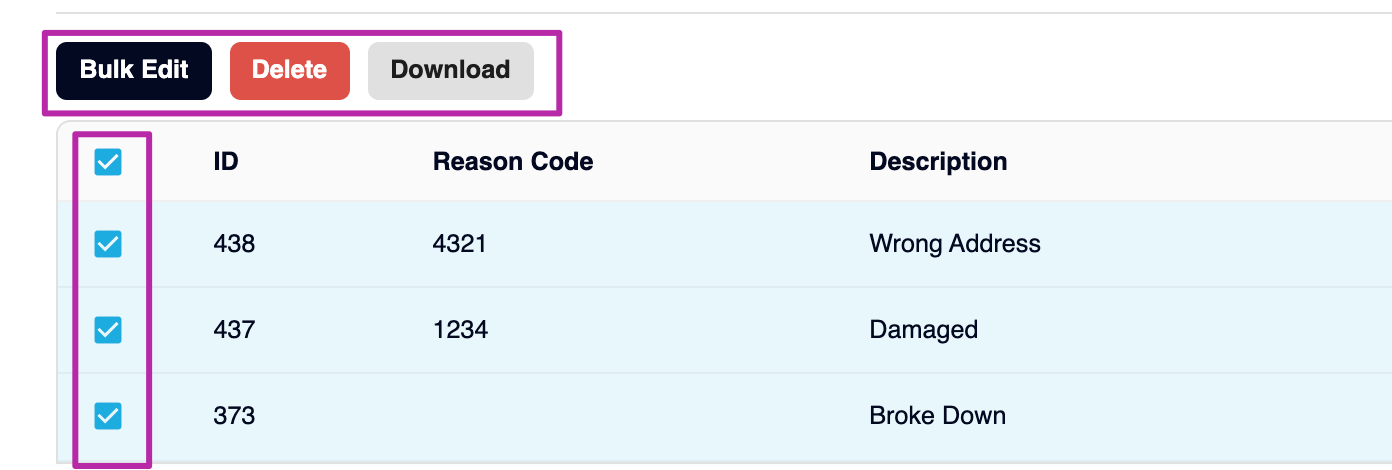
You can also update the reasons in bulk, by selecting the items and using the options to edit, delete or download.
---
⚠️ Please note the ID is for internal Yojee use only and should not be used unless it is for updating the existing reasons.
👏TIP
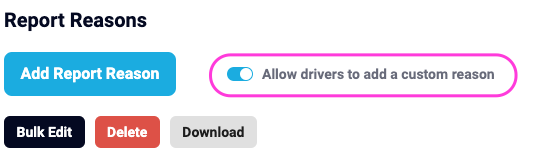
Would you like to give your drivers the option to enter their own reasons? No worries! You can easily enable this feature by making sure that you toggle on the "Allow drivers to add a custom reason" option.
- [Quick Start Guides](https://help.yojee.com/tcms/quick-start-guides?hsLang=en)
- [Power Up with Yojee - Training Sessions](https://help.yojee.com/tcms/power-up-with-yojee-training-sessions?hsLang=en)
- [Dispatchers](https://help.yojee.com/tcms/dispatchers?hsLang=en#main-content)
- [Creating Orders](https://help.yojee.com/tcms/dispatchers?hsLang=en#creating-orders)
- [Managing Orders](https://help.yojee.com/tcms/dispatchers?hsLang=en#managing-orders)
- [Dispatching Orders](https://help.yojee.com/tcms/dispatchers?hsLang=en#dispatching-orders)
- [Tracking Orders](https://help.yojee.com/tcms/dispatchers?hsLang=en#tracking-orders)
- [Partners](https://help.yojee.com/tcms/dispatchers?hsLang=en#partners)
- [Network](https://help.yojee.com/tcms/dispatchers?hsLang=en#network)
- [Drivers](https://help.yojee.com/tcms/drivers?hsLang=en)
- [Senders](https://help.yojee.com/tcms/senders?hsLang=en)
- [Partners](https://help.yojee.com/tcms/partners?hsLang=en)
- [Manage](https://help.yojee.com/tcms/manage?hsLang=en#main-content)
- [Account](https://help.yojee.com/tcms/manage?hsLang=en#account)
- [Users](https://help.yojee.com/tcms/manage?hsLang=en#users)
- [Fleet](https://help.yojee.com/tcms/manage?hsLang=en#fleet)
- [Drivers](https://help.yojee.com/tcms/manage?hsLang=en#drivers)
- [Addresses](https://help.yojee.com/tcms/manage?hsLang=en#addresses)
- [Customers](https://help.yojee.com/tcms/manage?hsLang=en#customers)
- [Orders](https://help.yojee.com/tcms/manage?hsLang=en#orders)
- [Planning](https://help.yojee.com/tcms/manage?hsLang=en#planning)
- [Documentation](https://help.yojee.com/tcms/manage?hsLang=en#documentation)
- [Finance](https://help.yojee.com/tcms/manage?hsLang=en#finance)
- [Partners](https://help.yojee.com/tcms/manage?hsLang=en#partners)
- [Analytics](https://help.yojee.com/tcms/analytics?hsLang=en#main-content)
- [Dashboards](https://help.yojee.com/tcms/analytics?hsLang=en#dashboards)
- [Reports](https://help.yojee.com/tcms/analytics?hsLang=en#reports)
- [API Documentation](https://help.yojee.com/tcms/api-documentation?hsLang=en)
- [FAQ and Glossary](https://help.yojee.com/tcms/faq-and-glossary?hsLang=en#main-content)
- [Drivers & Planning](https://help.yojee.com/tcms/faq-and-glossary?hsLang=en#drivers-planning)
- [Glossary](https://help.yojee.com/tcms/faq-and-glossary?hsLang=en#glossary)
- [Reports](https://help.yojee.com/tcms/faq-and-glossary?hsLang=en#reports)
- [Other](https://help.yojee.com/tcms/faq-and-glossary?hsLang=en#other)
- [Release Notes](https://help.yojee.com/tcms/release-notes?hsLang=en#main-content)
- [Release Notes 2026](https://help.yojee.com/tcms/release-notes?hsLang=en#release-notes-2026)
- [Release Notes 2025](https://help.yojee.com/tcms/release-notes?hsLang=en#release-notes-2025)
- [Release Notes 2024](https://help.yojee.com/tcms/release-notes?hsLang=en#release-notes-2024)
- [Release Notes 2023](https://help.yojee.com/tcms/release-notes?hsLang=en#release-notes-2023)
- [Release Notes 2022](https://help.yojee.com/tcms/release-notes?hsLang=en#release-notes-2022)
- [Release Notes 2021](https://help.yojee.com/tcms/release-notes?hsLang=en#release-notes-2021)
- [Release Notes 2020](https://help.yojee.com/tcms/release-notes?hsLang=en#release-notes-2020)
- [New Starter Training](https://help.yojee.com/tcms/new-starter-training?hsLang=en#main-content)
- [Level 1](https://help.yojee.com/tcms/new-starter-training?hsLang=en#level-1)
[](https://www.yojee.com)
TCMS Knowledge Base
[mailto:support@yojee.com](mailto:support@yojee.com)
Copyright © 2026 Yojee Pte Ltd