---
title: Dispatch Rules
description: Learn how to automate order workflows in Yojee TCMS using Dispatch Rules and Saved Filters. This guide covers setting criteria, configuring triggers, and applying automatic driver assignment or partner transfers.
---
[Skip to content](https://help.yojee.com/tcms/automatic-dispatching#main-content)
English
Show submenu for translations

- Knowledge Base
Open main navigation
Close main navigation
- Knowledge Base
- English
Show submenu for translations
- [Go to yojee.com](https://www.yojee.com/)
[Go to yojee.com](https://www.yojee.com/)
Hello. How can we help you?
- There are no suggestions because the search field is empty.
1. [TCMS](https://help.yojee.com/tcms?hsLang=en)
2. [Manage](https://help.yojee.com/tcms/manage?hsLang=en)
3. [Planning](https://help.yojee.com/tcms/manage?hsLang=en#planning)
# Dispatch Rules
## Automate driver assignment and partner transfers using rule-based workflows in Yojee TCMS.
#### **Overview**
Dispatch Rules allow you to **automate key actions** in Yojee TCMS - such as **assigning drivers**, **transferring orders to downstream partners**, or triggering a workflow when an order is created or reported.
To configure dispatch automation, there are **two required components**:
1. **Saved Filters** – define *which* orders the rule should apply to
2. **Dispatch Rules** – define *what* action should occur and *when*
This article explains how to set up both components.
---
### **1. Saved Filters**
Saved Filters act as the **criteria engine** for Dispatch Rules.
Only orders matching the filter will trigger the rule.
### **How to Create a Saved Filter**
**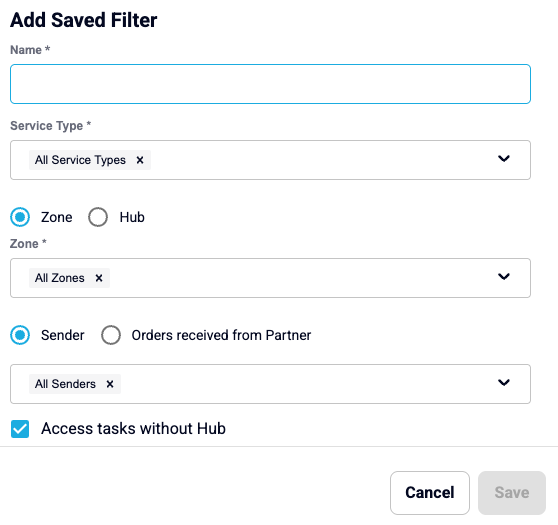**
1. Navigate to **Profile menu (Top right) →** **Manage → Planning → Saved Filters**.
2. Select **Add Filter**.
3. Enter the required criteria:
| Field | Description |
| --- | --- |
| **Name** | A descriptive name for the filter (e.g., *Sydney Metro Transfers*) |
| **Service Type** | Select one or more service types |
| **Zone / Hub** | Choose relevant zones or hubs, or select **All** |
| **Sender / Orders Received from Partner** | Target specific senders or upstream partners |
| **Access tasks without hub** | Tick if the order does *not* require hub routing |
4. Click **Save**.
Your Saved Filter is now ready to be used in a Dispatch Rule.
---
### **2. Dispatch Rules**
Dispatch Rules define *what action TCMS should take* and *when*.
Examples:
- Automatically **assign a driver** on order creation
- Automatically **transfer to a downstream partner**
- Automatically **apply actions when a task is reported**
- Automate workflow routing based on sender, service type, hubs, or zones
### **How to Create a Dispatch Rule**
**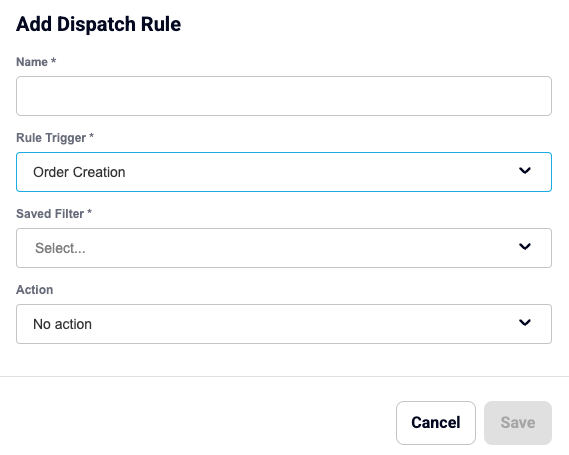**
1. Go to **Profile menu (Top right) →** **Manage → Planning → Dispatch Rules**
2. Click **Add Rule**.
3. Configure each field:
| Field | Description |
| --- | --- |
| **Name** | Name of the automation (e.g., *Auto-Transfer to Partner X*) |
| **Rule Trigger** | Choose: **Order Creation** – rule applies when order is created **Task Reported** – rule applies when a driver reports a task |
| **Saved Filter** | Select the Saved Filter created earlier |
| **Action** | Choose what TCMS should do (e.g., Transfer to Partner, Auto Assign Driver) |
| **Partner / Driver** | Select the partner or driver depending on the chosen action: **Order Creation Actions:** - Assign - *Assign to a specific driver* - Broadcast - *Broadcast to a team of drivers* - Transfer - *Transfer to a downstream partner* **Task Reported Actions:** - Cancel on Report - *Cancel task if reported (will return to upstream if order has been transferred)* - Re-Assign to Driver - *Re-assigns task to the driver that reported the task for them to complete* |
4. Click **Save**.
Your Dispatch Rule is now active. All new or updated orders matching the rule’s criteria will be automatically processed.
---
#### **Example: Auto-Transfer to a Downstream Partner**
Trigger: **Order Creation**
Action: **Transfer to Partner**
Filter: Service Type = FCL Export
Outcome: All new export orders are instantly transferred to your downstream partner without manual intervention.
---
#### **Use Cases for Dispatch Rules**
- **Auto-assign courier jobs** to the correct metropolitan driver
- **Auto-transfer container jobs** to container specific carriers
- **Hub-routing automation** for multi-leg operations
- **Sender-specific workflows** (e.g., VIP customers automatically assigned to elite service drivers)
- **Partner-specific routing** for designated freight lanes
Dispatch Rules help reduce manual work, eliminate mistakes, and improve overall operational speed.
- [Quick Start Guides](https://help.yojee.com/tcms/quick-start-guides?hsLang=en)
- [Power Up with Yojee - Training Sessions](https://help.yojee.com/tcms/power-up-with-yojee-training-sessions?hsLang=en)
- [Dispatchers](https://help.yojee.com/tcms/dispatchers?hsLang=en#main-content)
- [Creating Orders](https://help.yojee.com/tcms/dispatchers?hsLang=en#creating-orders)
- [Managing Orders](https://help.yojee.com/tcms/dispatchers?hsLang=en#managing-orders)
- [Dispatching Orders](https://help.yojee.com/tcms/dispatchers?hsLang=en#dispatching-orders)
- [Tracking Orders](https://help.yojee.com/tcms/dispatchers?hsLang=en#tracking-orders)
- [Partners](https://help.yojee.com/tcms/dispatchers?hsLang=en#partners)
- [Network](https://help.yojee.com/tcms/dispatchers?hsLang=en#network)
- [Drivers](https://help.yojee.com/tcms/drivers?hsLang=en)
- [Senders](https://help.yojee.com/tcms/senders?hsLang=en)
- [Partners](https://help.yojee.com/tcms/partners?hsLang=en)
- [Manage](https://help.yojee.com/tcms/manage?hsLang=en#main-content)
- [Account](https://help.yojee.com/tcms/manage?hsLang=en#account)
- [Users](https://help.yojee.com/tcms/manage?hsLang=en#users)
- [Fleet](https://help.yojee.com/tcms/manage?hsLang=en#fleet)
- [Drivers](https://help.yojee.com/tcms/manage?hsLang=en#drivers)
- [Addresses](https://help.yojee.com/tcms/manage?hsLang=en#addresses)
- [Customers](https://help.yojee.com/tcms/manage?hsLang=en#customers)
- [Orders](https://help.yojee.com/tcms/manage?hsLang=en#orders)
- [Planning](https://help.yojee.com/tcms/manage?hsLang=en#planning)
- [Documentation](https://help.yojee.com/tcms/manage?hsLang=en#documentation)
- [Finance](https://help.yojee.com/tcms/manage?hsLang=en#finance)
- [Partners](https://help.yojee.com/tcms/manage?hsLang=en#partners)
- [Analytics](https://help.yojee.com/tcms/analytics?hsLang=en#main-content)
- [Dashboards](https://help.yojee.com/tcms/analytics?hsLang=en#dashboards)
- [Reports](https://help.yojee.com/tcms/analytics?hsLang=en#reports)
- [API Documentation](https://help.yojee.com/tcms/api-documentation?hsLang=en)
- [FAQ and Glossary](https://help.yojee.com/tcms/faq-and-glossary?hsLang=en#main-content)
- [Drivers & Planning](https://help.yojee.com/tcms/faq-and-glossary?hsLang=en#drivers-planning)
- [Glossary](https://help.yojee.com/tcms/faq-and-glossary?hsLang=en#glossary)
- [Reports](https://help.yojee.com/tcms/faq-and-glossary?hsLang=en#reports)
- [Other](https://help.yojee.com/tcms/faq-and-glossary?hsLang=en#other)
- [Release Notes](https://help.yojee.com/tcms/release-notes?hsLang=en#main-content)
- [Release Notes 2026](https://help.yojee.com/tcms/release-notes?hsLang=en#release-notes-2026)
- [Release Notes 2025](https://help.yojee.com/tcms/release-notes?hsLang=en#release-notes-2025)
- [Release Notes 2024](https://help.yojee.com/tcms/release-notes?hsLang=en#release-notes-2024)
- [Release Notes 2023](https://help.yojee.com/tcms/release-notes?hsLang=en#release-notes-2023)
- [Release Notes 2022](https://help.yojee.com/tcms/release-notes?hsLang=en#release-notes-2022)
- [Release Notes 2021](https://help.yojee.com/tcms/release-notes?hsLang=en#release-notes-2021)
- [Release Notes 2020](https://help.yojee.com/tcms/release-notes?hsLang=en#release-notes-2020)
- [New Starter Training](https://help.yojee.com/tcms/new-starter-training?hsLang=en#main-content)
- [Level 1](https://help.yojee.com/tcms/new-starter-training?hsLang=en#level-1)
[](https://www.yojee.com)
TCMS Knowledge Base
[mailto:support@yojee.com](mailto:support@yojee.com)
Copyright © 2026 Yojee Pte Ltd