---
title: Configuring Company Settings & Defaults in MOSAIC.
description: Learn how to configure Company Settings in MOSAIC, including your company profile, freight defaults, currencies, and receiving agents.
---
[Skip to content](https://help.yojee.com/mosaic/configuring-company-settings-defaults-in-mosaicwhat-question-is-your-article-answering#main-content)
English
Show submenu for translations
[](https://www.yojee.com/mosaic)
- Knowledge Base
Open main navigation
Close main navigation
- Knowledge Base
- English
Show submenu for translations
- [Go to yojee.com](https://www.yojee.com/)
[Go to yojee.com](https://www.yojee.com/)
Hello. How can we help you?
- There are no suggestions because the search field is empty.
1. [MOSAIC](https://help.yojee.com/mosaic?hsLang=en)
2. [Settings](https://help.yojee.com/mosaic/settings?hsLang=en)
3. [Company Settings](https://help.yojee.com/mosaic/settings?hsLang=en#company-settings)
# Configuring Company Settings & Defaults in MOSAIC.
## Company Settings is where administrators configure the defaults and preferences that flow through every job, from the currencies pre-filled on airway bills to the receiving agents automatically assigned to destination ports. Getting these settings right upfront means less manual data entry on every job, fewer errors, and faster processing across your team.
**📋 Note: Company Settings is an admin-level area. Most users won't need to access it directly, the values set here simply appear pre-filled in jobs and workflows. If you're not sure whether you have access, check with your MOSAIC account administrator.
Getting to Company Settings**
Company Settings is accessed from the user menu in the top-right corner of MOSAIC.
1. Click your name in the top-right corner of the screen (e.g. "Deb - ACME Company"). A dropdown menu appears.
2. Click Company settings.
| **📷 SCREENSH** |
| --- |
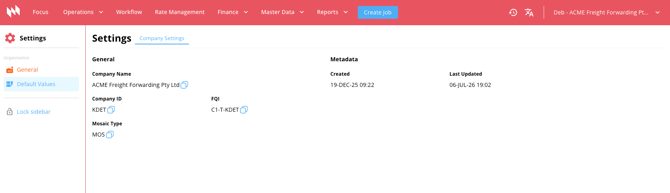
The Settings screen opens with a left-hand sidebar showing two sections under Organisation: General and Default Values.
| **** |
| --- |
**Overview: What's Inside Company Settings**
Company Settings contains two sections, accessible from the left sidebar:
| **Company Settings Sections** | |
| --- | --- |
| **Section** | **What You Configure Here** |
| **General** | Your company name, reference number, company type, and system identifiers. Read-only information set up by Yojee when your account was created. |
| **Default Values** | Pre-filled values for MAWB and HAWB fields - currencies, weight valuation, and declared value defaults for every air freight job. Also includes your default Receiving Agents by destination. |
**General**
The General section displays your organisation's core profile information. This is set up by Yojee when your MOSAIC account is created and is not editable by users.
| **General - Field Reference** | |
| --- | --- |
| **Field** | **Description** |
| **Company Name** | Your registered company name as set up in MOSAIC. |
| **Reference** | Your company's business registration number. |
| **Reference Type** | The type of registration number - typically ABN for Australian entities. |
| **Company ID** | A short unique identifier for your company within MOSAIC (e.g. JV5S). Used in internal references. |
| **FQI** | Fully Qualified Identifier - the full system reference for your company (e.g. C1-V-JV5S). Used for internal routing and integrations. |
| **Company Types** | Your company's operational classification in MOSAIC. FFD indicates Freight Forwarder. |
| **Status** | Whether your MOSAIC account is currently active. Displays ACTIVE when your account is enabled. |
| **Mosaic Type** | The MOSAIC product type your account is configured for. MOS indicates the standard MOSAIC platform. |
| **Created / Last Updated** | Timestamps showing when your company profile was first created and most recently updated in MOSAIC. |
| **ℹ️ Context:** If any of the information in the General section is incorrect - for example if your company name or ABN needs updating - contact Yojee support at support@yojee.com to request a change. |
| --- |
**Default Values**
The Default Values section allows you to pre-fill standard values that appear automatically when creating air freight jobs - saving time and reducing errors on routine shipments.
### **Sub-Tabs: MAWB/HAWB and Receiving Agents**
Default Values contains two sub-tabs:
- **MAWB/HAWB** - Set default currency and declared value fields for Master Air Waybill and House Air Waybill jobs.
- **Receiving Agents** - Define your default overseas agents by destination port and transport mode.
### **MAWB/HAWB Sub-Tab**
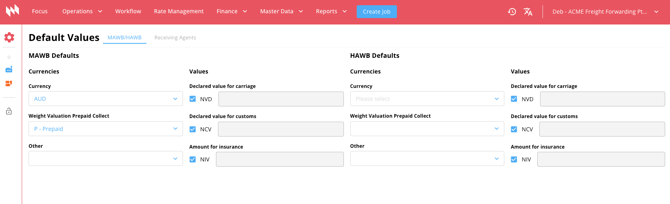
The MAWB/HAWB sub-tab displays MAWB Defaults and HAWB Defaults side by side on the same screen. Each side has the same structure - configure them independently if your master-level and house-level preferences differ.
**MAWB** (Master Air Waybill) - applies to the master-level shipment, typically the consolidation or direct airline booking.
**HAWB** (House Air Waybill) - applies to individual house shipments within a consolidation, or direct house-level jobs.
| **** |
| --- |
### **Currencies Fields**
| **Currencies** | |
| --- | --- |
| **Field** | **What It Does** |
| **Currency** | Sets the default billing currency for the job (e.g. AUD, USD, SGD). Appears on airway bills and invoices. |
| **Weight Valuation Prepaid Collect** | Defines whether the weight valuation charge is billed Prepaid (shipper pays) or Collect (consignee pays). Prepaid is most common for export shipments. |
| **Other** | A secondary charge classification field. Set as required for your organisation's billing arrangements. |
### **Values Fields**
The Values fields use standard IATA abbreviations that appear directly on airway bills. Each field has a checkbox to enable the default value - when the checkbox is ticked, the value pre-fills on new jobs.
| **Declared Values** | |
| --- | --- |
| **Field** | **Default / What It Means** |
| **Declared value for carriage** | Default: NVD (No Value Declared) - the shipper is not declaring a specific carriage value. Standard for most commercial shipments. |
| **Declared value for customs** | Default: NCV (No Customs Value) - the customs value is shown on a separate commercial invoice or customs entry, not on the airway bill. |
| **Amount for insurance** | Default: NIV (No Insurance Value) - the shipper has arranged their own insurance, or no insurance is required on the AWB. |
| **💡 Tip:** NVD, NCV, and NIV are standard IATA abbreviations used on airway bills worldwide. These defaults can be overridden on individual jobs when a shipment has specific requirements. |
| --- |
### **Receiving Agents Sub-Tab**
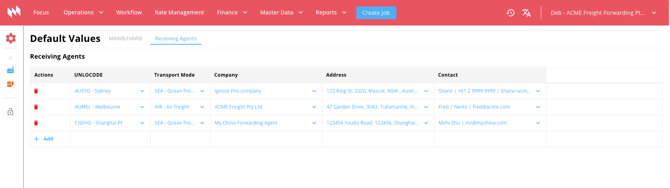
The Receiving Agents sub-tab allows you to pre-configure your default overseas agents by destination. When a job is created to a destination that has a receiving agent configured, MOSAIC can populate the agent automatically — reducing manual lookups.
To add a receiving agent, click the + Add button. Each entry contains the following fields:
|  |
| --- |
| **Receiving Agents - Fields** | |
| --- | --- |
| **Field** | **Description** |
| **UNLOCODE** | The UN location code for the destination port or city (e.g. SGSIN for Singapore, HKHKG for Hong Kong, AUMEL for Melbourne). |
| **Transport Mode** | The mode of transport this agent handles at that destination - Air, Sea, or Road. Allows you to set different agents for the same port depending on how freight is moving. |
| **Company** | The name of the receiving agent company at that destination. |
| **Address** | The agent's address at the destination. |
| **Contact** | The primary contact person or details for that agent. |
- [Settings](https://help.yojee.com/mosaic/settings?hsLang=en#main-content)
- [Company Settings](https://help.yojee.com/mosaic/settings?hsLang=en#company-settings)
- Knowledge Base
[](https://www.yojee.com)
MOSAIC Knowledge Base
[mailto:support@yojee.com](mailto:support@yojee.com)
Copyright © 2026, Yojee Pte Ltd