---
title: How to set up an Order Acceptance SLA for a partner
description: Set an Order Acceptance SLA on a partner in TCMS and turn on the Transfer not accepted (DS) alert, so you're warned before an unaccepted transfer delays freight.
---
[Skip to content](https://help.yojee.com/knowledge/how-to-set-up-an-order-acceptance-sla-for-a-partner#main-content)
English
Show submenu for translations

- Knowledge Base
Open main navigation
Close main navigation
- Knowledge Base
- English
Show submenu for translations
- [Go to yojee.com](https://www.yojee.com/)
[Go to yojee.com](https://www.yojee.com/)
Hello. How can we help you?
- There are no suggestions because the search field is empty.
1. [Knowledge Base](https://help.yojee.com/knowledge?hsLang=en)
2. [Manage](https://help.yojee.com/knowledge/manage?hsLang=en)
3. [Partners](https://help.yojee.com/knowledge/manage?hsLang=en#partners)
# How to set up an Order Acceptance SLA for a partner
## This guide shows you how to set an acceptance SLA for a downstream partner and turn on the alert that tells you when a transfer has not been accepted in time.
### What this feature does
When you transfer an order to a downstream partner, TCMS previously gave no signal if that partner never accepted it. The order could sit unaccepted for hours with nobody told.
**Order Acceptance SLA** lets you set an expected acceptance time for each partner. If a transfer sits unaccepted past that time, TCMS shows a warning icon on the order and can email your team, so you can withdraw and reassign it, or chase the partner, before the freight is delayed.
**Key term:** an SLA (service level agreement) here is just the maximum time you expect a partner to take to accept a transferred order. It is an internal expectation you set for your own team. The downstream partner never sees it.
Before you start
You need **edit access to the Partners page** to set the SLA (this is usually an admin permission). Anyone can view Team Notifications settings, but check with your admin if the option is greyed out.
Steps
### 1. Set the Order Acceptance SLA on the partner
1. Select your name in the top right, then choose **Partners**.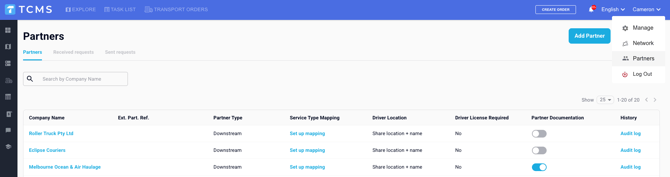
2. Select the partner you want to set the SLA for.
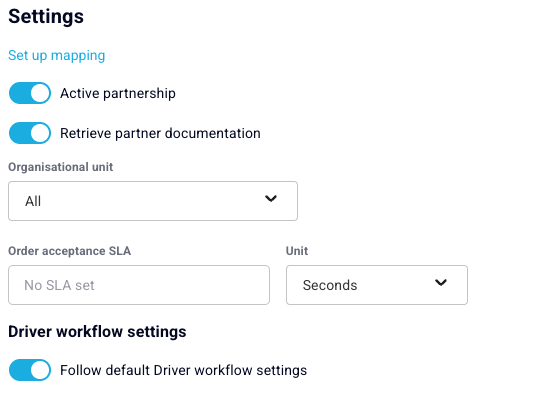
3. Scroll to the **Settings** section and find **Order acceptance SLA**.
> 
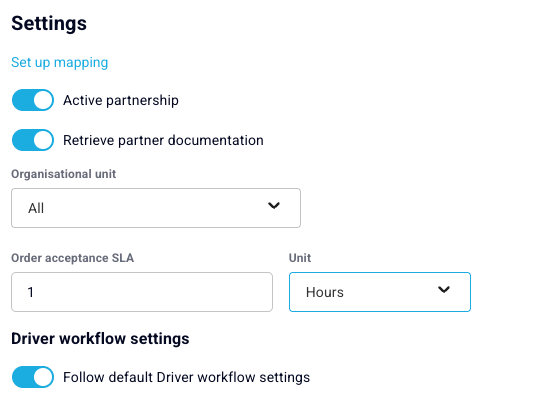
4. Enter the value and choose a unit: **Seconds**, **Minutes** or **Hours**.
- Use **seconds** for partners who accept automatically through an integration. Anything slower than a few seconds usually means the integration has a fault.
- Use **around an hour** for partners who accept manually in TCMS, so a dispatcher has time to work through their queue.
> 
5. Select **Save changes** in the bottom right.
You should see the value you entered remain in the field after the page saves.
### 2. Turn on the Transfer not accepted notification
1. Select your name in the top right, then choose **Manage**.
2. Go to **Team \> Team Notifications**.
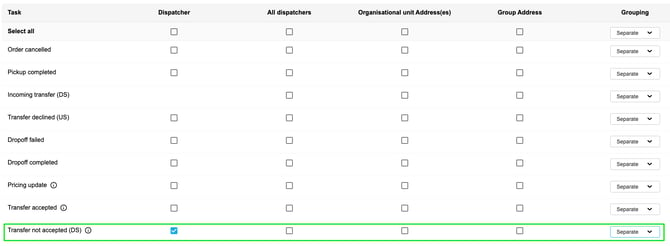
3. Find **Transfer not accepted (DS)** and tick the columns for who should be emailed: **Dispatcher**, **All dispatchers**, **Organisational unit Address(es)** or **Group Address**.
> 
4. Select **Save changes** in the bottom right.
What happens after you turn this on
Once both steps are done, for that partner:
- The SLA clock starts the moment an order is transferred to the partner, and stops the moment they accept it.
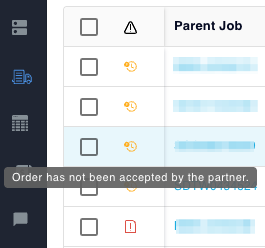
- If the partner has not accepted by the time the SLA runs out, TCMS raises a warning (an amber icon) on **Transport Orders** and on the order itself, with the tooltip "Order has not been accepted by the partner."
> 
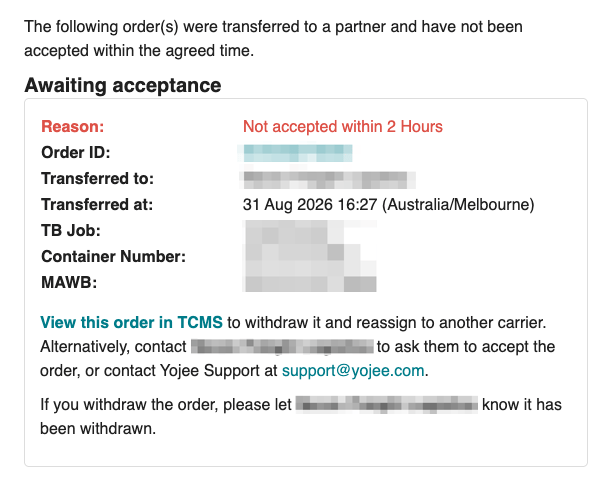
- If you turned the notification on, an email goes out with the order details and a link straight to it in TCMS, so you can withdraw and reassign, contact the partner, or contact Yojee Support.
> 
- You get **one alert per transfer**. There are no repeat reminders. If the order is later accepted, the icon clears but the breach stays on the order's history.
Verify it worked
- Reopen the partner's page and confirm the SLA value and unit are still showing.
- Reopen Team Notifications and confirm **Transfer not accepted (DS)** is ticked for the columns you chose.
- The real test is a live transfer: if a transfer to that partner is not accepted within the SLA you set, you should see the amber icon appear and (if enabled) receive the email.
Good to know
- **Leaving the field empty, or entering 0, turns the feature off** for that partner. No clock runs, no icon shows and no email sends.
- **This is order-level only.** There is no SLA per item or per leg.
- **It's a wall clock.** TCMS does not account for business hours, weekends or public holidays. A breach overnight will still be sitting there for you to action the next morning.
- **The SLA is per partner, not company-wide.** You set it individually on each partner's page. There is no default that applies to every partner at once.
- **If "Auto accept transferred orders" is turned on** for that partner, the SLA field is greyed out and can't run, because auto-accepted transfers can never breach. Your entered value is kept, and starts working again if you turn auto-accept back off.
- **Changing the SLA does not affect orders already in transit.** A transfer keeps the SLA value that was in place when it was created.
- This does not send anything to the downstream partner. It's for your team only.
Related articles
- [Team Notifications](https://help.yojee.com/knowledge/team-notifications?hsLang=en)
- [Managing your Partners](https://help.yojee.com/knowledge/partners-overview?hsLang=en)
- [Quick Start Guides](https://help.yojee.com/knowledge/quick-start-guides?hsLang=en)
- [Power Up with Yojee - Training Sessions](https://help.yojee.com/knowledge/power-up-with-yojee-training-sessions?hsLang=en)
- [Dispatchers](https://help.yojee.com/knowledge/dispatchers?hsLang=en#main-content)
- [Creating Orders](https://help.yojee.com/knowledge/dispatchers?hsLang=en#creating-orders)
- [Managing Orders](https://help.yojee.com/knowledge/dispatchers?hsLang=en#managing-orders)
- [Dispatching Orders](https://help.yojee.com/knowledge/dispatchers?hsLang=en#dispatching-orders)
- [Tracking Orders](https://help.yojee.com/knowledge/dispatchers?hsLang=en#tracking-orders)
- [Partners](https://help.yojee.com/knowledge/dispatchers?hsLang=en#partners)
- [Network](https://help.yojee.com/knowledge/dispatchers?hsLang=en#network)
- [Drivers](https://help.yojee.com/knowledge/drivers?hsLang=en)
- [Senders](https://help.yojee.com/knowledge/senders?hsLang=en)
- [Partners](https://help.yojee.com/knowledge/partners?hsLang=en)
- [Manage](https://help.yojee.com/knowledge/manage?hsLang=en#main-content)
- [Account](https://help.yojee.com/knowledge/manage?hsLang=en#account)
- [Users](https://help.yojee.com/knowledge/manage?hsLang=en#users)
- [Fleet](https://help.yojee.com/knowledge/manage?hsLang=en#fleet)
- [Drivers](https://help.yojee.com/knowledge/manage?hsLang=en#drivers)
- [Addresses](https://help.yojee.com/knowledge/manage?hsLang=en#addresses)
- [Customers](https://help.yojee.com/knowledge/manage?hsLang=en#customers)
- [Orders](https://help.yojee.com/knowledge/manage?hsLang=en#orders)
- [Planning](https://help.yojee.com/knowledge/manage?hsLang=en#planning)
- [Documentation](https://help.yojee.com/knowledge/manage?hsLang=en#documentation)
- [Finance](https://help.yojee.com/knowledge/manage?hsLang=en#finance)
- [Partners](https://help.yojee.com/knowledge/manage?hsLang=en#partners)
- [Analytics](https://help.yojee.com/knowledge/analytics?hsLang=en#main-content)
- [Dashboards](https://help.yojee.com/knowledge/analytics?hsLang=en#dashboards)
- [Reports](https://help.yojee.com/knowledge/analytics?hsLang=en#reports)
- [API Documentation](https://help.yojee.com/knowledge/api-documentation?hsLang=en)
- [FAQ and Glossary](https://help.yojee.com/knowledge/faq-and-glossary?hsLang=en#main-content)
- [Drivers & Planning](https://help.yojee.com/knowledge/faq-and-glossary?hsLang=en#drivers-planning)
- [Glossary](https://help.yojee.com/knowledge/faq-and-glossary?hsLang=en#glossary)
- [Reports](https://help.yojee.com/knowledge/faq-and-glossary?hsLang=en#reports)
- [Other](https://help.yojee.com/knowledge/faq-and-glossary?hsLang=en#other)
- [Release Notes](https://help.yojee.com/knowledge/release-notes?hsLang=en#main-content)
- [Release Notes 2026](https://help.yojee.com/knowledge/release-notes?hsLang=en#release-notes-2026)
- [Release Notes 2025](https://help.yojee.com/knowledge/release-notes?hsLang=en#release-notes-2025)
- [Release Notes 2024](https://help.yojee.com/knowledge/release-notes?hsLang=en#release-notes-2024)
- [Release Notes 2023](https://help.yojee.com/knowledge/release-notes?hsLang=en#release-notes-2023)
- [Release Notes 2022](https://help.yojee.com/knowledge/release-notes?hsLang=en#release-notes-2022)
- [Release Notes 2021](https://help.yojee.com/knowledge/release-notes?hsLang=en#release-notes-2021)
- [Release Notes 2020](https://help.yojee.com/knowledge/release-notes?hsLang=en#release-notes-2020)
- [New Starter Training](https://help.yojee.com/knowledge/new-starter-training?hsLang=en#main-content)
- [Level 1](https://help.yojee.com/knowledge/new-starter-training?hsLang=en#level-1)
[](https://www.yojee.com)
TCMS Knowledge Base
[mailto:support@yojee.com](mailto:support@yojee.com)
Copyright © 2026 Yojee Pte Ltd