---
title: Setting Driver Start and End Locations
description: Learn how to set a driver's Start and End Locations in TCMS using address autocomplete or the map pin tool. Required for accurate depot leg distance and duration in the Daily Distance Report.
---
[Skip to content](https://help.yojee.com/knowledge/driver-start-end-locations#main-content)
English
Show submenu for translations

- Knowledge Base
Open main navigation
Close main navigation
- Knowledge Base
- English
Show submenu for translations
- [Go to yojee.com](https://www.yojee.com/)
[Go to yojee.com](https://www.yojee.com/)
Hello. How can we help you?
- There are no suggestions because the search field is empty.
1. [Knowledge Base](https://help.yojee.com/knowledge?hsLang=en)
2. [Manage](https://help.yojee.com/knowledge/manage?hsLang=en)
3. [Drivers](https://help.yojee.com/knowledge/manage?hsLang=en#drivers)
# Setting Driver Start and End Locations
## Configure depot locations for accurate daily mileage and depot leg calculations
### Overview
A driver's **Start Location** and **End Location** tell TCMS where a driver begins and ends their working day — typically a depot, yard, or home address. These locations are used to calculate **depot legs** in the Daily Distance Report: the route from the start location to the driver's first task, and from the last task back to the end location.
> **Why this matters:** Without a Start or End Location set, depot legs cannot be calculated and those distances will be missing from the Daily Distance Report. See Daily Distance Report for more detail.
---
### Who Can Do This
Dispatcher or Administrator role required.
---
### Step-by-Step Instructions
### Step 1 — Navigate to Driver Management
Go to **Manage** in the top navigation, then select the **Drivers** tab. Then select **All Drivers**.
You will see a list of all drivers configured for your account.
---
### Step 2 — Open the Driver Record
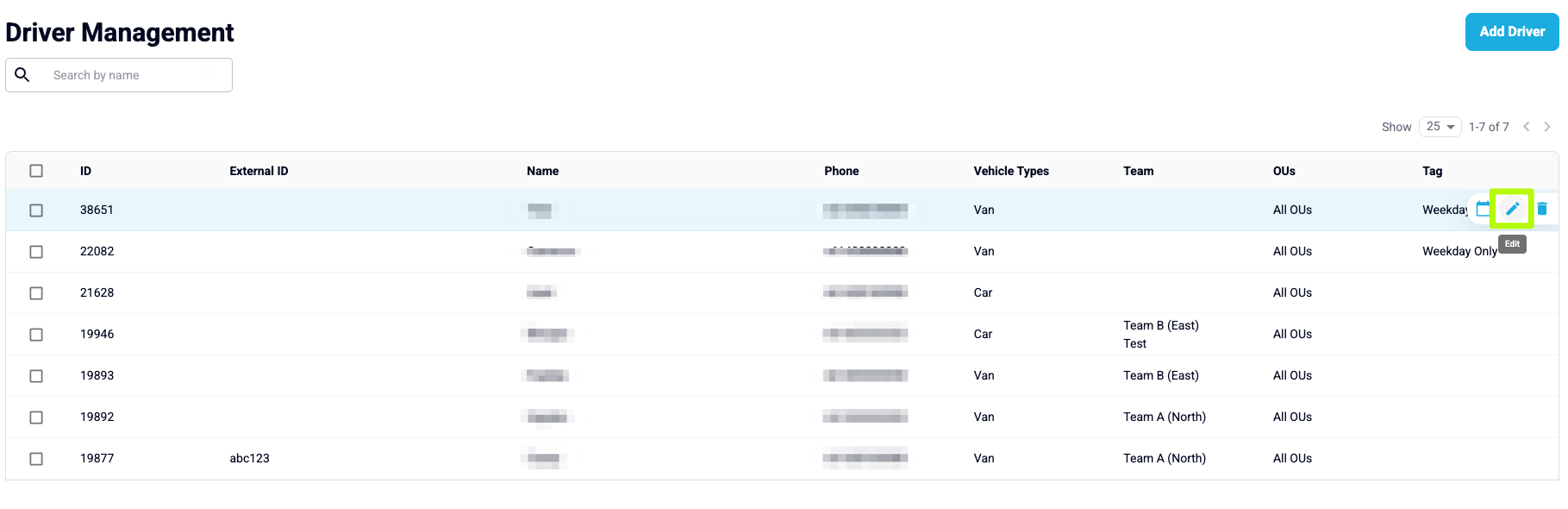
Find the driver you want to update using the **Search by name** field, or scroll through the list.
Click the **pencil (edit) icon** on the right-hand side of the driver's row.
The driver's profile will open in an edit panel.
---
### Step 3 — Set the Start Location
In the driver profile, scroll to the **Personal Info** section. You will see the **Start Location** field.
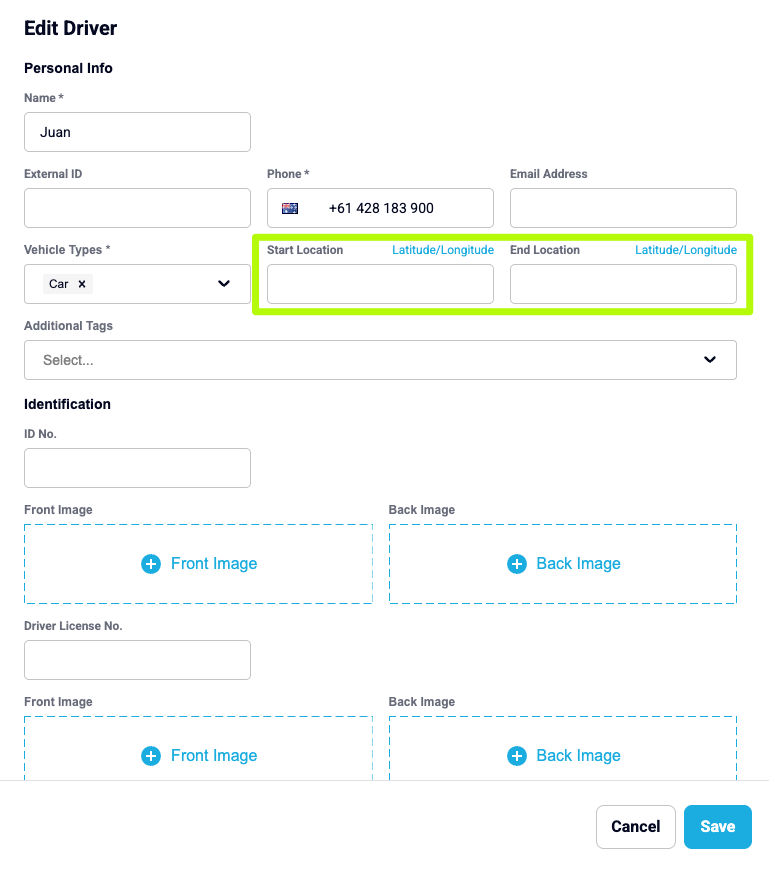
**Option A — Type an address (recommended)**
Begin typing the address into the **Start Location** field. As you type, TCMS will display a list of matching addresses. Select the correct address from the dropdown.
> The address is automatically geocoded when selected from the list — no additional steps required.
**Option B — Use the map pin**
Click the **Latitude/Longitude** link to the right of the Start Location label. A map will open.
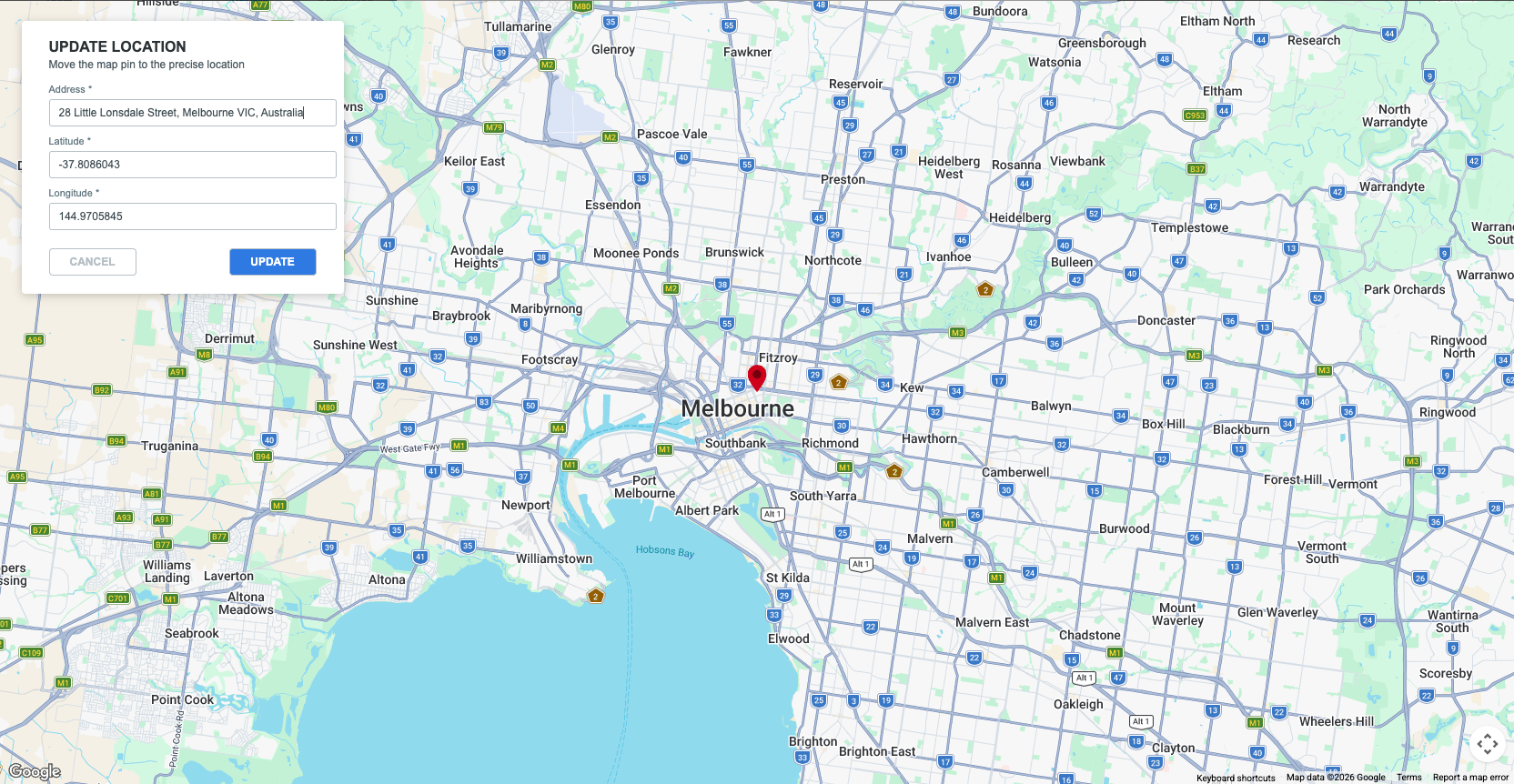
You can either:
- Type an address into the **Address** field at the top of the map panel, or
- Drag the **red map pin** to the precise location on the map.
The **Latitude** and **Longitude** fields will update automatically as the pin moves. Once the pin is in the correct position, click **Update** to save the coordinates.
---
### Step 4 — Set the End Location
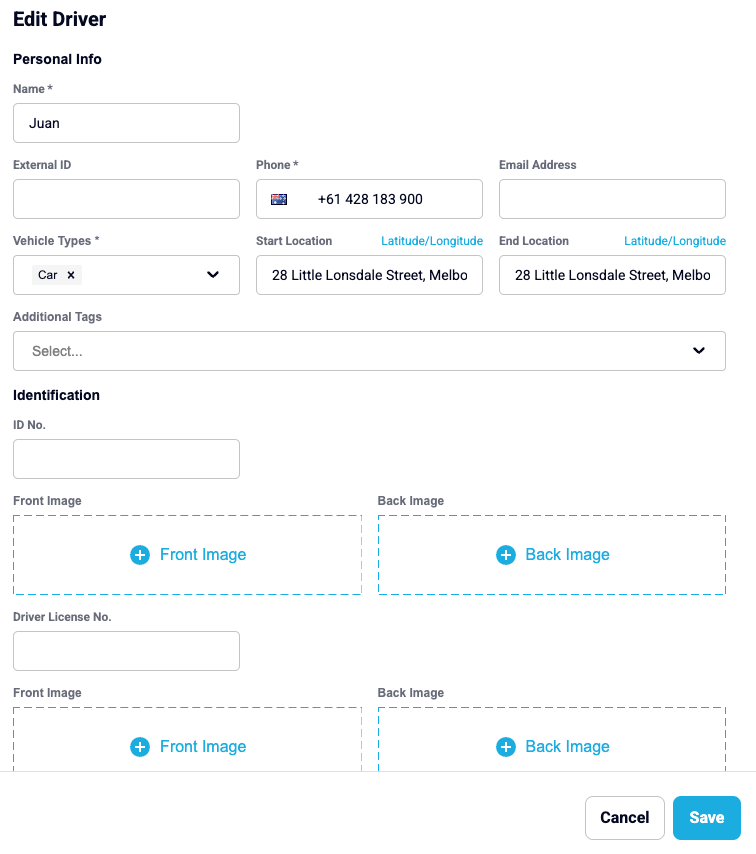
Repeat Step 3 for the **End Location** field, directly below Start Location. This is typically the same depot or yard address, but may differ if the driver finishes their day at a different location.
---
### Step 5 — Save the Driver Profile
Once both locations are set, scroll to the bottom of the driver profile and click **Save**.
The driver's Start and End Locations are now active. Depot legs will be calculated from the next working day onwards.
---
### Tips and Notes
**Using the same address for Start and End Location** Most drivers will start and finish at the same depot. You can enter the same address in both fields.
**Address autocomplete vs. map pin** The address autocomplete is the fastest option for known depot addresses. Use the map pin when you need to pinpoint a specific gate, yard entrance, or location that is not easily found by street address alone.
**Updating an existing location** You can update Start or End Locations at any time by returning to the driver profile and repeating the steps above. Changes take effect from the next day's mileage calculation — historical data is not retroactively updated unless a backfill is requested.
**Driver not appearing in the list?** Use the **Search by name** field at the top of the Driver Management page to locate the driver. If the driver does not appear, they may not have been set up yet — see Adding a New Driver.
- [Quick Start Guides](https://help.yojee.com/knowledge/quick-start-guides?hsLang=en)
- [Power Up with Yojee - Training Sessions](https://help.yojee.com/knowledge/power-up-with-yojee-training-sessions?hsLang=en)
- [Dispatchers](https://help.yojee.com/knowledge/dispatchers?hsLang=en#main-content)
- [Creating Orders](https://help.yojee.com/knowledge/dispatchers?hsLang=en#creating-orders)
- [Managing Orders](https://help.yojee.com/knowledge/dispatchers?hsLang=en#managing-orders)
- [Dispatching Orders](https://help.yojee.com/knowledge/dispatchers?hsLang=en#dispatching-orders)
- [Tracking Orders](https://help.yojee.com/knowledge/dispatchers?hsLang=en#tracking-orders)
- [Partners](https://help.yojee.com/knowledge/dispatchers?hsLang=en#partners)
- [Network](https://help.yojee.com/knowledge/dispatchers?hsLang=en#network)
- [Drivers](https://help.yojee.com/knowledge/drivers?hsLang=en)
- [Senders](https://help.yojee.com/knowledge/senders?hsLang=en)
- [Partners](https://help.yojee.com/knowledge/partners?hsLang=en)
- [Manage](https://help.yojee.com/knowledge/manage?hsLang=en#main-content)
- [Account](https://help.yojee.com/knowledge/manage?hsLang=en#account)
- [Users](https://help.yojee.com/knowledge/manage?hsLang=en#users)
- [Fleet](https://help.yojee.com/knowledge/manage?hsLang=en#fleet)
- [Drivers](https://help.yojee.com/knowledge/manage?hsLang=en#drivers)
- [Addresses](https://help.yojee.com/knowledge/manage?hsLang=en#addresses)
- [Customers](https://help.yojee.com/knowledge/manage?hsLang=en#customers)
- [Orders](https://help.yojee.com/knowledge/manage?hsLang=en#orders)
- [Planning](https://help.yojee.com/knowledge/manage?hsLang=en#planning)
- [Documentation](https://help.yojee.com/knowledge/manage?hsLang=en#documentation)
- [Finance](https://help.yojee.com/knowledge/manage?hsLang=en#finance)
- [Partners](https://help.yojee.com/knowledge/manage?hsLang=en#partners)
- [Analytics](https://help.yojee.com/knowledge/analytics?hsLang=en#main-content)
- [Dashboards](https://help.yojee.com/knowledge/analytics?hsLang=en#dashboards)
- [Reports](https://help.yojee.com/knowledge/analytics?hsLang=en#reports)
- [API Documentation](https://help.yojee.com/knowledge/api-documentation?hsLang=en)
- [FAQ and Glossary](https://help.yojee.com/knowledge/faq-and-glossary?hsLang=en#main-content)
- [Drivers & Planning](https://help.yojee.com/knowledge/faq-and-glossary?hsLang=en#drivers-planning)
- [Glossary](https://help.yojee.com/knowledge/faq-and-glossary?hsLang=en#glossary)
- [Reports](https://help.yojee.com/knowledge/faq-and-glossary?hsLang=en#reports)
- [Other](https://help.yojee.com/knowledge/faq-and-glossary?hsLang=en#other)
- [Release Notes](https://help.yojee.com/knowledge/release-notes?hsLang=en#main-content)
- [Release Notes 2026](https://help.yojee.com/knowledge/release-notes?hsLang=en#release-notes-2026)
- [Release Notes 2025](https://help.yojee.com/knowledge/release-notes?hsLang=en#release-notes-2025)
- [Release Notes 2024](https://help.yojee.com/knowledge/release-notes?hsLang=en#release-notes-2024)
- [Release Notes 2023](https://help.yojee.com/knowledge/release-notes?hsLang=en#release-notes-2023)
- [Release Notes 2022](https://help.yojee.com/knowledge/release-notes?hsLang=en#release-notes-2022)
- [Release Notes 2021](https://help.yojee.com/knowledge/release-notes?hsLang=en#release-notes-2021)
- [Release Notes 2020](https://help.yojee.com/knowledge/release-notes?hsLang=en#release-notes-2020)
- [New Starter Training](https://help.yojee.com/knowledge/new-starter-training?hsLang=en#main-content)
- [Level 1](https://help.yojee.com/knowledge/new-starter-training?hsLang=en#level-1)
[](https://www.yojee.com)
TCMS Knowledge Base
[mailto:support@yojee.com](mailto:support@yojee.com)
Copyright © 2026 Yojee Pte Ltd