---
title: Driver App Map View
description: Learn how to use the Driver App Map View to visualise assigned and broadcast tasks, view stop sequence, expand grouped pins, and execute jobs directly from the map.
---
[Skip to content](https://help.yojee.com/knowledge/driver-app-map-view#main-content)
English
Show submenu for translations

- Knowledge Base
Open main navigation
Close main navigation
- Knowledge Base
- English
Show submenu for translations
- [Go to yojee.com](https://www.yojee.com/)
[Go to yojee.com](https://www.yojee.com/)
Hello. How can we help you?
- There are no suggestions because the search field is empty.
1. [Knowledge Base](https://help.yojee.com/knowledge?hsLang=en)
2. [Drivers](https://help.yojee.com/knowledge/drivers?hsLang=en)
# Driver App Map View
## View assigned and broadcast tasks in sequence, expand grouped stops, and complete jobs without leaving map mode.
### Overview
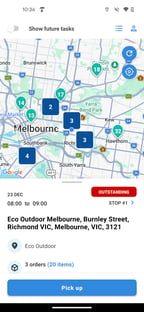
The **Driver App Map View** allows drivers to visualise all tasks for a selected date on a live map.
This feature enables drivers to:
- View all assigned stops in sequence
- See their current location
- Differentiate pickups and dropoffs
- Expand grouped stops at identical locations
- Execute tasks directly from map mode
- View and self-assign broadcast jobs
Map View modernises task navigation and improves route awareness compared to list-only mode.
---
#### How to Access Map View
1. Open the **Driver App**
2. Tap the **Map icon** in the top right corner
The view will switch from List Mode to Map Mode.
Drivers can toggle between:
- **List View**
- **Map View**
at any time.
---
### What You See in Map View
### Current Location
Your live GPS position is shown on the map.
### Assigned Tasks
All assigned stops for the selected date are displayed as map pins.
Pins display the task sequence number.
### Pickup vs Dropoff
Pickups and dropoffs are visually differentiated using standard Driver App indicators.
This allows drivers to quickly understand task type before selecting a stop.
---
### Viewing Stop Sequence
Each pin displays its stop number in the planned sequence.
This helps drivers:
- Visualise route order
- Identify upcoming stops
- Plan adjustments if required
---
### Grouped Pins (Multiple Tasks at Same Location)
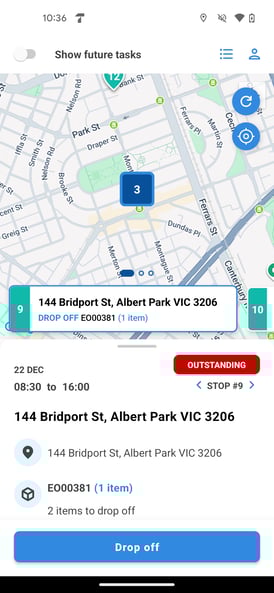
When multiple tasks share identical coordinates, they are grouped into a single pin.
### How Grouped Pins Work
If multiple tasks exist at one location:
- A single grouped pin icon is displayed
- The pin indicates multiple tasks at that address
### On Tap Behaviour
When the grouped pin is tapped:
An expanded view displays:
- Scroll carousel of the tasks
- Pickup/Dropoff indicator
- Address
- Item count
---
### Task Execution from Map View
Drivers can execute tasks directly from the map.
After selecting a pin:
The **More Info Card** opens, allowing the driver to:
- Start task/Complete task
- Navigate
- Upload photos
- Report issues
- View task details
This ensures full task execution capability without needing to return to List View.
---
### Map Controls
Drivers can:
- Zoom in / out
- Pan across the map
- Refresh task data
- Centre map on current location
- Switch between dates (where applicable)
- Apply filters
---
### Benefits of Map View
### Improved Route Awareness
Drivers can see their full day visually.
### Faster Task Selection
Selecting stops directly from the map reduces scrolling.
### Better Multi-Stop Management
Grouped pins prevent map clutter and improve clarity.
### Operational Efficiency
Broadcast job visibility supports faster self-assignment.
---
### Key Takeaways
- Access Map View via the top-right map icon
- View all assigned stops in sequence
- Grouped pins appear when multiple tasks share coordinates
- Tap grouped pins to expand location task list
- Execute tasks directly from map mode
- [Quick Start Guides](https://help.yojee.com/knowledge/quick-start-guides?hsLang=en)
- [Power Up with Yojee - Training Sessions](https://help.yojee.com/knowledge/power-up-with-yojee-training-sessions?hsLang=en)
- [Dispatchers](https://help.yojee.com/knowledge/dispatchers?hsLang=en#main-content)
- [Creating Orders](https://help.yojee.com/knowledge/dispatchers?hsLang=en#creating-orders)
- [Managing Orders](https://help.yojee.com/knowledge/dispatchers?hsLang=en#managing-orders)
- [Dispatching Orders](https://help.yojee.com/knowledge/dispatchers?hsLang=en#dispatching-orders)
- [Tracking Orders](https://help.yojee.com/knowledge/dispatchers?hsLang=en#tracking-orders)
- [Partners](https://help.yojee.com/knowledge/dispatchers?hsLang=en#partners)
- [Network](https://help.yojee.com/knowledge/dispatchers?hsLang=en#network)
- [Drivers](https://help.yojee.com/knowledge/drivers?hsLang=en)
- [Senders](https://help.yojee.com/knowledge/senders?hsLang=en)
- [Partners](https://help.yojee.com/knowledge/partners?hsLang=en)
- [Manage](https://help.yojee.com/knowledge/manage?hsLang=en#main-content)
- [Account](https://help.yojee.com/knowledge/manage?hsLang=en#account)
- [Users](https://help.yojee.com/knowledge/manage?hsLang=en#users)
- [Fleet](https://help.yojee.com/knowledge/manage?hsLang=en#fleet)
- [Drivers](https://help.yojee.com/knowledge/manage?hsLang=en#drivers)
- [Addresses](https://help.yojee.com/knowledge/manage?hsLang=en#addresses)
- [Customers](https://help.yojee.com/knowledge/manage?hsLang=en#customers)
- [Orders](https://help.yojee.com/knowledge/manage?hsLang=en#orders)
- [Planning](https://help.yojee.com/knowledge/manage?hsLang=en#planning)
- [Documentation](https://help.yojee.com/knowledge/manage?hsLang=en#documentation)
- [Finance](https://help.yojee.com/knowledge/manage?hsLang=en#finance)
- [Partners](https://help.yojee.com/knowledge/manage?hsLang=en#partners)
- [Analytics](https://help.yojee.com/knowledge/analytics?hsLang=en#main-content)
- [Dashboards](https://help.yojee.com/knowledge/analytics?hsLang=en#dashboards)
- [Reports](https://help.yojee.com/knowledge/analytics?hsLang=en#reports)
- [API Documentation](https://help.yojee.com/knowledge/api-documentation?hsLang=en)
- [FAQ and Glossary](https://help.yojee.com/knowledge/faq-and-glossary?hsLang=en#main-content)
- [Drivers & Planning](https://help.yojee.com/knowledge/faq-and-glossary?hsLang=en#drivers-planning)
- [Glossary](https://help.yojee.com/knowledge/faq-and-glossary?hsLang=en#glossary)
- [Reports](https://help.yojee.com/knowledge/faq-and-glossary?hsLang=en#reports)
- [Other](https://help.yojee.com/knowledge/faq-and-glossary?hsLang=en#other)
- [Release Notes](https://help.yojee.com/knowledge/release-notes?hsLang=en#main-content)
- [Release Notes 2026](https://help.yojee.com/knowledge/release-notes?hsLang=en#release-notes-2026)
- [Release Notes 2025](https://help.yojee.com/knowledge/release-notes?hsLang=en#release-notes-2025)
- [Release Notes 2024](https://help.yojee.com/knowledge/release-notes?hsLang=en#release-notes-2024)
- [Release Notes 2023](https://help.yojee.com/knowledge/release-notes?hsLang=en#release-notes-2023)
- [Release Notes 2022](https://help.yojee.com/knowledge/release-notes?hsLang=en#release-notes-2022)
- [Release Notes 2021](https://help.yojee.com/knowledge/release-notes?hsLang=en#release-notes-2021)
- [Release Notes 2020](https://help.yojee.com/knowledge/release-notes?hsLang=en#release-notes-2020)
- [New Starter Training](https://help.yojee.com/knowledge/new-starter-training?hsLang=en#main-content)
- [Level 1](https://help.yojee.com/knowledge/new-starter-training?hsLang=en#level-1)
[](https://www.yojee.com)
TCMS Knowledge Base
[mailto:support@yojee.com](mailto:support@yojee.com)
Copyright © 2026 Yojee Pte Ltd